Applying a retainer to an invoice
Written By Timothy Murenzi
Overview
Spend a funded retainer by recording it as a payment on a regular invoice in the same project.
Before you start
The invoice must belong to a project.
A retainer on that project must have received money.
Steps
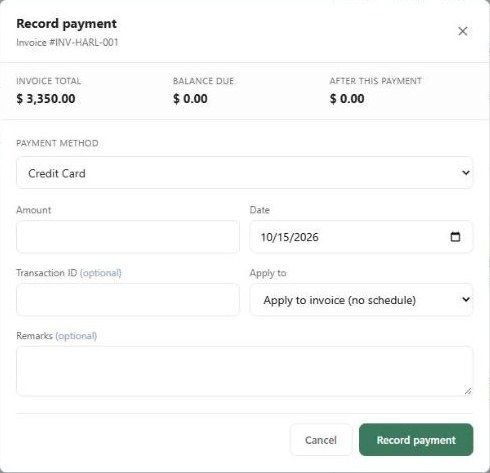
Hover the invoice row and click + → Record a payment (or Payments tab → Record payment).
Set Payment method to Apply Retainer.
Choose the pool to draw from (Products, Services or General) and enter the amount — up to the available balance and the invoice's balance due.
Click Record payment.
What happens next?
The invoice balance drops like any other payment.
The retainer's Disbursed goes up and Balance goes down.
The draw appears in the project's Disbursement activity.
Important limitations
You can't draw more than was actually received.
Drawing a Products retainer for services (or the reverse) is allowed but flagged as cross-pool. General retainers are never cross-pool.
Related articles
Retainers
Applying a payment (funding the retainer)
Was this helpful?
Still need help? Ask the team