Applying a payment (funding the retainer)
Written By Timothy Murenzi
Last updated About 2 hours ago
You fund a retainer by recording payment on its backing invoice. There are two ways the money can come in:
A. You record the payment yourself (manual)
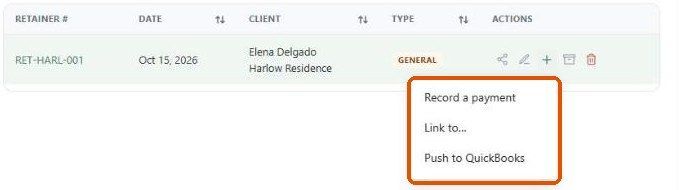
On the Finances → Retainers studio list, find the retainer row and choose Record payment from its actions.
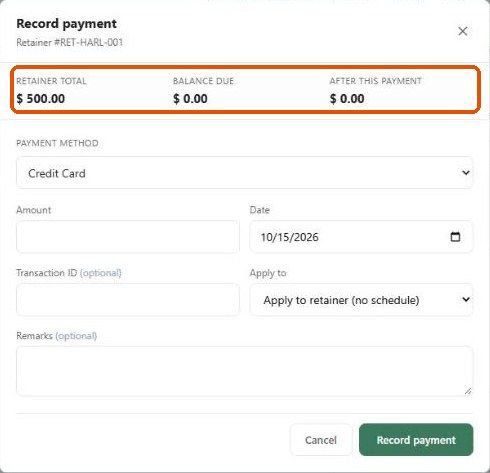
The Record Payment modal opens showing the Retainer total, Balance due, and After this payment.
Pick a payment method — Credit Card, Debit Card, Bank Transfer, Cash, Other, or Apply Credit (an existing client credit on account).
Enter the amount and save.
Note: "Apply Retainer" is intentionally not offered here — you can't pay a retainer with another retainer.
B. The client pays online Use View as client on the retainer to generate a shareable link (/invoice/…) and send it to the client. Because the retainer is backed by a normal invoice, the client can pay online by card via your connected processor (Stripe / WorkPay). Contract-generated retainers link the client straight into that online "Pay Now" flow.
What happens when funds land
The moment any payment posts (even a partial one), Workroom stamps the retainer as received and begins tracking the funded balance.
Status flow: while unpaid the retainer reads Draft → Sent → Unpaid → Paid; once funds are in it moves through Open → Partially Disbursed → Fully Disbursed → Closed as you apply it.
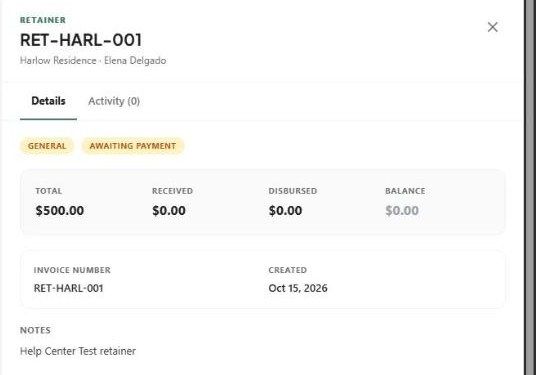
The retainer detail panel shows four figures: Total (requested), Received (actually paid in), Disbursed (spent), and Balance (Received − Disbursed). Partial funding is tracked accurately — you can only ever draw against what was actually received.
You fund a retainer by getting its invoice paid. There are two ways to do that.
Option A — Record the payment yourself
On the Finances → Retainers list, find the retainer and choose Record payment.
The Record Payment window shows the retainer total, the balance due, and the balance after this payment.
Choose how it was paid — Credit Card, Debit Card, Bank Transfer, Cash, Other, or Apply Credit (an existing credit the client has on account).
Enter the amount and save.
Option B — Let the client pay online
On the retainer, choose View as client to get a secure link.
Send that link to your client. They can pay the retainer online by card.
What happens when the money arrives
As soon as any payment comes in — even a partial one — the retainer is marked as received and starts tracking a live balance.
Each retainer shows four figures: Total (what you requested), Received (what's actually been paid), Disbursed (how much you've applied to invoices), and Balance (what's left to use).
A retainer moves from Open (funded, nothing applied yet) to Partially Disbursed, Fully Disbursed, and finally Closed as you use it up.