🎉 Introducing... Spec Sets. 🥳
Everything that has reached Workroom since the October 13 update.
Watch a demo of our new Spec Sets below!
Well hello friend. Welcome Spec Sets.
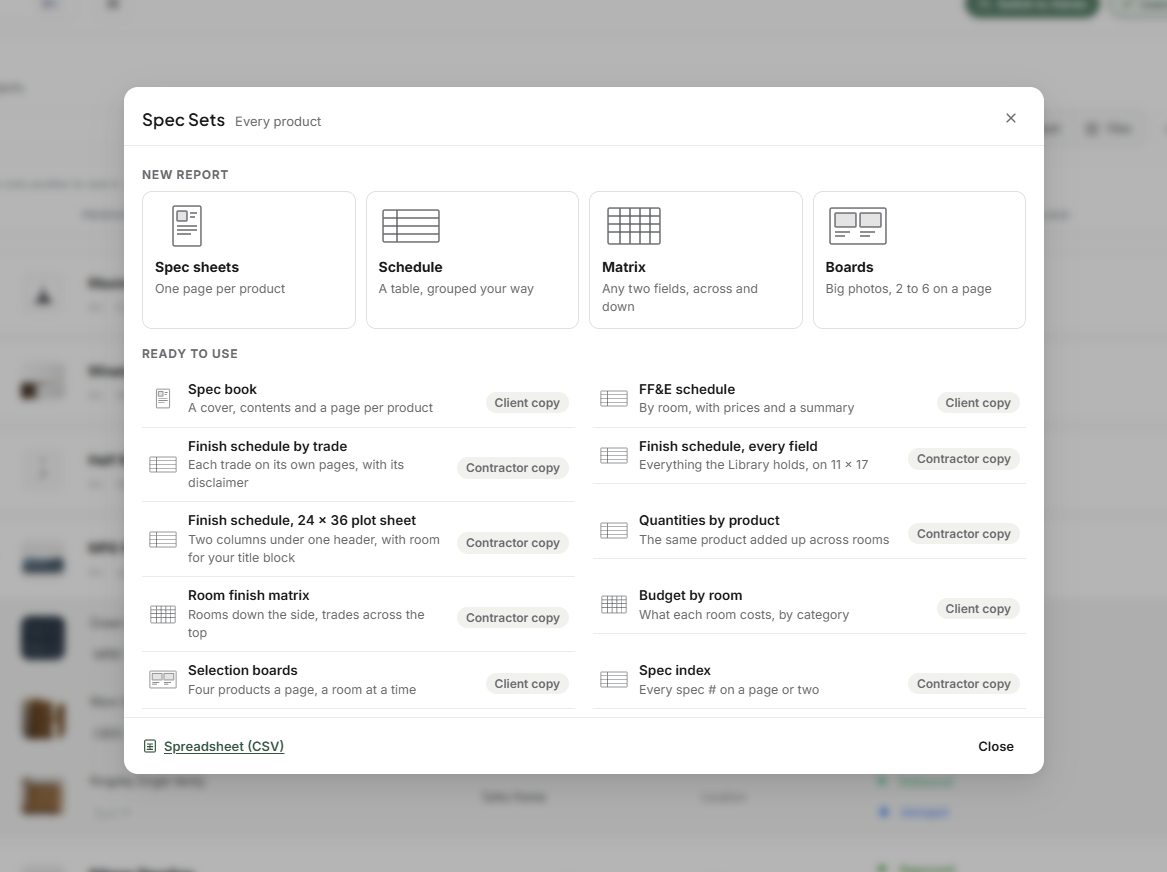
Spec Sets (Library)
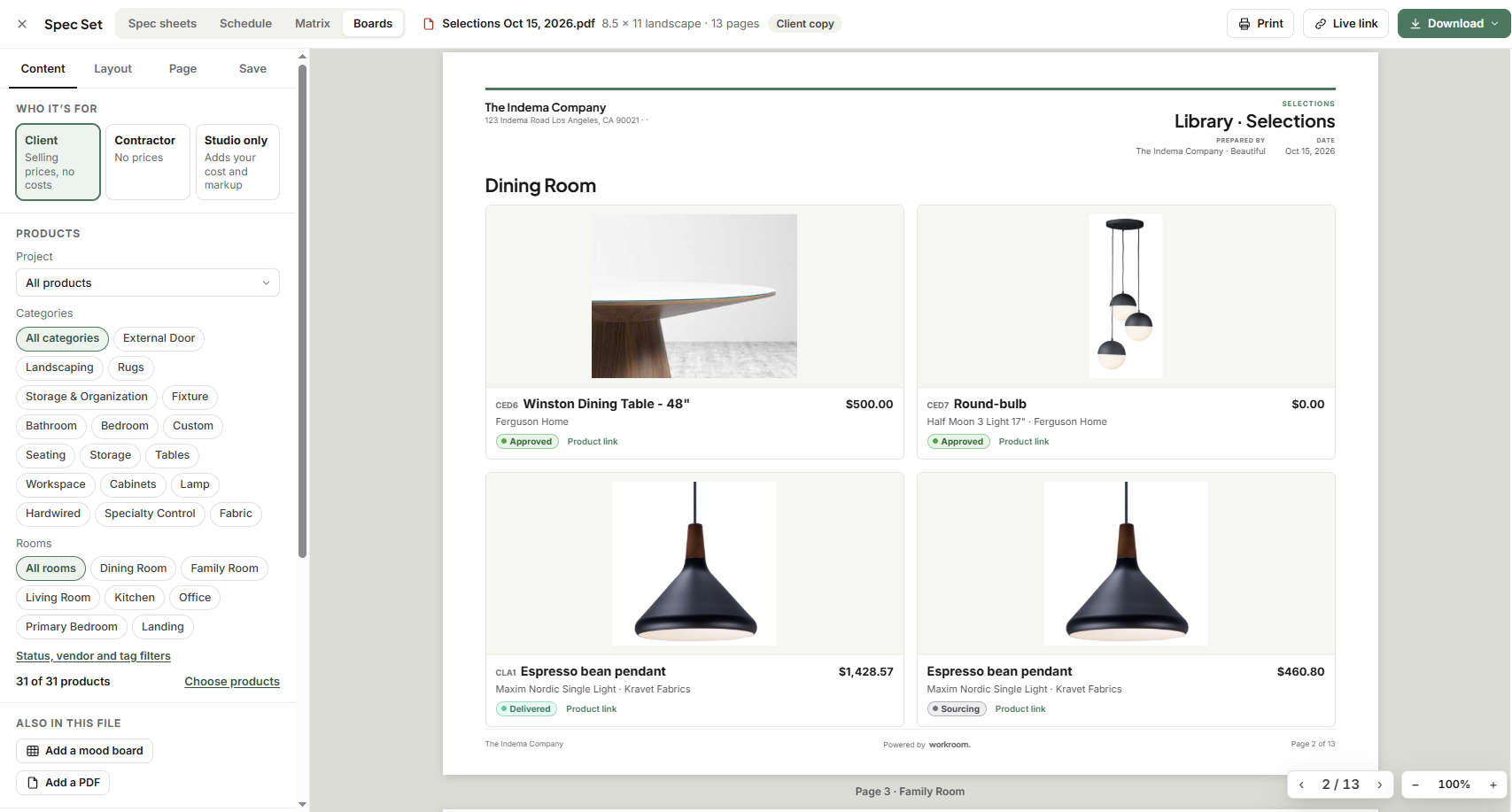
One Spec Sets window for spec sheets, schedules, room finish matrices and selection boards, opened from the Library.
Ready-made layouts to start from (spec book, FF&E schedule, finish schedule by trade, budget by room and more), plus your own layouts saved and reused.
Real PDFs, with sharp, selectable text and links that work. Also available as Word and spreadsheet files.
Add mood boards, PDFs from the project's Documents, product attachments and your own cover to a Spec Set.
Project schedules: save a schedule to a project, then post new versions to your Comms rooms. Each version shows what changed since the last one, and you can share a live link that always shows the latest version.
Update schedules: when products change, refresh every schedule for that project from the Library in one go.
Add to documents: file the PDF in the project's Documents, in a folder named Spec sheet, Schedule, Matrix or Boards.
Add as product attachment: a spec sheet for a single product can be attached straight to that product.
Client portal settings
A Client portal tab on every project. Choose who has access and which sections each person sees.
Preview portal: see exactly what a new client will see, before you invite anyone.
Clients see when you've written to them, with message counts, dots on their chats and a sound.
Automations: approval step
A new Check step pauses an automation until someone approves it. They get an "Automation Needs Approval" task that says what it's about, with Approve and Not approve.
Not approve stops the automation there. Approving later, even days later, lets it carry on.
Scheduled jobs (Settings › Assistant)
Optional jobs that post into a team Comms room:
a weekday brief;
a weekly check of purchase orders against the Library;
a weekly install-readiness check.
Reinstate archived contacts
Archived contacts, vendors and contractors now have a Reinstate button in the Archived view, which puts them back in your main list.
Improved
Estimates and invoices
Totals now count sub-items correctly, so margins, client subtotals and PDFs agree with each other.
When a client approves only some items, they're charged only for what they approved.
Markup and the internal memo are hidden from clients by default. They appear only if you turn them on, in the client view and in PDF exports.
New estimate and invoice numbers follow your numbering settings, and the settings preview shows exactly what the next number will look like.
Invoices made from Ready to invoice carry the project code (INV-CODE-001).
Editing an estimate is titled "Edit Estimate".
The estimate editor opens faster.
Client portal
Home always opens on a project, and Overview is its own page.
Notifications and the side rail name the project they're about.
Invoices and estimates open in the side panel.
Form responses you choose to share show on the Overview, and the contract there opens when clicked.
Rooms and phases from the project's settings show on the portal.
Product names, photos and client prices show correctly, and archived products stay out of view.
Library
Bulk edit offers your own statuses, rooms and vendors.
Purchase orders fill Sidemark and your other Library fields from the product.
Products clipped from the web land in the right fields.
Inside a project, room choices come from that project's own rooms.
Budget: Allocated amounts in budget categories show as money ($54,361), like the columns next to them.
Apps and sidebar: Calendar, Leads, Quotes, Automations, Ready to Invoice, Forms and Asana are back on the Apps page, and switching one on shows it in the sidebar.
Confirmations: actions that create something, like Create POs, Reinstate or Add as sub-item, now use a green confirm box instead of the red delete-style box.
Fixed
Client portal
Clients no longer see "That isn't available from your account" popping up again and again.
A client with more than one contact record keeps a single login, so every project you share with them shows up.
Hidden invoices stay hidden everywhere in the portal, including Waiting for you.
A client's message always lands where your team can read it.
Changes to a person's own portal sections save.
Invoices and payments
A paid invoice opens in the editor with all its lines, including invoices made from Ready to invoice.
Payments can be recorded on a new retainer; it no longer shows $0 due.
Invoice numbers never pick up a retainer's prefix.
Push to invoice and the expense picker on invoices work as expected.
A card processing fee is added only when WorkPay is connected and the document passes the fee on.
The send dialog points to the right place for email templates (Settings › Studio › Outbound email).
Contacts and team
Contact edits save every field, and a failed save tells you why.
Renaming a team member updates their name everywhere, Tasks › Workload included.
Product changelog entries show the right person's name, once.
Calendar: contacts added as guests show in the event's guest list.
Timelogs
Time on a paid invoice shows as Paid.
The edit window shows the same phase as the list.
Contracts: an attached PDF opens for clients signing on their phone, older iPhones included.
Library: sub-items show again under their products.
Tasks: a project you add shows up right away, with its name.