Timing: delays and "wait for another event"
Written By Timothy Murenzi
Timing steps turn a simple alert into a thoughtful follow-up sequence. Add them with + Add step → Timing.
Wait / delay
Pauses for a set number of minutes, hours or days, then carries on.
Example: Contract signed → wait 1 day → send a "here's what happens next" welcome email.
Wait for another event
Pauses and watches for a second event within a time limit. Set it up in the Node Configuration panel:
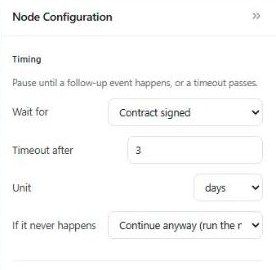
Wait for — the event you're expecting (e.g. Contract signed).
Timeout after and Unit — how long to wait (e.g. 3 days).
If it never happens — Continue anyway (run the remaining steps — perfect for reminders) or Stop (end quietly).
The classic reminder pattern
Contract sent → wait for Contract signed (3 days, continue anyway) → send "Just a friendly reminder to sign."
If the client signs within three days, the automation stops and no reminder goes out. If not, the reminder sends automatically — a polite chase that never bothers people who already acted. The built-in Unsigned contract reminder template is set up exactly like this.
Other good uses:
Estimate viewed → wait for Estimate approved (5 days) → nudge.
Invoice created → wait for Invoice paid (7 days) → payment reminder.
Timing is close, not to-the-second. Workroom checks for due work about once a minute, so a "wait 3 days" step fires very close to the three-day mark.
Was this helpful?
Still need help? Ask the team