The Utilization view (capacity planning)
Written By Timothy Murenzi
The Workload view (previously Utilization) shows everyone's planned hours over time, so you can see who's over-booked and who has room.
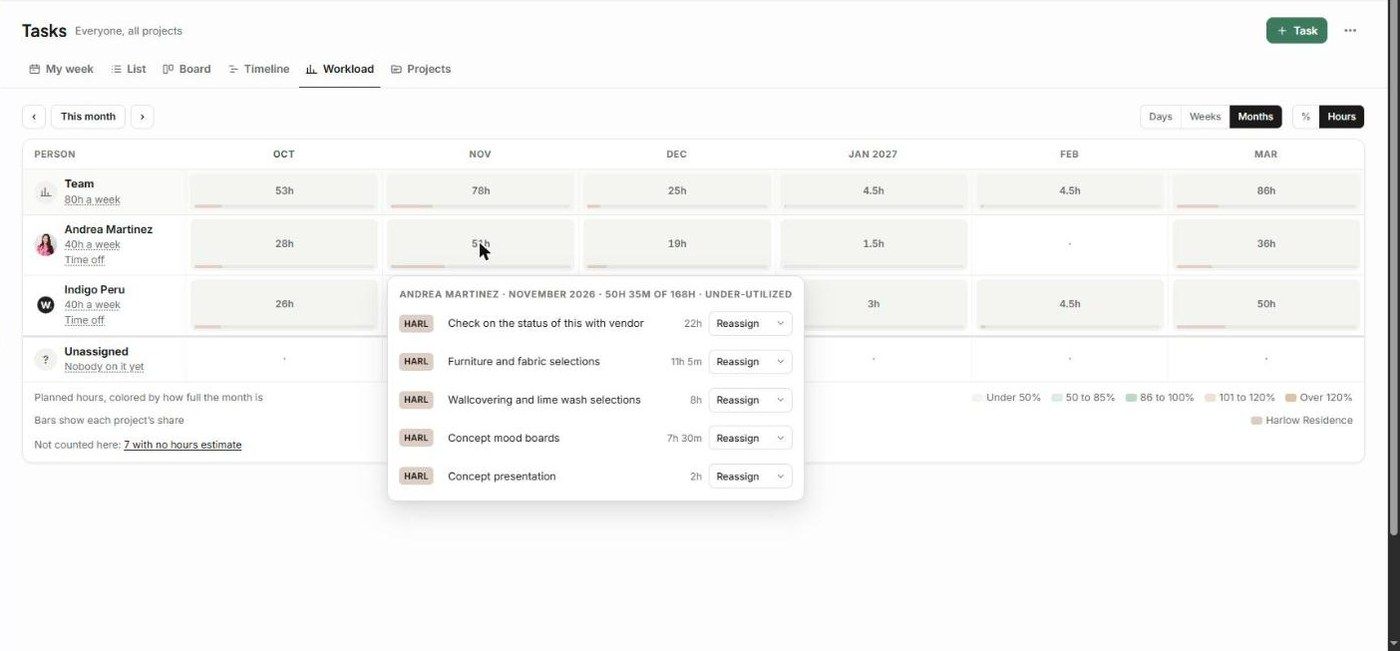
Reading it
People are down the side, with their weekly capacity (e.g. 40h a week) and a Time off link. A Team row totals everyone, and Unassigned shows work nobody is on yet.
Periods run across the top. Switch between Days, Weeks and Months, and between % and Hours. Use the arrows and This month to move through time.
Each cell shows planned hours, coloured by how full the period is: under 50%, 50–85%, 86–100%, 101–120%, or over 120%. A bar shows each project's share.
Not counted here links to tasks with no hours estimate. Add estimates so the numbers are complete.
Rebalance work
Click a cell, e.g. a person's November.
The popover shows their tasks in that period with hours, and a status like 50h 35m of 168h · under-utilized.
Use Reassign beside a task to give it to someone else. Both people's totals update.
Capacity and time off
Click a person's capacity (e.g. 40h a week) to change it.
Click Time off to record leave, so it's taken off their capacity. You can also add time off from My week.
Related articles
The Portfolio / Forecast view (Projects)
Getting started with Work In Progress
Was this helpful?
Still need help? Ask the team