About Product Sourcing
This article showcases everything you need to know about sourcing products within indema.
Written By Julia M.
Overview
Add products by hand, from room placeholders, by copying from your library, by importing a spreadsheet, or with the Workroom web clipper in Chrome.
Add a product in Workroom
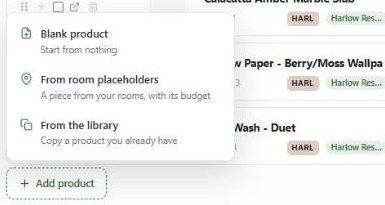
In Library, choose the project, then click + Add product at the bottom of the list.
Choose Blank product (start from nothing), From room placeholders (a piece from your rooms, with its budget) or From the library (copy a product you already have).
Fill in the details in the expanded row or the product drawer.
Show placeholders at the top of the Library displays room placeholders alongside products.
Clip from a vendor website
The clipper is a Chrome extension. Open a vendor's product page, open the clipper, check the captured details and save — the product appears in your Library. See Installing the Workroom clipper and Navigating the web clipper.
Change a clipped image
Delete an image with the bin icon at its bottom right, then use the screenshot tool at the top right of the clipper to capture a replacement.
Best practices
Check price and specs after clipping.
Assign location (room) and category early.
Related articles
Importing Products
Installing the Workroom clipper
Was this helpful?
Still need help? Ask the team