How to manage and filter your timelogs
How to search, filter, edit, and bulk update time entries
Written By Julia M.
Overview
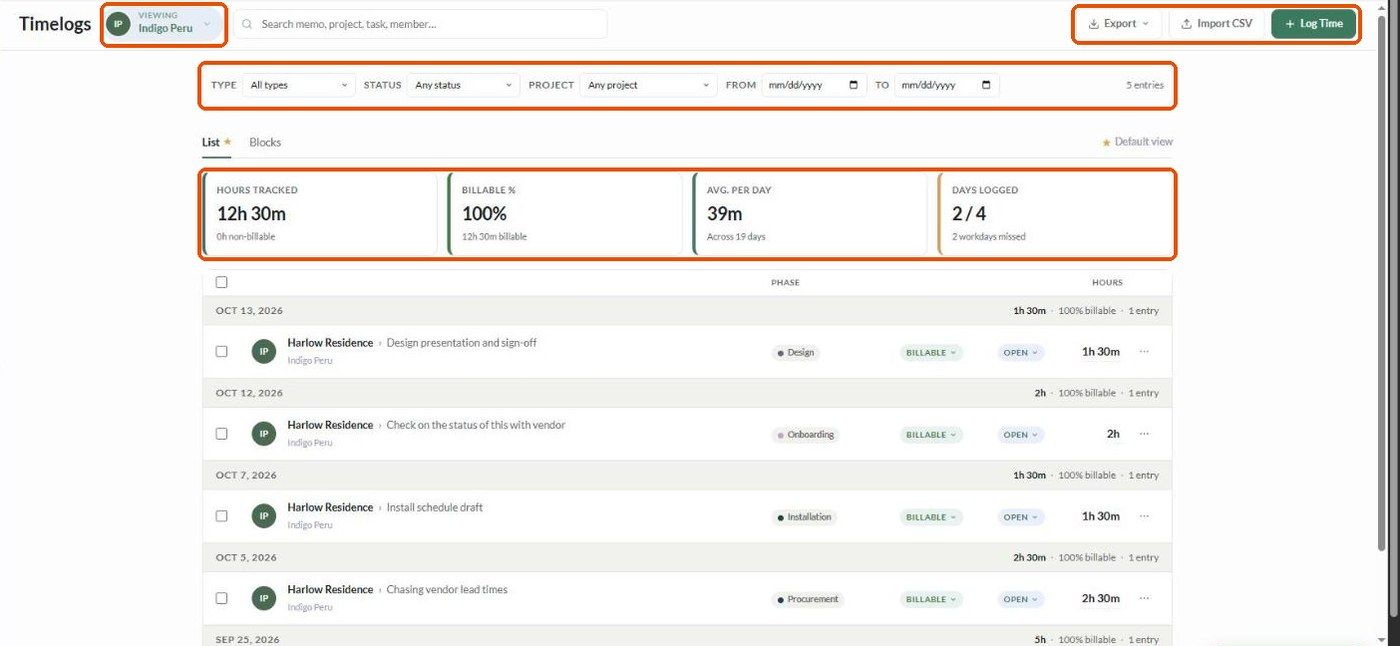
The Timelogs page (left sidebar) shows tracked time with filters, totals and two views. Each project also has a Time tab with the same tools.
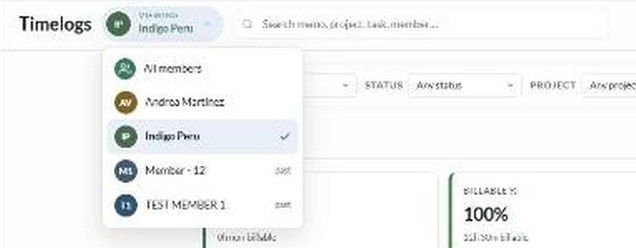
Choose whose time you see
The Viewing selector at the top defaults to you. Switch to All members or a specific person.
Search and filter
Search memo, project, task or member.
Type: All types, Billable, Non-billable.
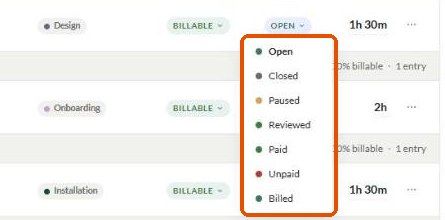
Status: Open, Closed, Paused, Reviewed, Paid, Unpaid, Billed.
Project: Any project, Unassigned, or a specific project.
From / To dates. The entry count shows on the right.
KPI tiles
Hours tracked (with non-billable hours underneath).
Billable %.
Avg. per day across the period.
Days logged this week, with workdays missed.
List and Blocks views
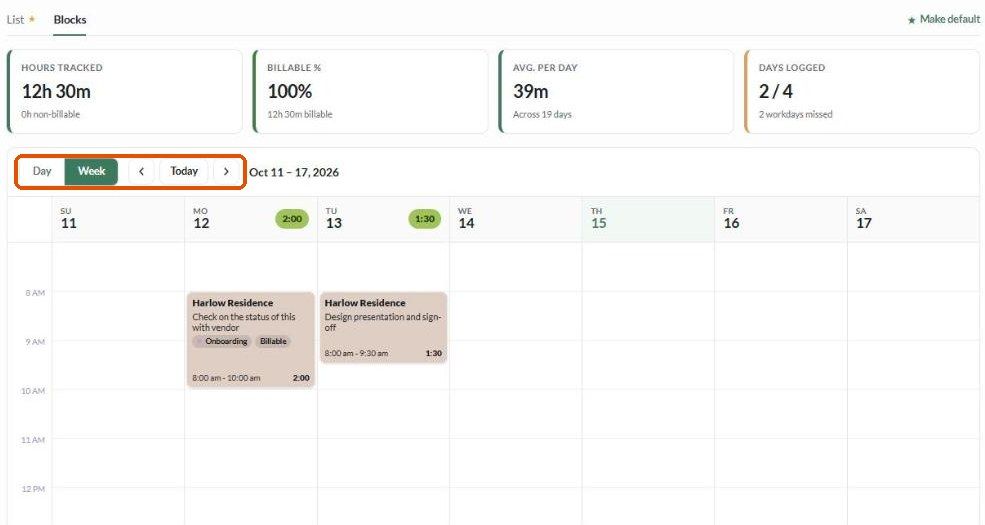
List groups entries by date with phase, billable, status and hours. Blocks shows a Day or Week calendar of entries. Click Make default to open your preferred view each time.
Change one entry
Click the billable or status pill to change it in place.
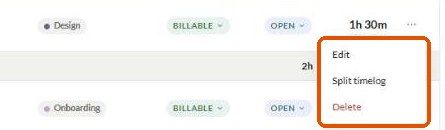
Click ⋯ for Edit, Split timelog and Delete.
Split an entry across projects
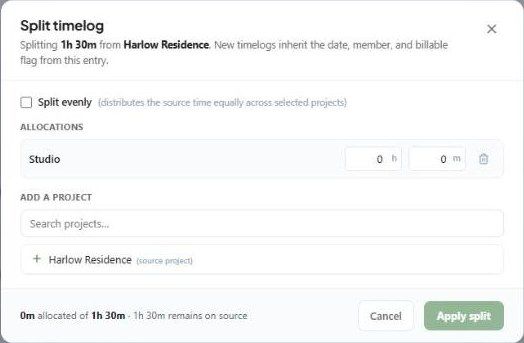
Split timelog moves part of an entry to other projects. Add projects, enter hours and minutes for each (or tick Split evenly), and click Apply split. New entries inherit the date, member and billable flag; the footer shows how much remains on the source.
Change many entries
Tick entries (or the header box). The toolbar offers Delete, Recently Imported, Set status and Set billable.

Export
Export → CSV (.csv) or Excel (.xlsx).
Important limitations
Deleting an entry is permanent.
Related articles
Tracking Time
How to import timelogs
Billable vs. non-billable time
Was this helpful?
Still need help? Ask the team