Multi-page forms + conditional logic
Written By Timothy Murenzi
Pages
Long forms feel shorter when split into pages. The responder sees one page at a time with a progress indicator.
In the builder, click + Page above the canvas. A new page tab appears (Page 1, Page 2…).
Click a page tab to switch to it, then add fields — they go on the page you're viewing.
With a page selected, use Page title in the right panel to name it; the title shows above the page's fields and in the progress indicator.
To remove a page, open it and click Delete this page, then type Delete to confirm.

Conditional logic
Show a field only when an earlier answer matches — for example, ask "What's the address?" only if someone chose "Renovation".
Click the field you want to show or hide.
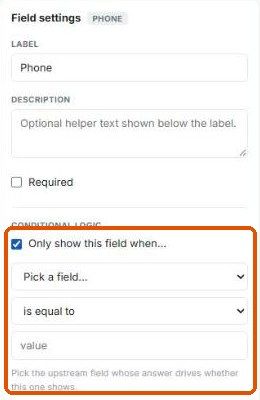
Under Conditional logic, tick Only show this field when…
In Pick a field…, choose the earlier question whose answer decides it.
Choose a comparison: is equal to, is not equal to, contains, is filled in or is empty.
Type the value to compare against (not needed for is filled in / is empty).
Hidden fields are skipped by the Required check, so responders can move past a branch that doesn't apply to them. Untick the box to remove the condition.
Was this helpful?
Still need help? Ask the team