How to Split Time Logs
Written By Timothy Murenzi
Overview
Split timelog moves part (or all) of a time entry onto other projects — for example when a site visit covered two clients.
Before you start
You need permission to edit the entry. The new entries inherit the original's date, member and billable setting.
Steps
Go to Timelogs (or a project's Time tab).
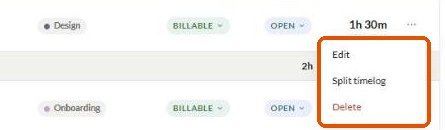
Click ⋯ on the entry and choose Split timelog.
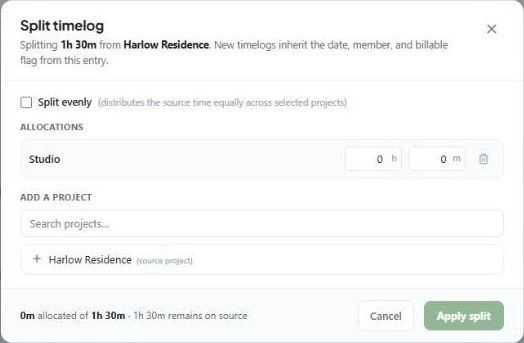
Under Add a project, search for and click each project to move time to. The source project is marked (source project).
Under Allocations, enter hours and minutes for each project — or tick Split evenly to divide the time equally across the selected projects.
Check the footer: Xm allocated of Yh · Zh remains on source.
Click Apply split.
What happens next?
A new entry is created on each project you allocated time to.
The original entry keeps whatever time remains.
Important limitations
You can't allocate more than the original entry's time.
To undo, edit or delete the new entries and restore the original's hours.
Related articles
How to manage and filter your timelogs
Tracking Time
Was this helpful?
Still need help? Ask the team