Understanding Project Statuses
Learn how project statuses help track operational progress inside the Projects module.
Written By Julia M.
Overview
A project's status shows where it sits in your workflow. Use statuses to group and filter projects, and to spot ones that have stalled.
Default statuses
Draft
Proposal
Planning
In Progress
On Hold
Complete
Customise them
Go to Settings → Studio → Library and statuses → Statuses.
Under Project statuses, rename a status, change its colour, or remove it with ×.
Click + Add status to add one. Drag the handle to reorder — that's the order they appear across the app.
Click Save changes.
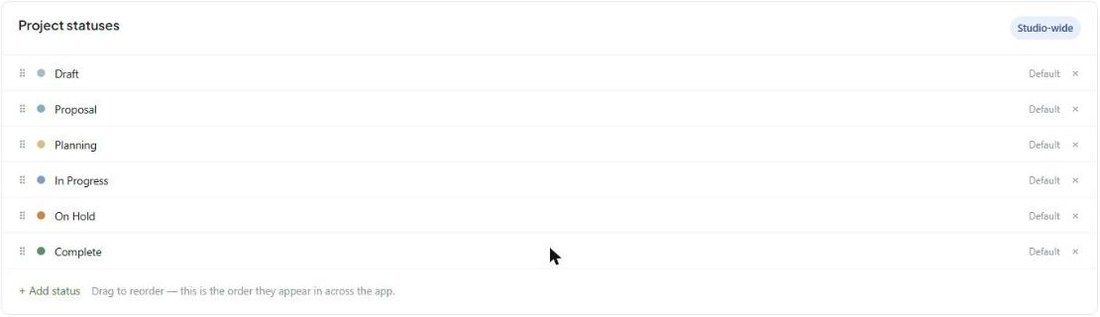
The same page manages task, product, estimate, invoice and purchase order statuses.
See projects by status
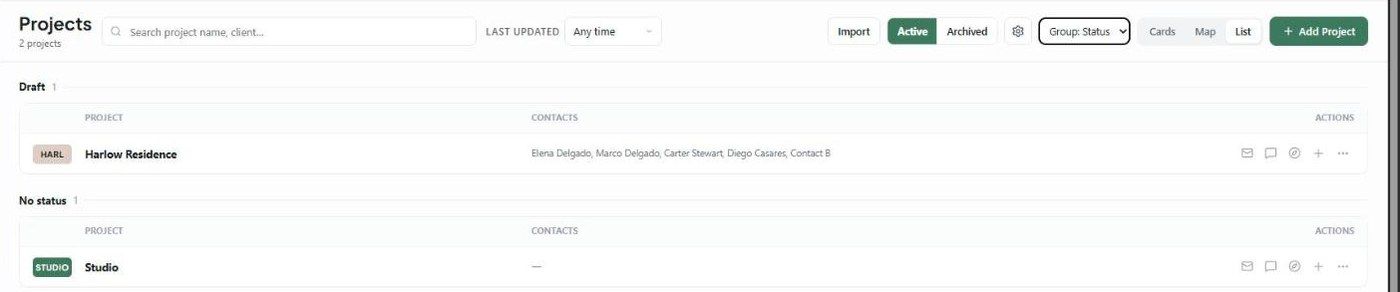
On All Projects, choose Group: Status. Projects without a status appear under No status. To show the status on each card, open the gear and tick Status pill.
Best practices
Agree what each status means as a studio.
Keep the list short — too many statuses blur the picture.
Update the status whenever the project moves on.
Related articles
Understanding the Projects Module
Creating a Project
Was this helpful?
Still need help? Ask the team