How to Write a Support Request That Gets Solved Faster
Written By Timothy Murenzi
When something isn't working, the fastest way to get it fixed is to tell us exactly what happened, in plain language. You don't need to work out the cause — just describe what you did and what went wrong.
Where to send it
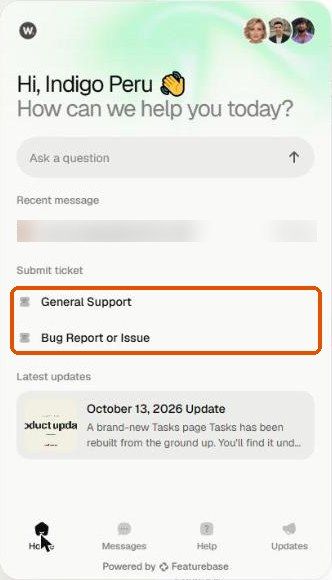
Click Get Support at the top of the left sidebar. Under Submit ticket, choose:
General Support — questions and how-tos.
Bug Report or Issue — something isn't working. See Reporting A Bug.
You can also Ask a question in the chat.
The one thing to remember
Describe what happened, not what you think caused it. Like telling a doctor "my knee hurts when I climb stairs" rather than "I think I tore a ligament" — give us the symptom and we'll handle the diagnosis.
The four things every request needs
What you were trying to do — e.g. "I was trying to send an invoice to a client."
What you did, step by step — e.g. "I opened the project, clicked Estimates, then New Estimate."
What you expected — e.g. "I expected the estimate to save and appear in the list."
What actually happened, including the exact wording of any error.
A template you can copy
What I was trying to do:
Steps I took: 1. … 2. … 3. …
What I expected to happen:
What actually happened:
Error message (exact words):
Extra details that speed things up
A screenshot or recording — the whole window is more useful than a tight crop. You can attach it straight to the ticket.
The specific record — project name, invoice or estimate number, PO, contact or timelog.
When it happened — "around 2pm today" helps us check logs.
Whether it happens every time, and the exact steps that trigger it.
Your device and browser — e.g. "Chrome on my laptop."
Common mistakes
Over-explaining the backstory. Lead with the problem.
Guessing the cause. A wrong guess sends us looking in the wrong place.
Being vague. "It's broken" doesn't tell us which part or what you saw.
Bundling issues. Three problems? Send three tickets.
Leaving out the error message. Copy it word for word, or screenshot it.
Example
Not helpful: "The invoices section is completely broken and I can't do my job. Please fix ASAP."
Helpful: "I was trying to send invoice #1042. I opened it and clicked Send. I expected an email to go out, but got a red error: 'Recipient email is missing.' The client's email is filled in on their contact. Screenshot attached. It happens every time with this invoice. Chrome on my laptop."
Checklist before you send
What I was trying to do
The steps I took
Expected vs. actual result
The exact error, or a screenshot
The specific record
It doesn't have to be perfect. When in doubt, keep it simple and tell us what happened.
Was this helpful?
Still need help? Ask the team