How to BCC or CC email notifications
Written By Timothy Murenzi
You can automatically CC or BCC addresses on the emails Workroom sends — for example, a bookkeeper on every invoice, or your own inbox on every PO.
Set it up
Go to Settings → Studio → Outbound email.
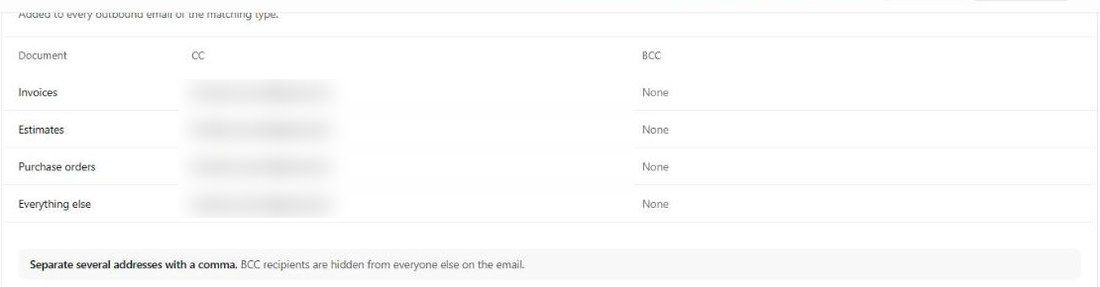
Scroll to Always copy ("Added to every outbound email of the matching type").
For each document type — Invoices, Estimates, Purchase orders and Everything else — enter addresses in the CC and/or BCC column.
Separate several addresses with a comma.
Click Save changes.
CC or BCC?
CC — the recipient sees who else was copied.
BCC — hidden from everyone else on the email. Use it to keep a quiet copy for your records.
Tips
BCC your accounts inbox on invoices for a paper trail.
Use Everything else for contracts, follow-ups and other studio emails.
Replies always go to the From email in Sender identity — see Setting up email.
Was this helpful?
Still need help? Ask the team