Creating Task Templates
Written By Timothy Murenzi
Task templates let you build a task once and reuse it on every project, so you never retype the same checklist.
Where templates live
Settings → Studio → Projects and phases → Task templates. Templates belong to a Project type (e.g. Residential) and a phase. Each row shows its phase, with Edit, Duplicate and ×.
Create a template
From Settings: pick the project type and click + Add task. The full task editor opens — name, description, phase, type, labels, checklist (subtasks), attachments, dates/duration, hours, room and client visibility.
From a real task: open the task, click ⋯ → Save as a template. This is the fastest way — perfect one task, then save it.
Use templates on a project
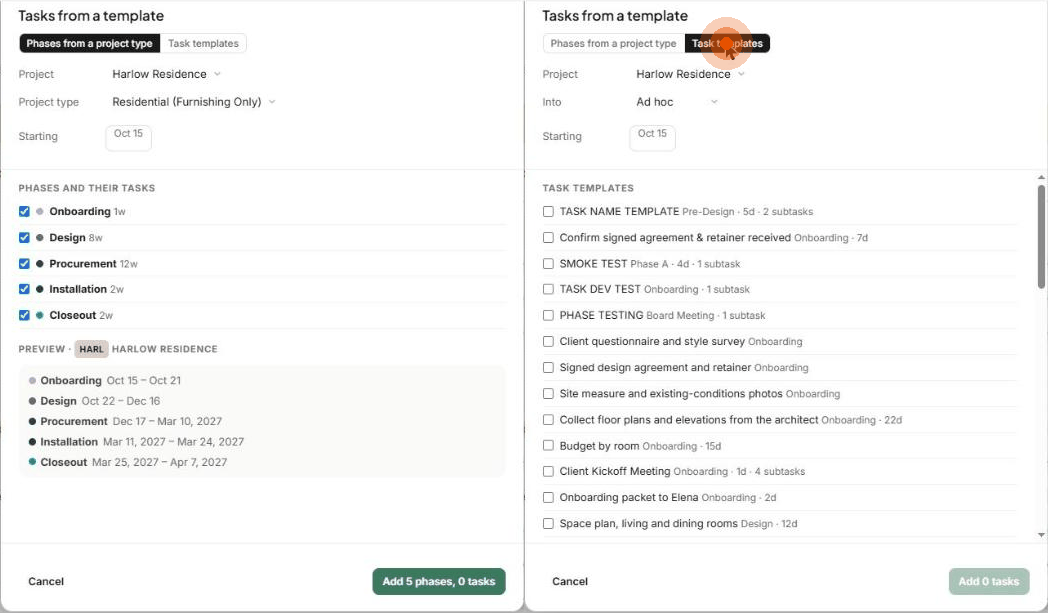
Click ⋯ → Tasks from a template on the Tasks page. There are two tabs:
Phases from a project type — choose the Project, Project type and Starting date. Tick the phases you want (each with its length, e.g. Design 8w). The Preview shows the dates each phase will land on. Click Add N phases, N tasks.
Task templates — choose the project, Into (which phase, or Ad hoc) and a start date. Tick individual templates (each shows its phase, duration and subtask count), then click Add N tasks.
Inside a task, ⋯ → Fill from a template fills that task from a template.
Tips
Scope templates to the right project type, so a kitchen remodel and a commercial fit-out get different lists.
Keep room names consistent, so a template's room matches the project's.
Templates are studio-wide — build them once and the whole team benefits.
Important limitations
Editing a template doesn't change tasks already created from it.
Deleting a template doesn't remove tasks already created from it.
New projects of a type are seeded with that type's phases and templates. Projects already underway keep their own.
Related articles
How to: Default Project Phases
The Task panel (task details)
Was this helpful?
Still need help? Ask the team