Dependencies & Critical Path
Written By Timothy Murenzi
Link a task to the product or task it's waiting on, so the plan reflects the real order of work — and so you're warned when a delivery slips.
Add a dependency
Open the task (click it in any view).
Click + Waiting on a product or another task.
Search under Find a product or task. Products are listed with their vendor, and tasks follow below.
Pick one. The task now waits on it.
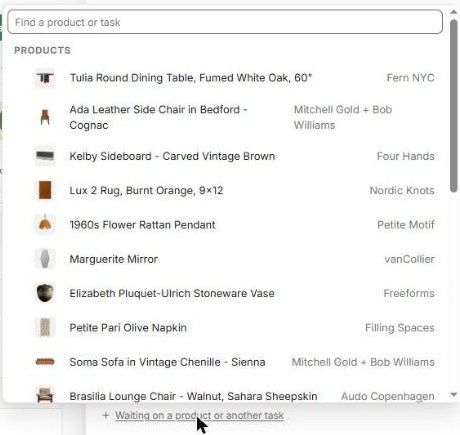
Waiting on a product
This is the most useful link in a design project — for example, "Install the sideboard" waits on the sideboard arriving.
The task shows the product's status: Arrives Nov 26, Late · Nov 6, or No delivery date.
On the Timeline, an Arrives after the task starts marker warns you when the product won't arrive in time.
When a delivery date changes, a delivery changed banner appears. Click Review and choose Move it to [new date], Do it without product, or Got it.
The Waiting on products filter shows every task held up by a product.

Waiting on another task
Use this for work that must happen in order — for example, "Space plan" before "Concept presentation". The waiting task follows the one it depends on.
Important limitations
The dependency picker no longer asks for a relationship type (Finish-to-Start, Start-to-Start and so on). A task simply waits on the product or task you pick.
Related articles
The Gantt (Timeline) view
The Task panel (task details)
Was this helpful?
Still need help? Ask the team