Before you start tracking time
What to configure before logging your first time entry to make sure billing is accurate from day one.
Written By Julia M.
Before anyone logs a minute, set up your services and roles. They decide what kind of work each entry is, whether it's billable, and what it's worth per hour. Get them right first and every entry is billed and reported correctly, with no clean-up later.
What you need before you can log time
An active project
At least one service or role
The Setup Guide's Log Your First Hours step checks both.
Set up services and roles
Go to Settings → Studio → Projects and phases. You can also search settings for "service".
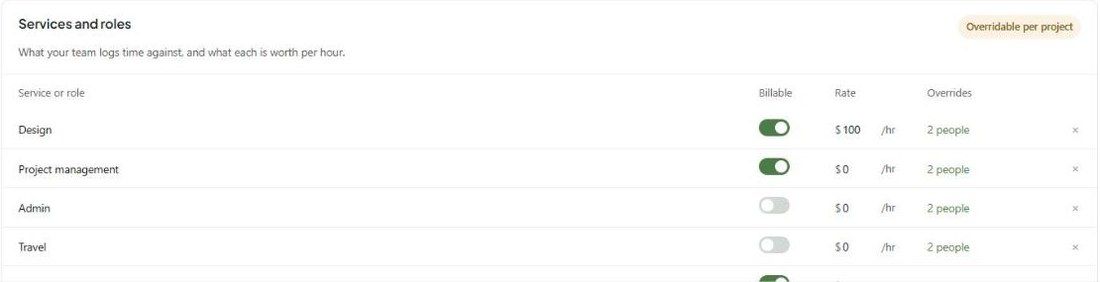
Scroll to Services and roles — "What your team logs time against, and what each is worth per hour."
Click + Add a service or role for each kind of work, for example Design, Project management, Admin, Travel or Procurement.
Turn Billable on or off for each.
Enter the default Rate per hour.
Click Save changes.
Rate overrides
Click the Overrides link on a service (e.g. 2 people) to set rates that win over the default. There are three levels, and the most specific one applies:
A person, on one project — e.g. Andrea bills Design at $0 on Harlow Residence. This can also be set under Team & billing when you create or edit a project.
A person, everywhere — that person's rate on every project, unless the project sets one for them.
A project, anyone — everyone on that project bills this rate, unless one of the two above applies.
Anything not overridden uses the service's default rate.

Other time settings
On the same page, under How time is logged:
Log time as start and end times — enter a start and end time instead of hours and minutes. This also powers the Blocks calendar view on Timelogs.
Ability to log time as another user — lets admins choose whose time they're logging.
Log your first entry
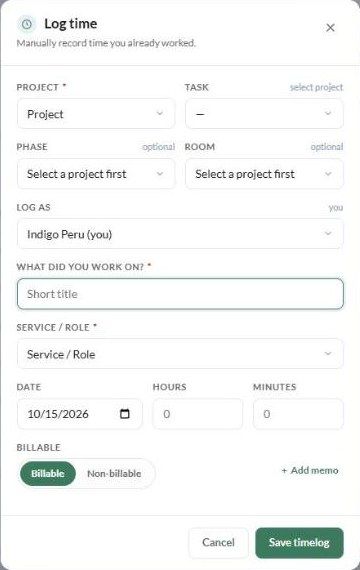
Click Log Time in the header. Fill in:
Project
Optional task, phase and room
What did you work on?
Service / Role
Date, hours and minutes
Billable or Non-billable, and an optional memo
Then click Save timelog. To time work as you go, use Start Timer instead.
Changes apply going forward. Editing a service's rate or billable setting affects new time entries only. Entries already logged keep the rate and billing status they had.
Was this helpful?
Still need help? Ask the team