Studio Search
How to use Studio Search in Indema to find anything across your entire workspace instantly.
Written By Julia M.
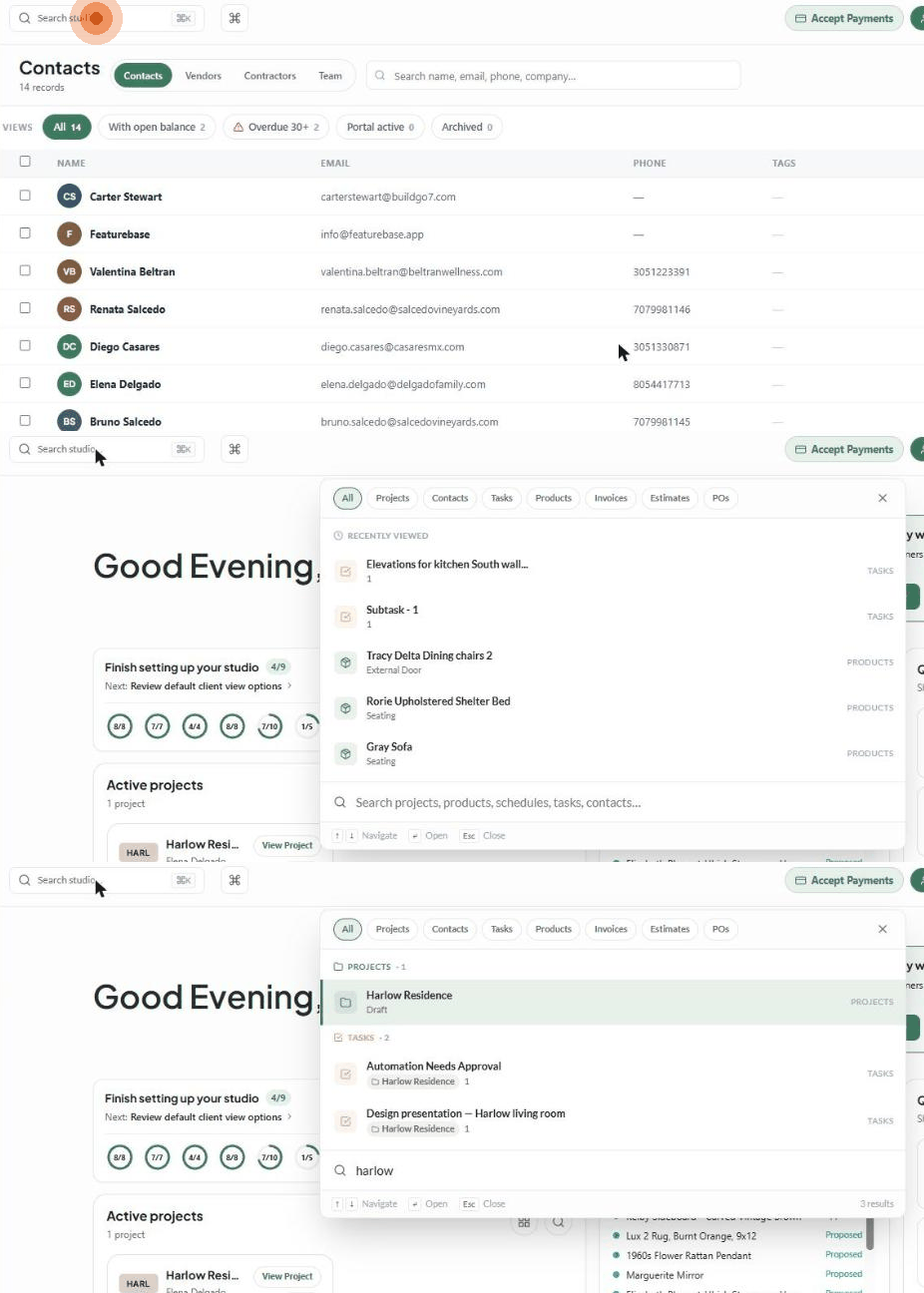
Studio Search finds anything in your workspace from one box: projects, contacts, tasks, products, invoices, estimates and purchase orders.
Open it
Click Search studio… at the top left of any page, or
Press ⌘K on Mac or Ctrl + K on Windows.
Before you type, it shows your Recently viewed records.
Search
Type a word — a project name, contact, product, task or document number.
Results appear as you type, grouped by type (for example Projects · 1, Tasks · 2). Tasks show which project they belong to. The total is shown at the bottom right (e.g. 3 results).
Narrow the results with the chips along the top: All, Projects, Contacts, Tasks, Products, Invoices, Estimates and POs.
Use ↑ ↓ to move through the results, Enter to open one, and Esc to close.
What it searches
Projects
Contacts and vendors
Tasks — opens the task in its project
Products
Invoices
Estimates
Purchase orders
Related tools
Smart Search — the search box on each list page filters just that page.
Comms search — the box at the top of Comms searches projects, rooms, messages and records.
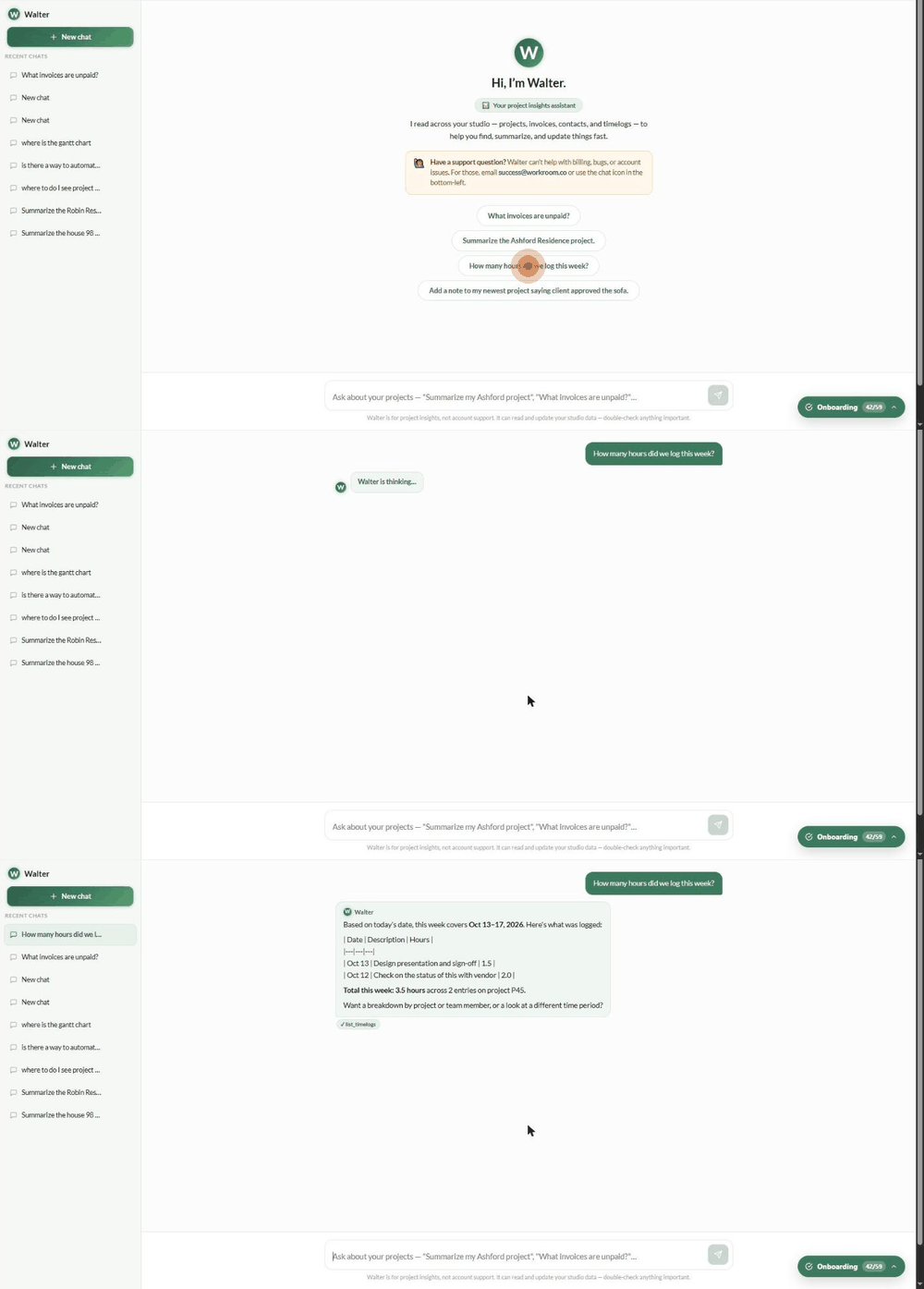
AI Project Insights (Walter) — at the top of the left sidebar. Ask a question in plain English, such as "What invoices are unpaid?" or "How many hours did we log this week?". Walter reads across projects, invoices, contacts and timelogs, and can also update records (for example adding a note), so double-check anything important. Walter doesn't handle billing, bugs or account issues — use Get Support or email [email protected].
Was this helpful?
Still need help? Ask the team