Tips and tricks
Written By Vinod Kumar Alluri
Small habits that make the Calendar much more useful.
Creating and moving
Double-click to create. In Day or Week view, double-click an empty slot. The date and start time are filled in (snapped to 15 minutes) with a one-hour meeting.
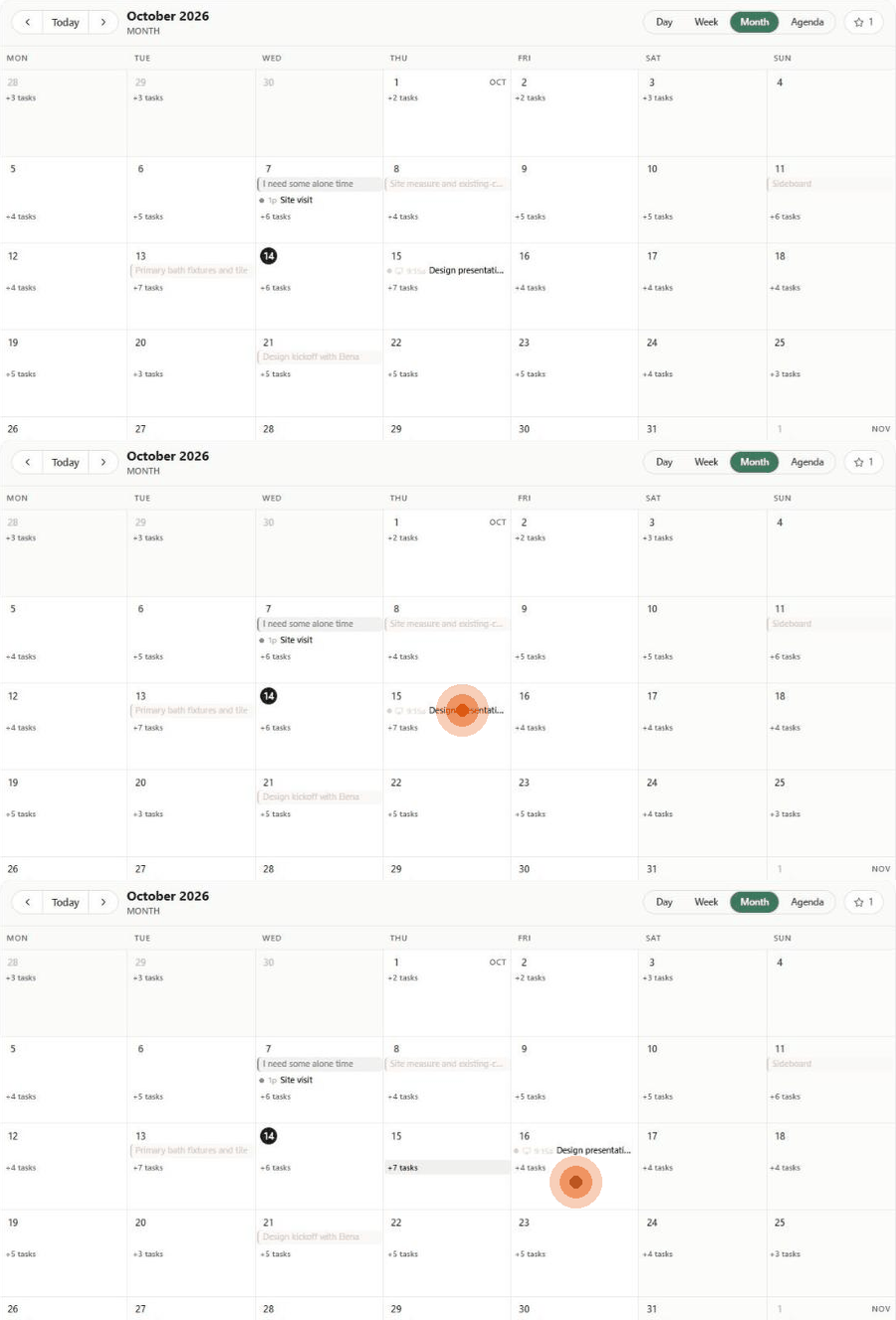
Drag to reschedule in Month view. Drag a meeting, delivery or order-by chip to another day. Only the date changes — the time stays as it is. To change the time, open the event and click Edit event.
Know what you're dragging. A drag rewrites the record itself, not a calendar copy, and leaves an audit entry naming who moved it and where it moved from. Money, milestones, tasks and procurement admin can't be dragged — change those where they live.
Pulled-in events can't be dragged. If a chip refuses to move, check whether it came from Google or Outlook — their calendar owns it.
Duplicate a recurring kind of meeting. Open a meeting and use the duplicate icon at the top of the panel instead of retyping it.
Finding things
Use a lens, then adjust. Faster than ticking seven boxes. Products + Month is the procurement planning view; Money + Month with the cash strip is the cash-flow view.
The cash strip only exists in Money + Month. If you're hunting for it in Week view, that's why.
Search instead of scrolling. The search box above the grid finds an item, vendor, project, PO or invoice.
Focus on one project. In the Projects list on the left, click Only beside a project to hide everything else.
Link meetings to projects. It costs one field and turns the project filter into a real tool.
Answer invites in one click. The orange "invite to answer" button above the grid jumps straight to meetings waiting on your RSVP.
Making it readable
Switch Color by. ⚙ → Color by: Type colours chips by layer (green meetings, blue deliveries, red order-by…); Project colours them by job.
Show more of the day. ⚙ → Hours shown at a time — choose 6, 8, 12, 18 or 24 hours in Day and Week view.
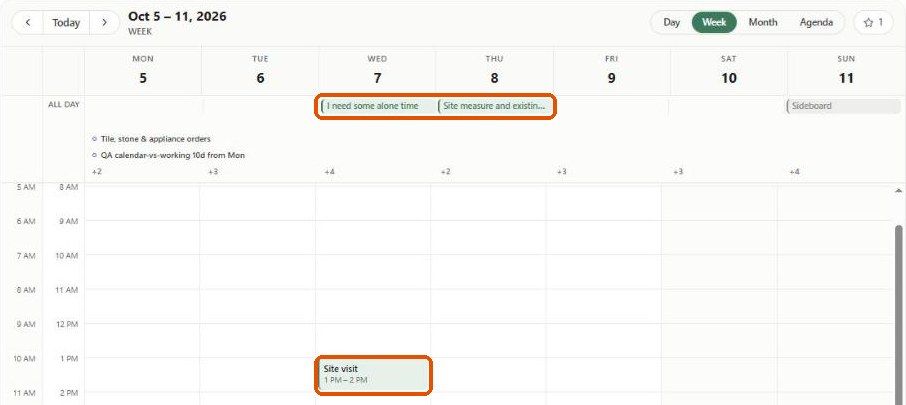
Hide weekends if you don't work them (⚙ → Weekends → Hide), and pick whether weeks start on Sunday or Monday.
Add a second time zone. ⚙ → Secondary zone adds a second time column in Day and Week — useful for out-of-state clients and sites.
Setup that pays off
Name your locations. In Settings → Studio → Calendar, give every frequent location a name. The pill shows the name, not the URL — that's the whole point.
Rename connected calendars right after connecting. An email address in the filter panel tells you nothing; "My calendar" and "Studio shared" tell you everything.
Set your studio time zone. Settings → Studio → Company → Regional defaults → Timezone. Calendar times are stored in studio time, and reminders and calendar sync use it, so a wrong time zone means everything works — just at the wrong hour.
Run "Send earlier meetings" once after connecting Google or Outlook (Settings → You → Connected accounts). It's the difference between a calendar that starts today and one that has your history in it.
Was this helpful?
Still need help? Ask the team