COMMS (your side)
Written By Timothy Murenzi
Comms is where your studio talks to clients and to each other. Every conversation belongs to a project, and records like estimates, invoices and products can be attached right inside the thread. Open it from Comms under PEOPLE in the left sidebar. The badge shows how many unread messages you have.
1. How the page is laid out
Left rail — search, then Needs you and Unread, then Projects (each expands into its rooms), then Direct messages grouped by Team and Clients. + New sits at the bottom.
Middle — whatever you picked: the Needs you queue, a room's thread, or one of a room's tabs.
Right — opens when you need it, for example a record you clicked.
Comms opens on Needs you, not on a conversation.
2. Needs you — your queue
This isn't an inbox. It lists what's stuck and who it's waiting on.
Waiting on you — things you owe someone, like a bill to approve or a draft to send.
Waiting on them — things you've sent that haven't come back, oldest first. Each row shows the record, project and room, who it's waiting on and for how long (e.g. Awaiting Elena Delgado · 3 days), and the amount.
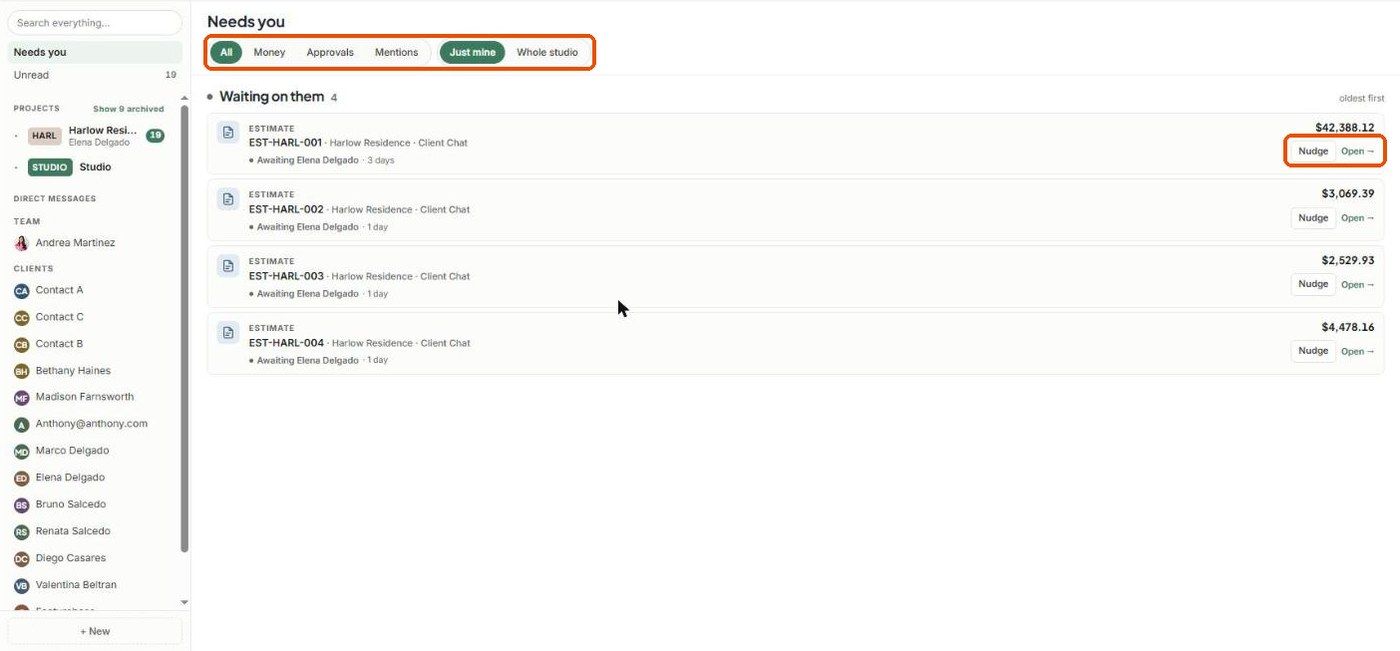
Filters: All, Money (invoices, bills, payments), Approvals (estimates, change orders, product decisions) and Mentions.
Scope: Just mine shows projects you're on the team for. Whole studio shows everything. If you're an owner who isn't on any project team, Just mine will be empty — switch to Whole studio.
Row buttons:
Nudge — sends a reminder about that record. You'll be asked to confirm first.
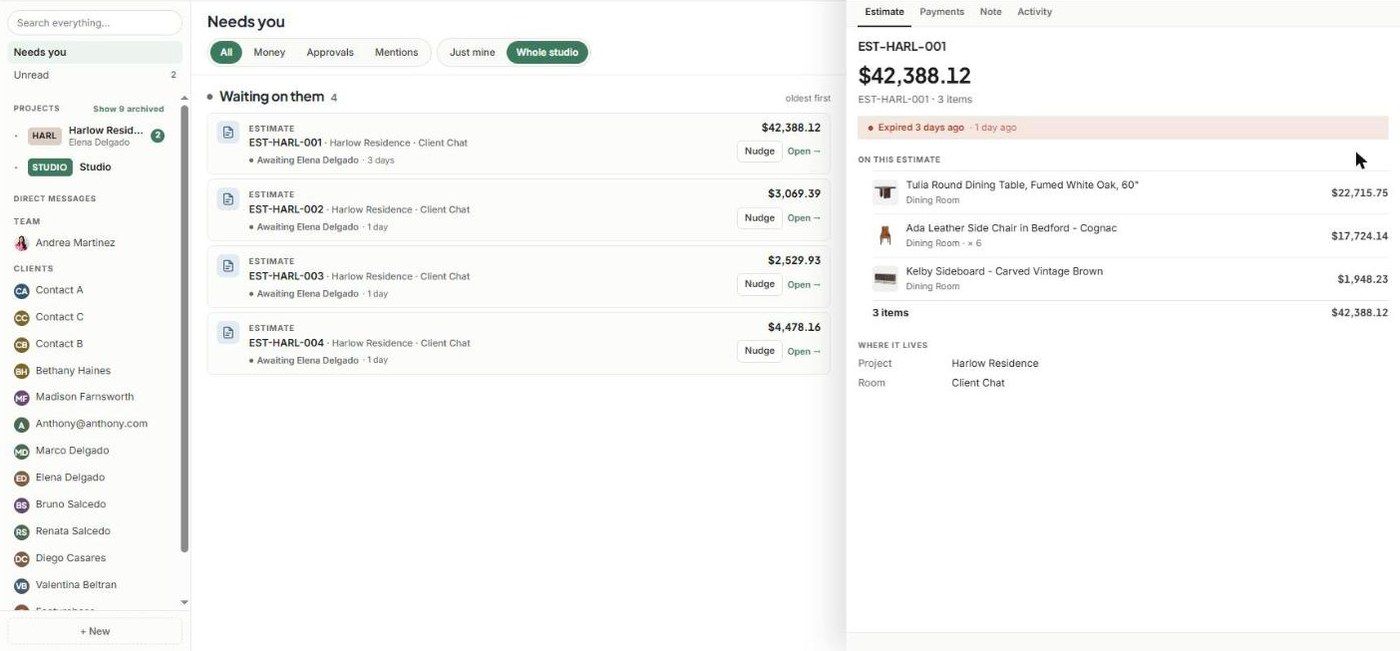
Open → — opens the record in a panel on the right, with tabs such as Estimate, Payments, Note and Activity. The panel shows the line items, status (e.g. Expired 3 days ago) and where the record lives (project and room). Close it with ×.
3. The rail
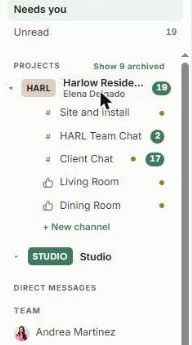
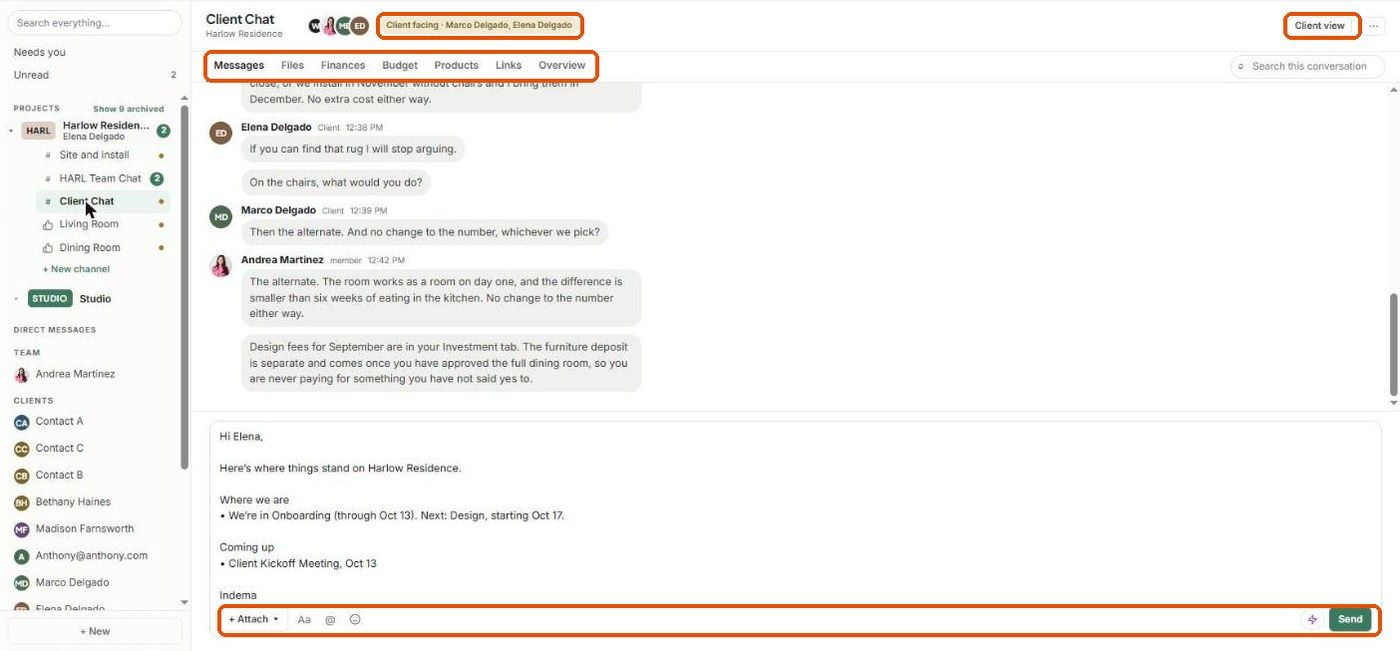
Each project shows its code (e.g. HARL), its name and the client. The number is unread messages.
# = a chat. 👍 = a selection board. A dot after a room name means the client can read it — check it before you type.
Show N archived reveals archived projects.
The search box at the top searches projects, rooms, messages and records you're allowed to see.
4. Rooms
Kinds of room
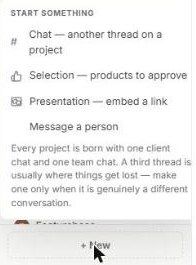
Every project starts with one client chat and one team chat. Make another room only when it really is a separate conversation.
Create a room
Click + New channel under a project, or + New at the bottom of the rail. From + New you can also choose Message a person to start a DM.
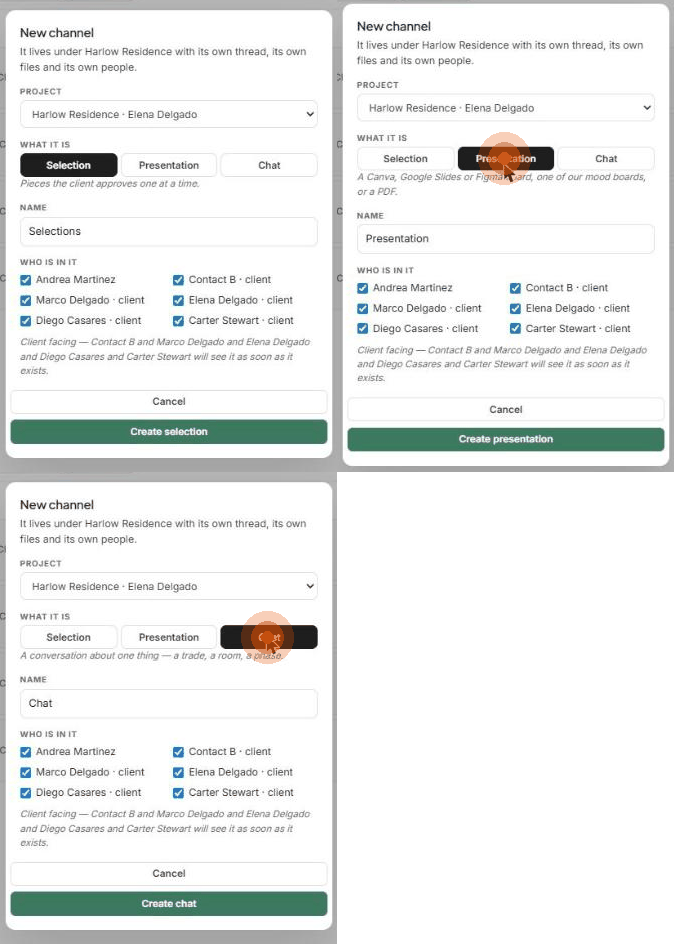
Choose the Project and What it is: Selection, Presentation or Chat.
Give it a Name.
Under Who is in it, tick the team members and clients. The note underneath confirms who will see it, for example: "Client facing — … will see it as soon as it exists."
Click Create chat, Create selection or Create presentation.
The room header
The header shows the room name, its project, the people in it, and a pill saying who can see it — for example Client facing · Marco Delgado, Elena Delgado. It also has Client view and the ⋯ menu.
The ⋯ menu
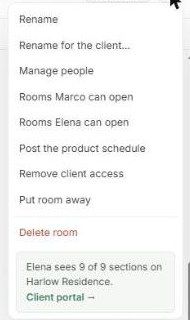
Rename — the name your team sees.
Rename for the client… — a separate name the client sees. "Carole Fabrics — chasing the drapery lead time" works for you but not for a client.
Manage people
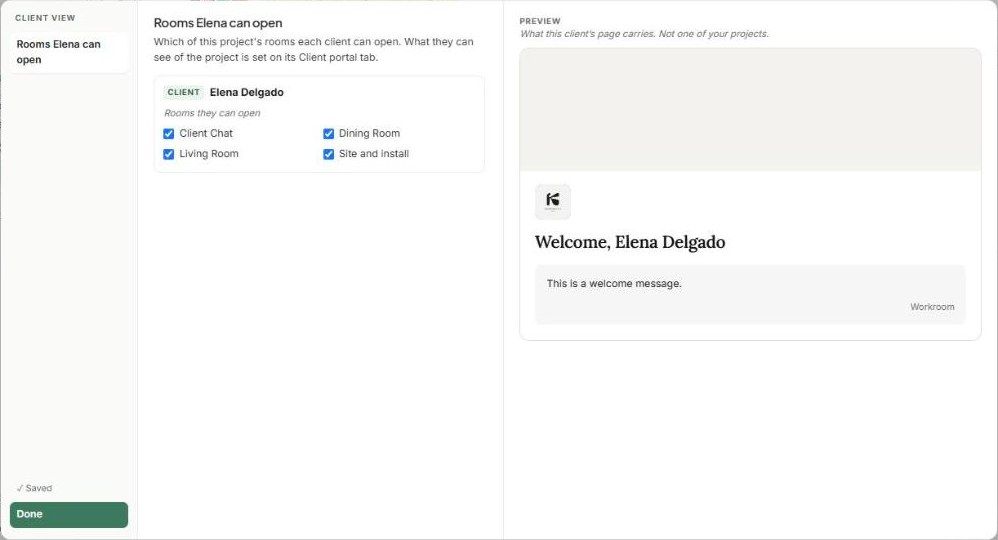
Rooms [client] can open — one entry per client. Tick which of the project's rooms they can open. It saves automatically and shows a preview of their page.
Post the product schedule
Remove client access
Put room away — archives it. The history is kept and you can bring it back.
Delete room — permanently removes the room and its messages.
The bottom of the menu shows how much of the project the client sees (e.g. Elena sees 9 of 9 sections), with a Client portal → link to the project's Client portal tab. That's where you choose what each person sees — see The Client Portal.
5. Writing in a thread
The composer toolbar has:
+ Attach — attach a record or file.
Aa — shows the formatting row: bold, italic, underline, strikethrough and link.
@ — mention someone. Only people in the room are offered.
☺ — emoji.
Rewrite with Walter (the lightning icon) — has Walter, Workroom's AI assistant, rewrite your draft.
Send
Press Enter to send and Shift + Enter for a new line. Your draft is kept if you leave the room.
Hover over a message to react (☺), Reply (quotes the message), or Pin to welcome (puts it in the client's portal welcome).

You can edit or delete only your own messages. A deleted message shows as "(message deleted)" for everyone. A file you share in a room is also filed in the project's Documents.
6. Attaching records
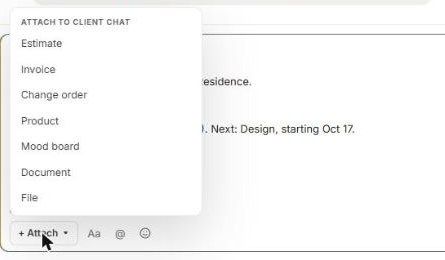
Click + Attach. In a client-facing room you'll see only what a client may receive: Estimate, Invoice, Change order, Product, Mood board, Document and File. Purchase orders and bills show your costs, so they're internal only.
A record card shows what the record is, its status, its amount and its age, plus the actions that make sense for it — for example Pay, Approve, Request changes or Open. Each reader sees their own version of the card: vendor names, model numbers, your costs and spec marks never reach a client.
7. Room tabs
A project chat has these tabs: Messages, Files, Finances, Budget, Products, Links and Overview. Use Search this conversation on the right to find a message.
Products — the project's product schedule, with Pieces, Schedule total, Needs you and En route tiles. Group by Room, Category or Status, filter, or Print. The Arrivals — Tracked live panel counts pieces On order, Shipped and Out for delivery. Carrier updates move them on their own.
Budget — Committed, Invoiced, Paid and Outstanding.
Links — every link shared across the project's rooms.

Selection boards have Selection, Activity and Overview tabs.
8. Selection boards
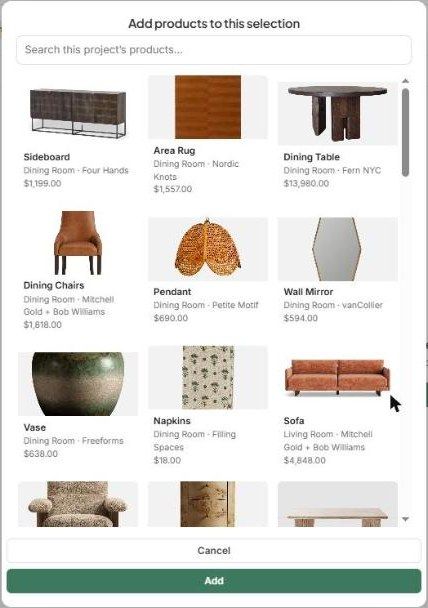
Open the board and click Add products.
Pick pieces from the project's products (search at the top), then click Add.
The client approves or rejects each piece and can leave comments. The header shows the total, plus how many pieces are approved and their value (e.g. 0 approved · $0.00).
If you remove a piece from a board, its decision history is kept. Adding it again brings the same row back.
9. Direct messages
A DM is a conversation with a person, not about a project, so it has no project tabs. Start one from + New → Message a person, or click a name under Team or Clients.
10. Check what the client sees
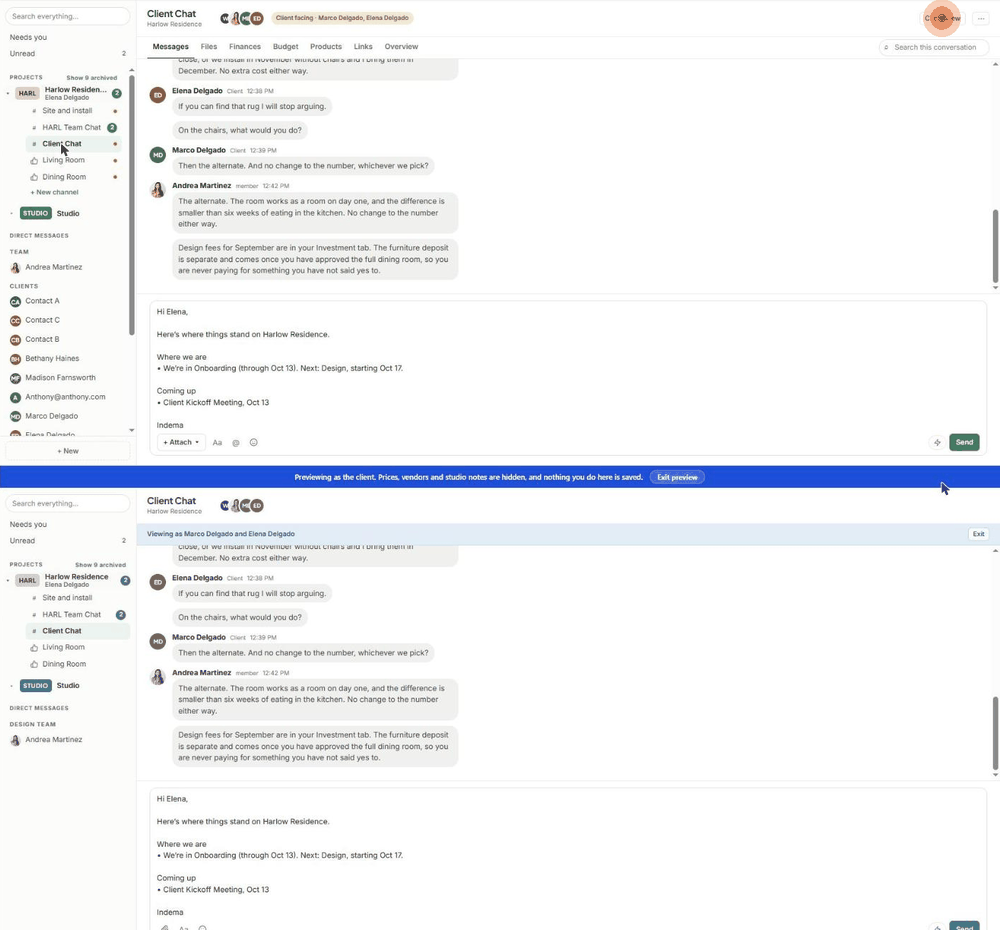
Click Client view in the room header. A blue banner appears: Previewing as the client. Prices, vendors and studio notes are hidden, and nothing you do here is saved. The rail shrinks to the rooms the client can open. Click Exit preview to go back.
Was this helpful?
Still need help? Ask the team