Bulk Editing Products
Update procurement, pricing, shipping, tags, statuses, and organizational data across multiple products simultaneously.
Written By Julia M.
Overview
Change one field on many products at once.
Steps
In Library, tick the products (or the header box for all).
In the toolbar at the bottom, click Bulk edit.
Choose a Field and a New value.
Click Apply to N.

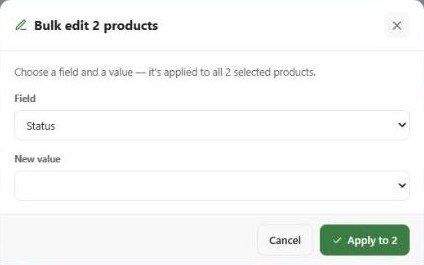
Fields you can bulk edit
Organisation: Status, Location, Vendor, Category, Client-Facing Name, descriptions, Important Note, Product URL, Spec #, Lead Time.
Specifications: Dimensions, Finish, Product #, Material, Pattern, Model #, Color, Orientation, Other.
Procurement dates and tracking: Approved, Ordered, PO Sent, Est./Act. Ship, Backordered, Est. Delivery, Delivered, Install Date, Tracking Number, Carrier.
Costs and tax: Sales Tax %, Freight, Freight Markup %, Landed / Import, Receiver Cost, Return Cost, Shop Drawing, Sample Fee, Misc. Fee, Pass Fees to Client, Vendor Tax %, Freight Basis, Freight %, Tariff, Item Budget, Tax markup/margin only, Tax freight, Tax landed.
Your studio's custom fields.
Other bulk actions
Reports (build a document from the selection), Duplicate, RFQ, Create POs, Create task, Delete, Clear.
Important limitations
Unit cost and markup aren't in the bulk field list; change them per product or in Spreadsheet view.
Bulk edit applies immediately — there's no undo.
Related articles
Working with Product Statuses
Using Product Manager
Was this helpful?
Still need help? Ask the team