Walter - Your AI assistant
Written By Timothy Murenzi
Walter is Workroom's built-in AI assistant. There's nothing to set up — Walter already knows your projects, invoices, contacts and timelogs.
Where to find Walter
AI Project Insights at the top of the left sidebar — ask questions in plain English, and pick up past chats under Recent chats.
Rewrite with Walter (the lightning icon) in the Comms composer.
Draft with AI and Improve in Contracts, and other drafting buttons around the app.
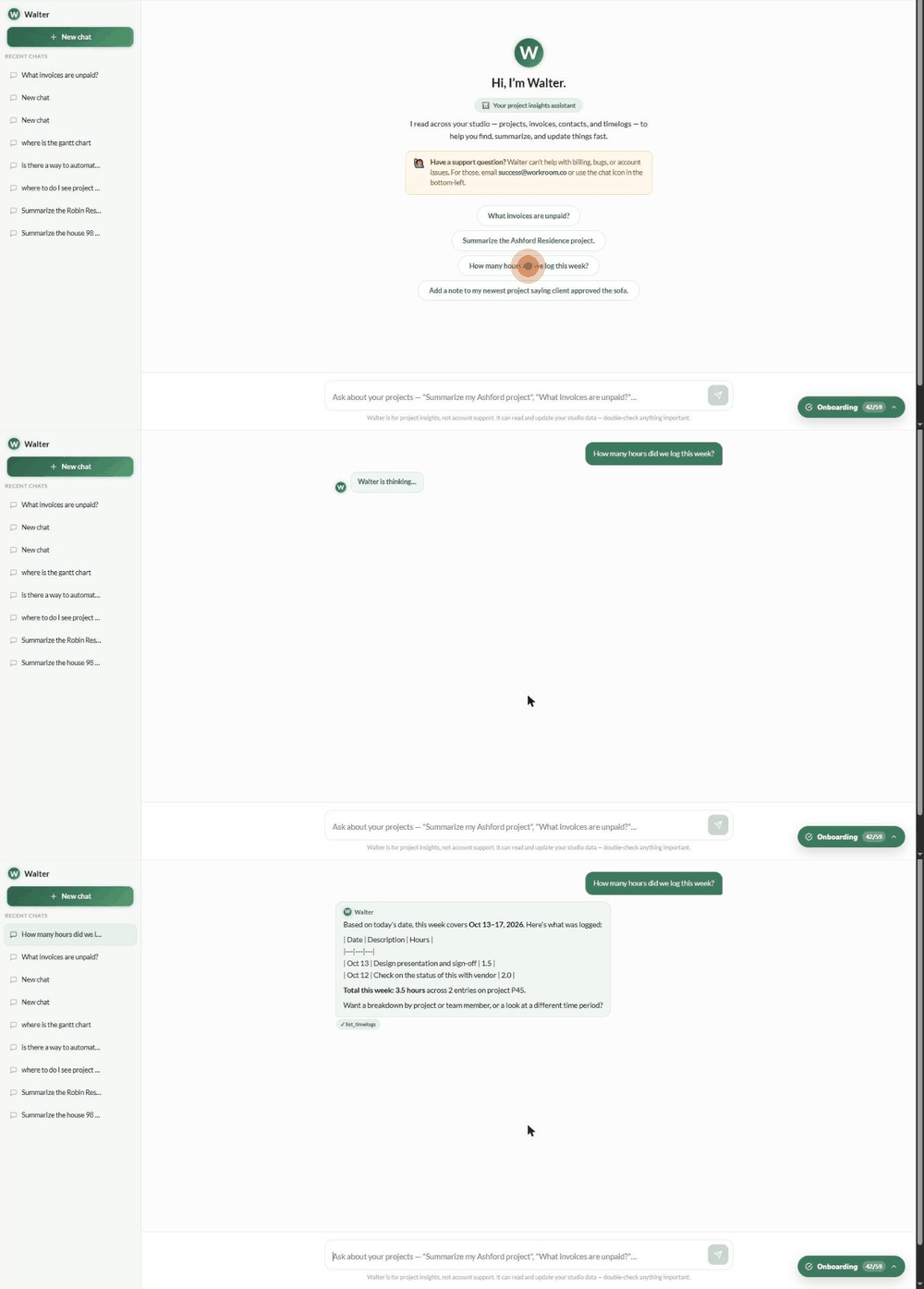
What to ask
"What invoices are unpaid?"
"Summarize the Harlow Residence project."
"How many hours did we log this week?"
"Add a note to my newest project saying the client approved the sofa."
Walter shows which tool it used (e.g. ✓ list_timelogs) under its answer.
Walter is for project insights, not account support. For billing, bugs or account questions, use Get Support or email [email protected]. Always double-check anything important.
Walter's settings
Go to Settings → Studio → Assistant:
How it acts — Make changes without confirming. Off by default: Walter describes what it would change and waits for your yes. On: changes apply immediately, which helps for bulk work such as summarising many projects.
How it writes — Voice and tone (e.g. "Warm and personal, never stuffy. Short sentences.") and Say this, not that word swaps. These shape replies, rewrites, email drafts and recap summaries from now on.
What it checks — write standards in plain English (e.g. "Seating must be rated for commercial use"). Walter reads product specs and flags anything that doesn't meet them. A blocking standard stops a product being specified; a warning flags it and lets you carry on.
What it writes for you — links to the studio recap summary (in Outbound email) and the client update summary (in Client experience).
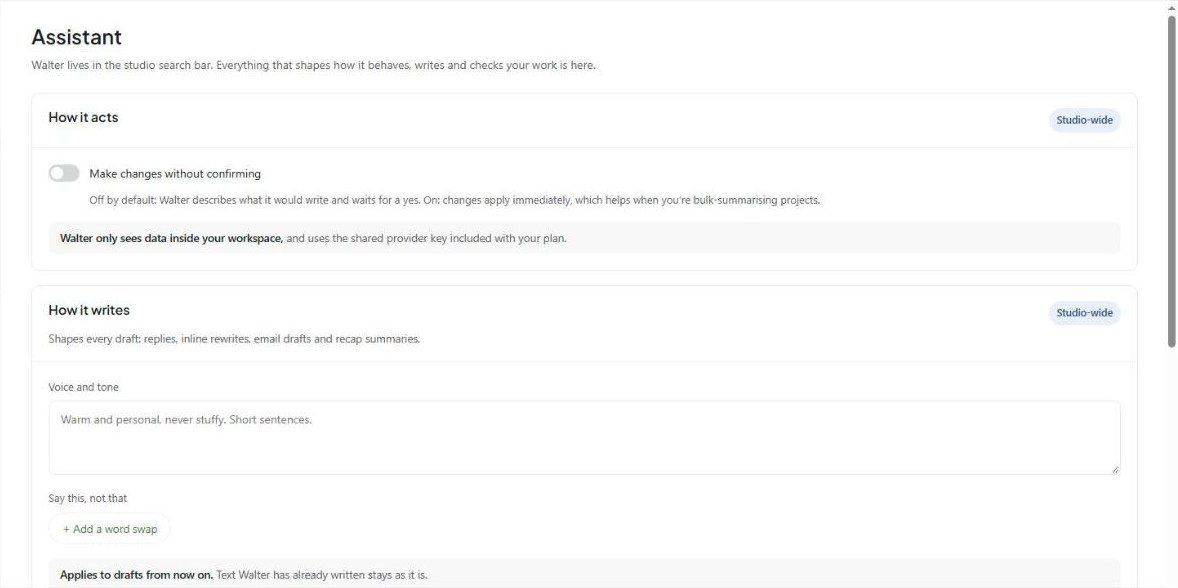
Walter only sees data inside your workspace.
Was this helpful?
Still need help? Ask the team