Choosing every field when you connect QuickBooks
A new QuickBooks connection starts with every field empty. Choose each one, settle your clients and vendors, then start syncing.
Written By Julia M.
Overview
When you connect QuickBooks, every field starts empty. Workroom doesn’t guess or fill anything in, because your books are set up your way. Nothing goes to QuickBooks until every field is chosen.
Watch it: QuickBooks basics for designers in Campus, chapter 2, “Accounts” (starts at 0:54) and chapter 4, “Clients, vendors and projects” (starts at 2:53).
Connect
Go to Settings › Integrations and apps and connect QuickBooks Online.
Sign in to Intuit, pick your company and approve access.
See what’s left
Until setup is done, the page reads Setup not finished with how many choices are left. The Setup tab lists each group with its count. Click Go to field or Open to jump to it.
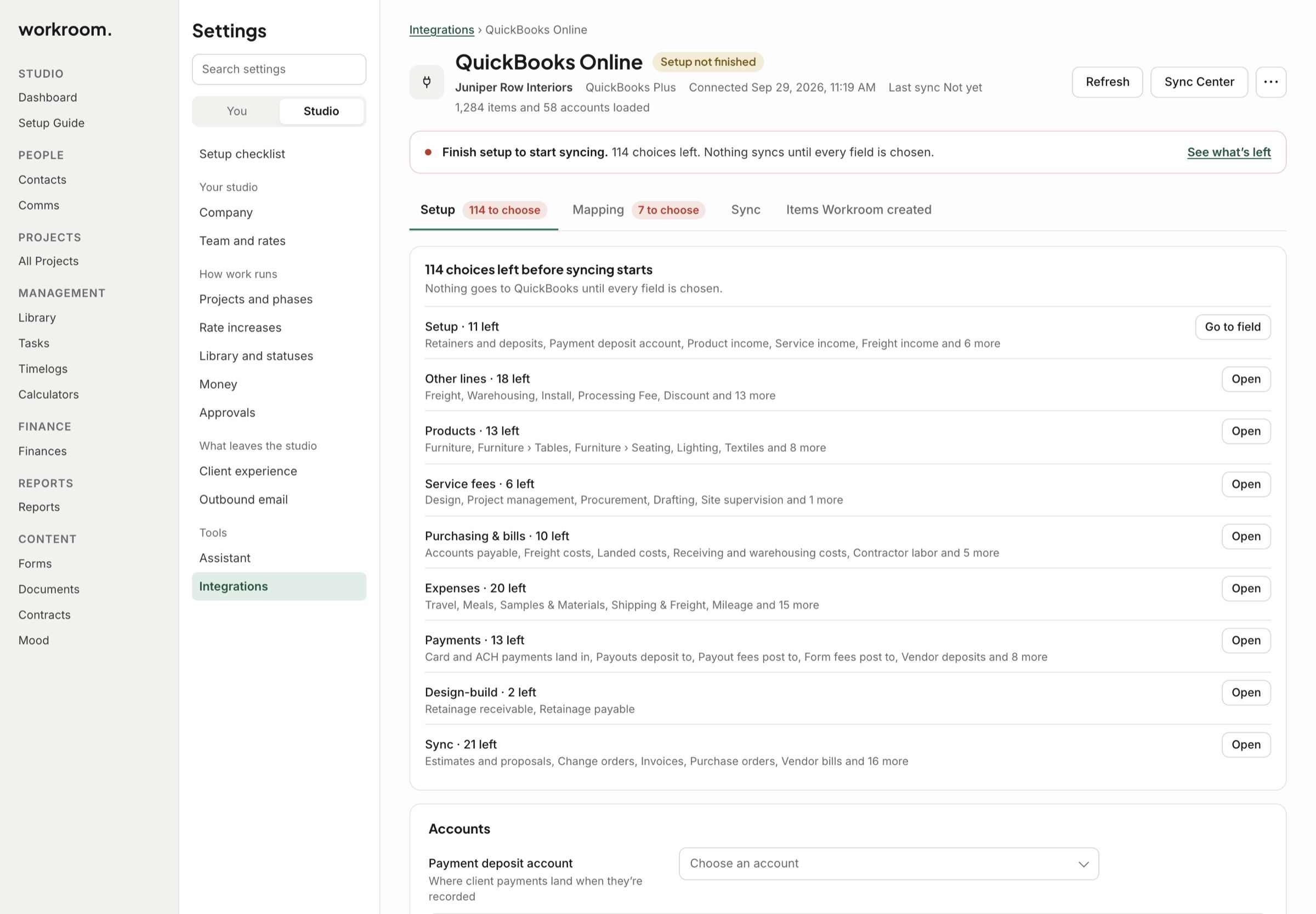
Each field says what it’s for. Not sure which to pick? Ask your bookkeeper.
The Setup tab
Payment deposit account: where client payments land when they’re recorded.
Retainers and deposits: Hold them until earned or Count them as income the day your client pays.
Product income, Service income, Freight income, Warehousing and receiving income and Cost of goods sold.
Sync records dated on or after: older records go one at a time, by hand.
How projects show in QuickBooks: Client only, Client and project, QuickBooks class or Pick for each project.
Convert POs to bills: Never, When a PO is approved or When a PO is marked received.
Closed months: Hold it for review in the Sync Center, or Post the change in the next open month.
Then work through the Mapping and Sync tabs the same way.
Start syncing
When every field is chosen, save your changes and click Start syncing. For each client, project and vendor, link it to the one already in QuickBooks, click Create in QuickBooks, or click Don’t sync. For money your clients paid ahead, choose Already in QuickBooks or Send to QuickBooks now.
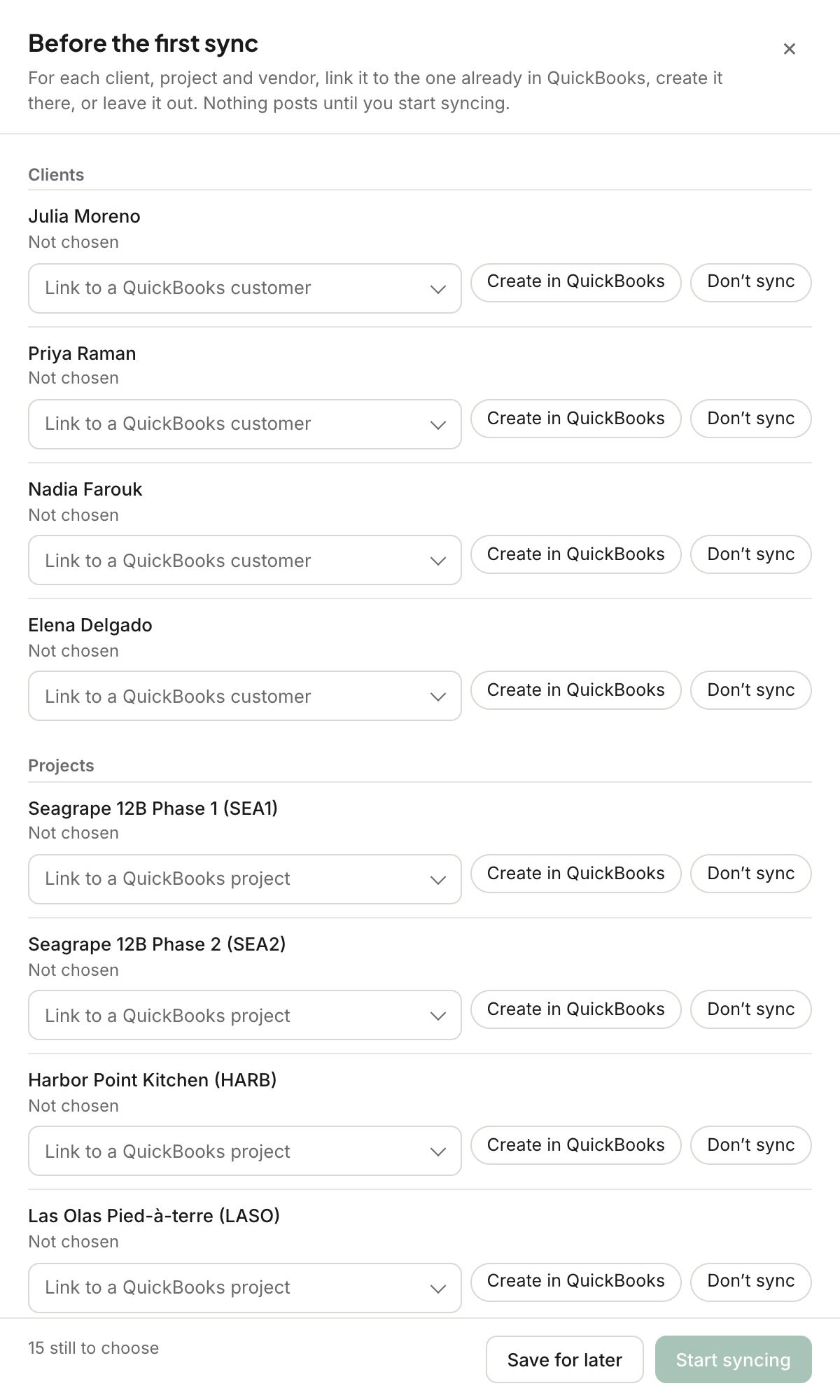
Click Start syncing. Save for later keeps your answers without syncing.
Already connected?
If your studio connected before, nothing changes. Your settings stay as they are.
Related articles
Was this helpful?
Still need help? Ask the team