Applying a payment (funding the retainer)
Written By Timothy Murenzi
Overview
A retainer is funded when its invoice is paid — either by the client online or by you recording the payment.
Option A: The client pays online
Hover the retainer row → share icon → Send to Client or Copy client link.
The client opens the link and pays by card or ACH through your connected processor.
Option B: Record the payment yourself
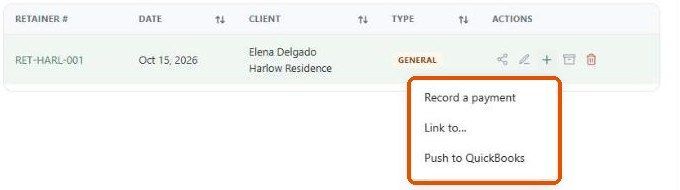
Hover the retainer row and click + → Record a payment.
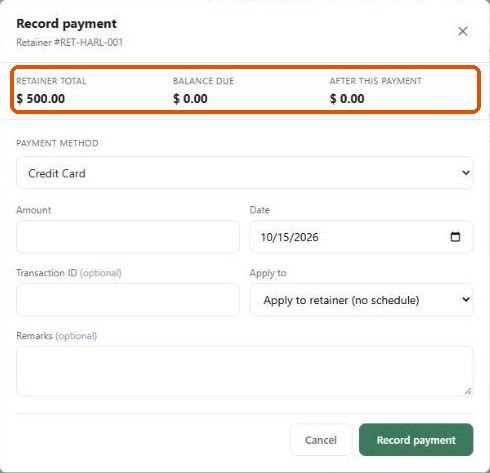
Check Retainer Total, Balance Due and After This Payment.
Choose the method — Credit Card, Debit Card, Bank Transfer, Cash, Other or Apply Credit. (Apply Retainer isn't offered: a retainer can't pay a retainer.)
Enter the amount and date and click Record payment.
What happens next?
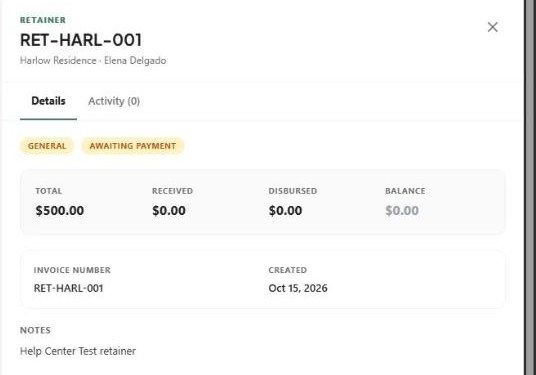
The retainer shows Total, Received, Disbursed and Balance (Received − Disbursed) in the project's retainer panel.
Statuses move from Draft / Awaiting payment through Open, Partially Disbursed, Fully Disbursed and Closed.
Important limitations
In our testing, a new Draft retainer's Record payment dialog showed a balance due of $0 and wouldn't accept an amount. If this happens, mark it as sent (quick view → More → Mark as sent) and try again, or contact support.
Related articles
Creating a retainer
Applying a retainer to an invoice
Was this helpful?
Still need help? Ask the team