How to customize and download the estimate PDF
How to control what appears on your exported PDF and download it for your records or to send to a client.
Written By Julia M.
Overview
Every estimate and invoice can be exported as a PDF. The export panel lets you choose what appears and shows a live preview before you generate the file.
Steps
Hover the estimate (or invoice) row and click the share icon.
Click Download PDF. The Export Estimate PDF panel opens.
Set the toggles on the left. The preview updates as you go; use the zoom, Prev / Next and the page thumbnails to check every page.
Click Generate PDF to download, or Generate PDF and save to also keep a copy with the document.
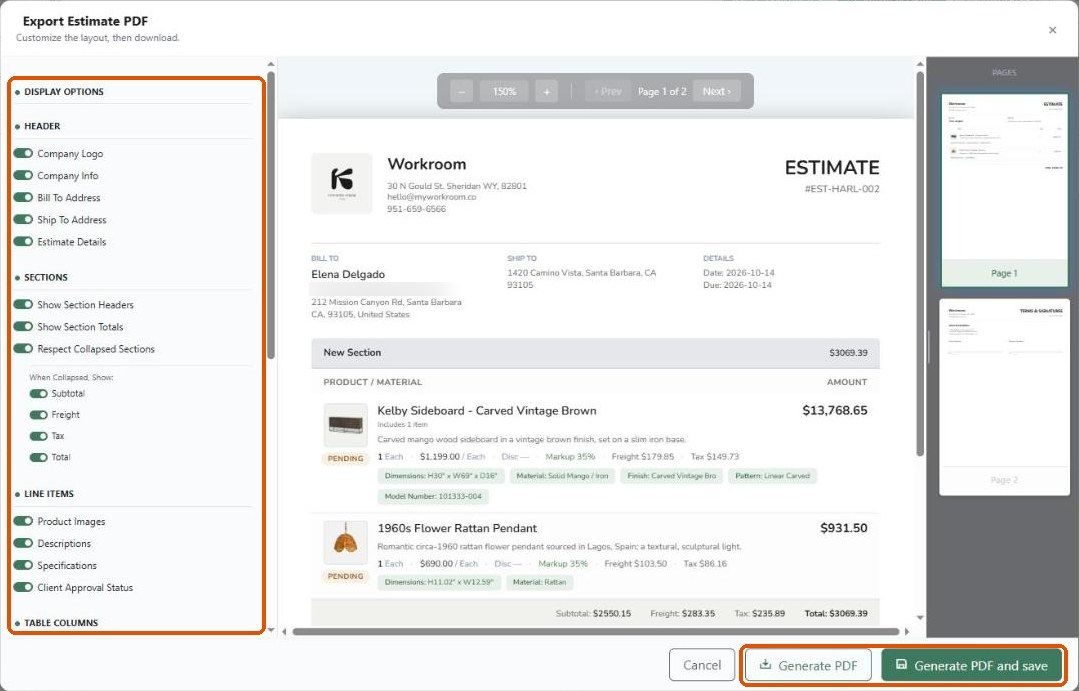
Display options
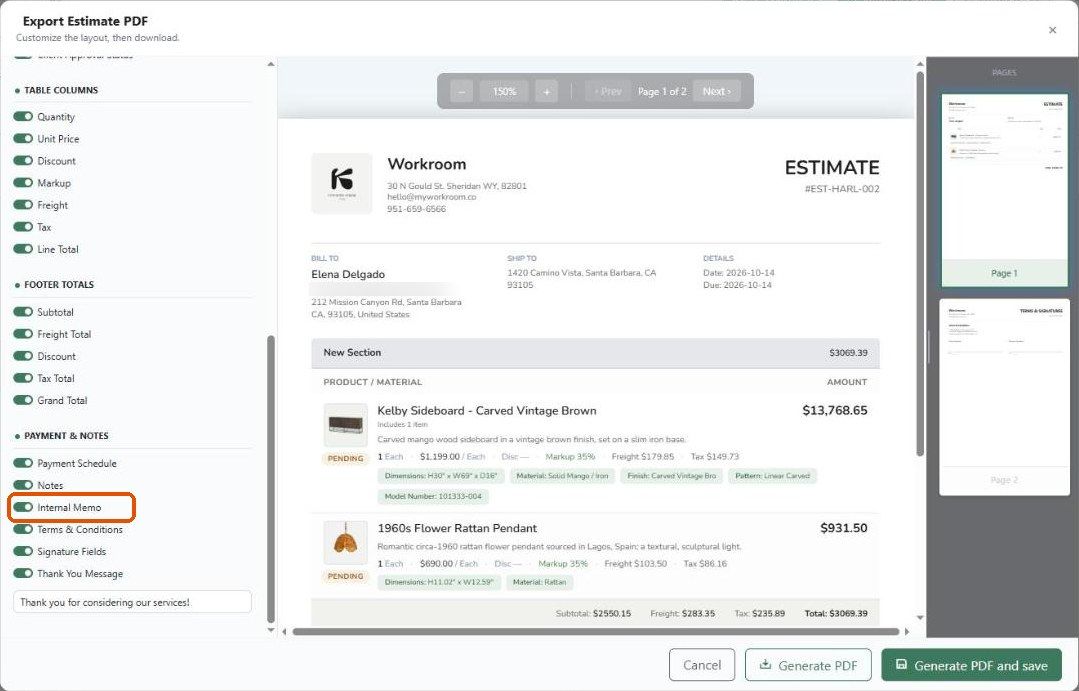
Before you share it
Turn off Markup and Internal Memo unless you mean the client to see them — in our test account both were on by default.
Look at the last page: terms and signature lines print there (or on their own page, depending on Money → Document look → Terms print).
Important limitations
Toggle choices apply to that export only.
Fonts, colours, logo and header banner come from Settings → Studio → Money → Document look.
Related articles
Creating custom headers
How to configure the client view on an estimate
Was this helpful?
Still need help? Ask the team