How to send an estimate to a client
How to send an estimate to your client directly from the system, including signing as the designer and tracking whether the client has seen it.
Written By Julia M.
Overview
Send an estimate by email from Workroom. The client gets a message with a View your estimate button that opens their client view.
Before you start
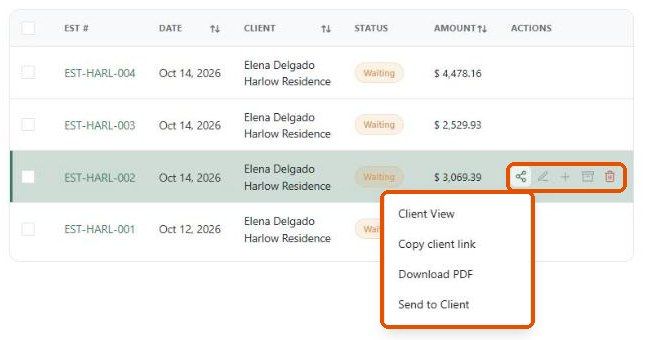
Preview what the client will see: hover the row → share icon → Client View.
Check the client has an email address on their contact.
Set up your sender details in Settings → Studio → Outbound email.
Steps
Go to Finances → Estimates and hover the estimate's row.
Click the share icon, then Send to Client.
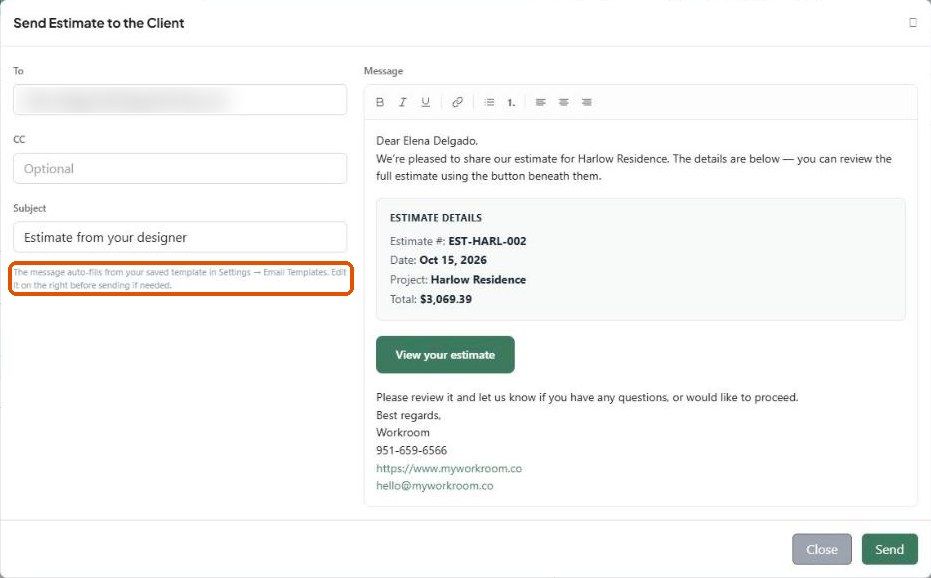
Check To (filled from the client), add an optional CC, and edit the Subject if needed.
Review the Message. It's filled from your template and includes an Estimate Details box (number, date, project, total) and the button.
Click Send, or Close to cancel.
Other ways to share
Copy client link — paste the link into your own email or message.
Download PDF — see How to customize and download the estimate PDF.
Mark as sent (quick view panel → More) — updates the status when you sent it another way.
What happens next?
The Seen column shows when the client opens it.
Their approvals and signature appear in the estimate's Activity tab.
Important limitations
The dialog's hint mentions "Settings → Email Templates"; templates now live under Settings → Studio → Outbound email.
Related articles
How to configure the client view on an estimate
How the client reviews and approves an estimate
Was this helpful?
Still need help? Ask the team