How to configure the client view on an estimate
How to control what your client sees when they open their estimate -- pricing, specifications, and approval settings.
Written By Julia M.
Overview
The Client View menu in the estimate editor controls what pricing, details and approval options the client sees online. Check it on every estimate before sending.
Open the settings
Open the estimate in the editor.
Click Client View at the top right.
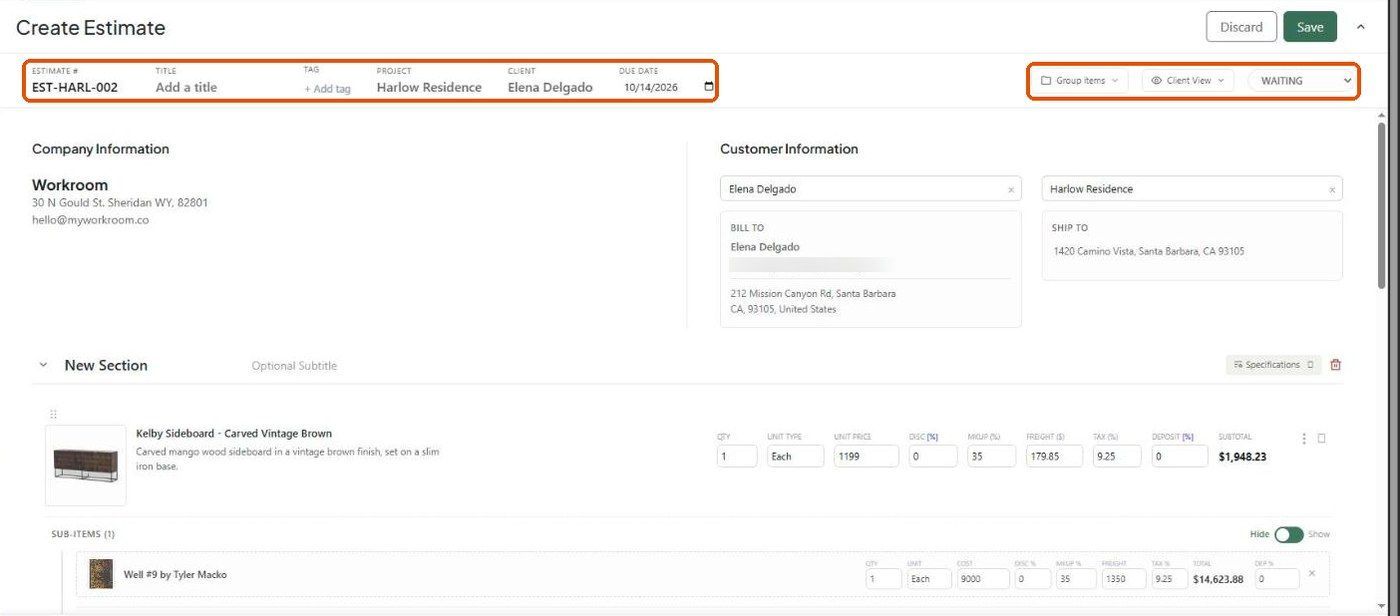
Show to client
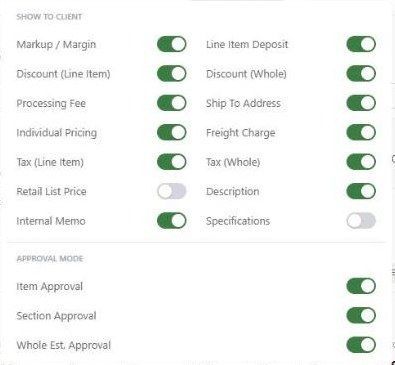
Approval mode
Turn on any combination of Item Approval, Section Approval and Whole Est. Approval. These decide which approve buttons the client gets.
Per-line and per-section control
Each section has a Specifications button to choose which spec fields show for that section.
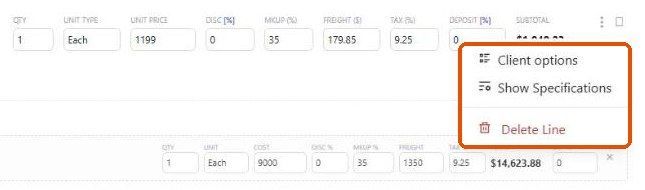
Each line's ⋮ menu has Client options, Show Specifications and Delete Line.
Preview
Save, then use the eye icon on the quick view panel (or share → Client View) to see exactly what the client sees.
Important limitations
These settings control the online view only. The PDF has its own settings in the export panel.
Deleting a section can't be undone.
Related articles
How to customize and download the estimate PDF
How the client reviews and approves an estimate
Was this helpful?
Still need help? Ask the team