How to Send an Invoice to a Client
Use the Send panel to deliver an invoice by email, customize the message, and add CC recipients.
Written By Julia M.
Overview
Send an invoice by email from Workroom. The client gets a link to view (and, if a processor is connected, pay) the invoice.
Before you start
Preview it: share icon → Client View.
Check Client View settings, the payment schedule and terms.
Steps
Go to Finances → Invoices and hover the invoice row.
Click the share icon → Send to Client.
Check To, add any CC, and edit the Subject and Message.
Click Send.
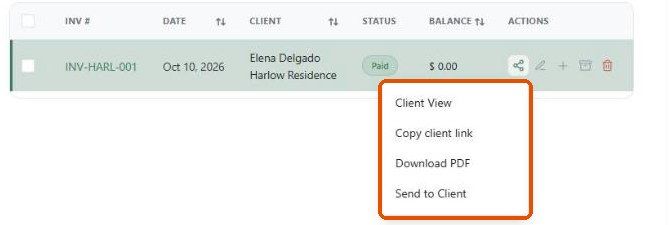
Other ways to share
Copy client link to paste into your own message.
Download PDF.
More → Mark as sent if you sent it another way.
What happens next?
The status changes to Sent and the Activity tab records it.
The Seen column shows when the client opens it.
Important limitations
If you change the invoice after sending, send it again so the client sees the latest version.
Related articles
How to Configure the Invoice Client View and Display Settings
How to Record a Payment on an Invoice
Was this helpful?
Still need help? Ask the team