How to Issue a Refund on an Invoice
Use the Return Item flow to issue per-item refunds, select refund components, and apply credits to a client account.
Written By Julia M.
Overview
The Return Item dialog records a refund against specific invoice lines and quantities, and can turn it into a credit on the client's account.
Steps
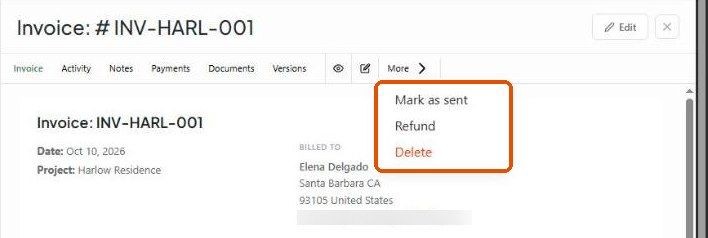
Open the invoice's quick view panel and click More → Refund.
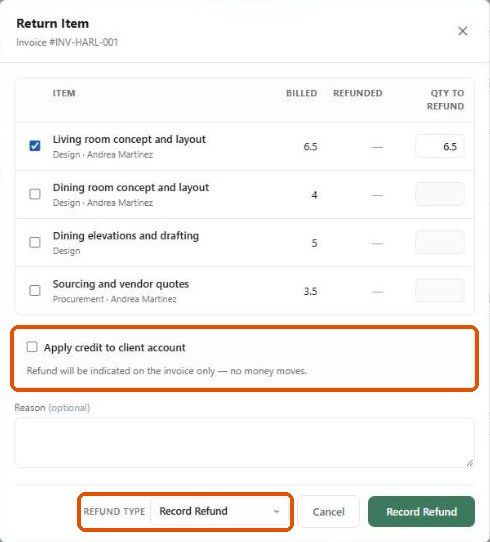
Tick each item being refunded. Qty to Refund fills with the billed quantity — lower it for a partial refund. The Refunded column shows what's already been refunded.
Tick Apply credit to client account to give the client credit. Leave it unticked and the refund is only noted on the invoice — no money moves.
Add an optional Reason.
Choose the Refund type: Record Refund (for your records) or Process Refund (through your connected processor).
Click Record Refund.
What happens next?
The invoice balance and Activity log update.
Any credit sits on the client's account and can be used later with Apply Credit when recording a payment.
Important limitations
Record Refund doesn't send money back. If the client paid by check or wire, refund them through your bank.
Credits belong to the client, not to a project.
Related articles
How to Record a Payment on an Invoice
How to Use the Invoice Quick View Panel
Was this helpful?
Still need help? Ask the team