How to Record a Payment on an Invoice
Log payments received against an invoice to keep your balance accurate and your records up to date.
Written By Julia M.
Overview
Record payments the client made outside Workroom (check, bank transfer, cash) or apply an existing credit or retainer.
Steps
Go to Finances → Invoices. Hover the invoice row and click + → Record a payment — or open the quick view panel, go to Payments and click Record payment.
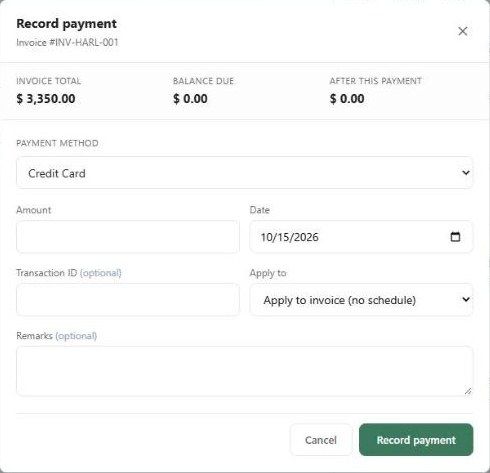
Check the header: Invoice Total, Balance Due and After This Payment.
Choose the Payment method: Credit Card, Debit Card, Bank Transfer, Cash, Other, Apply Credit or Apply Retainer.
Enter the Amount and Date.
Optionally add a Transaction ID (check or wire number) and Remarks.
Under Apply to, choose the invoice or a scheduled installment.
Click Record payment.
Edit or delete a payment
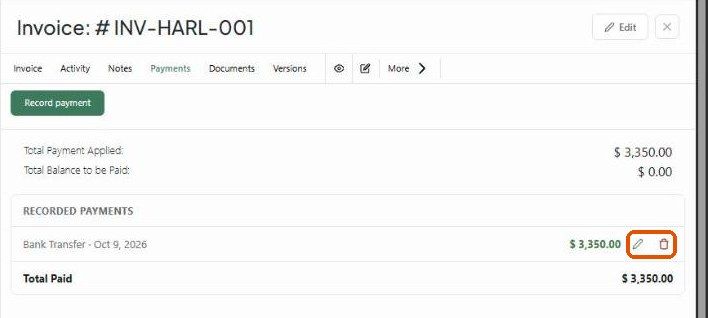
In the Payments tab, each entry under Recorded Payments has edit (pencil) and delete (bin) icons. Deleting a payment restores the balance.
What happens next?
The balance updates; at zero the invoice becomes Paid.
The payment appears in the Activity tab.
Important limitations
You can't record more than the balance due.
Apply Retainer needs a funded retainer on the same project.
Related articles
Applying a retainer to an invoice
How to Issue a Refund on an Invoice
Was this helpful?
Still need help? Ask the team