Overview of Invoices
Understand the invoices list view, statuses, columns, filtering options, and available actions.
Written By Julia M.
Overview
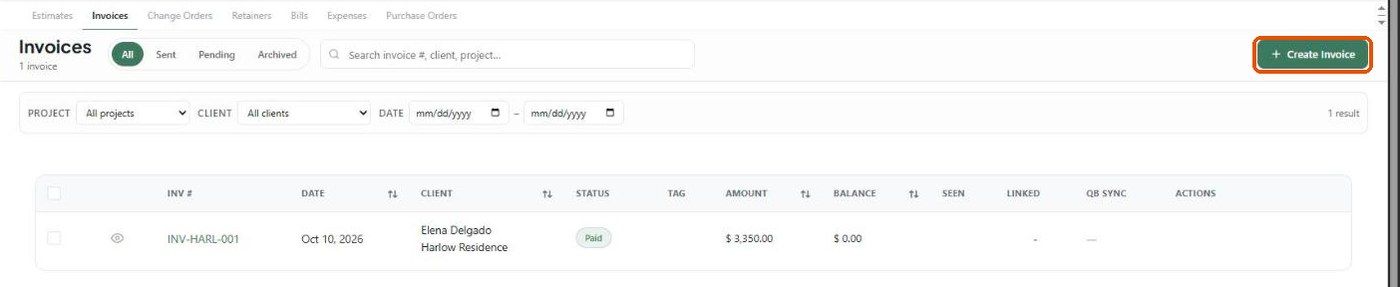
Finances → Invoices lists every invoice in the studio. Each project also has its own list under Finances → Invoices on the project.
The list
Status filters: All, Sent, Pending, Archived.
Search by invoice number, client or project; filter by project, client and date range.
Columns: INV #, Date, Client, Status, Tag, Amount, Balance, Seen, Linked, QB Sync, Actions. Sort by clicking the arrows.
Statuses
Draft, Waiting, Sent, Approved, Partial, Declined, In Revision, Paid, Unpaid. Sending moves an invoice to Sent; a zero balance moves it to Paid.
Row actions
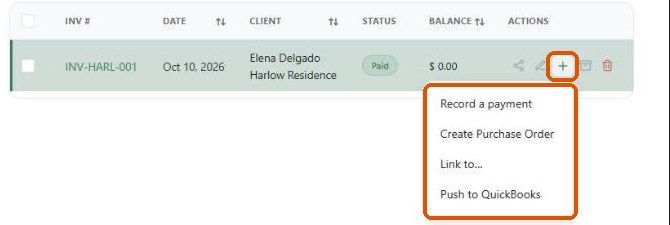
Share — Client View, Copy client link, Download PDF, Send to Client.
Pencil — edit.
+ — Record a payment, Create Purchase Order, Link to…, Push to QuickBooks.
Archive and Delete.
Quick view panel
Click an invoice number for the Invoice, Activity, Notes, Payments, Documents and Versions tabs, and More → Mark as sent / Refund / Delete.
Paid invoices
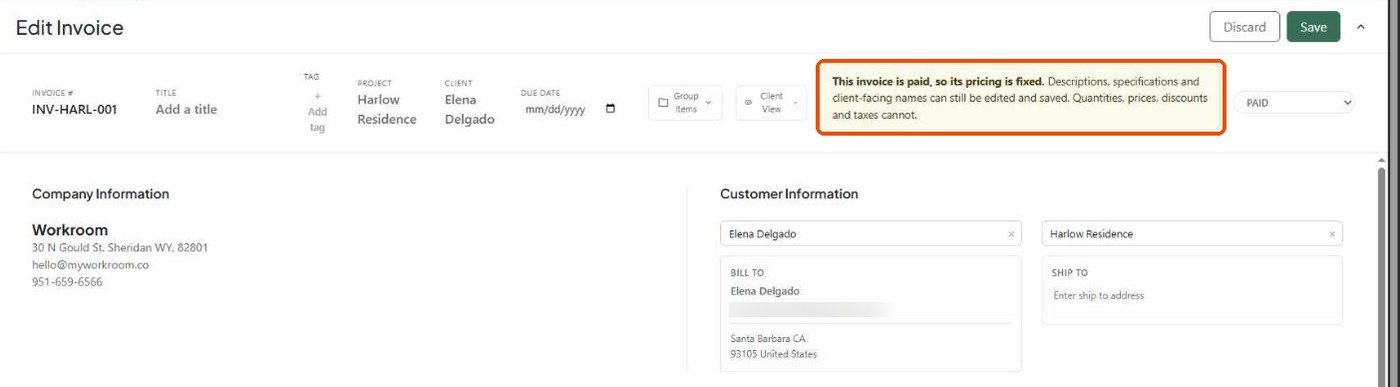
Once paid, an invoice's pricing is fixed. Descriptions, specifications and client-facing names can still be edited; quantities, prices, discounts and taxes can't.
Refunds and credits
Refunds are recorded per item from More → Refund, and can become a credit on the client's account.
Related articles
How to Create an Invoice and Add Items from the Library
How to Use the Invoice Quick View Panel
How to Record a Payment on an Invoice
Was this helpful?
Still need help? Ask the team