The Sync Center and Needs attention
See what synced, what is waiting and what failed, and fix each one from its card.
Written By Julia M.
Overview
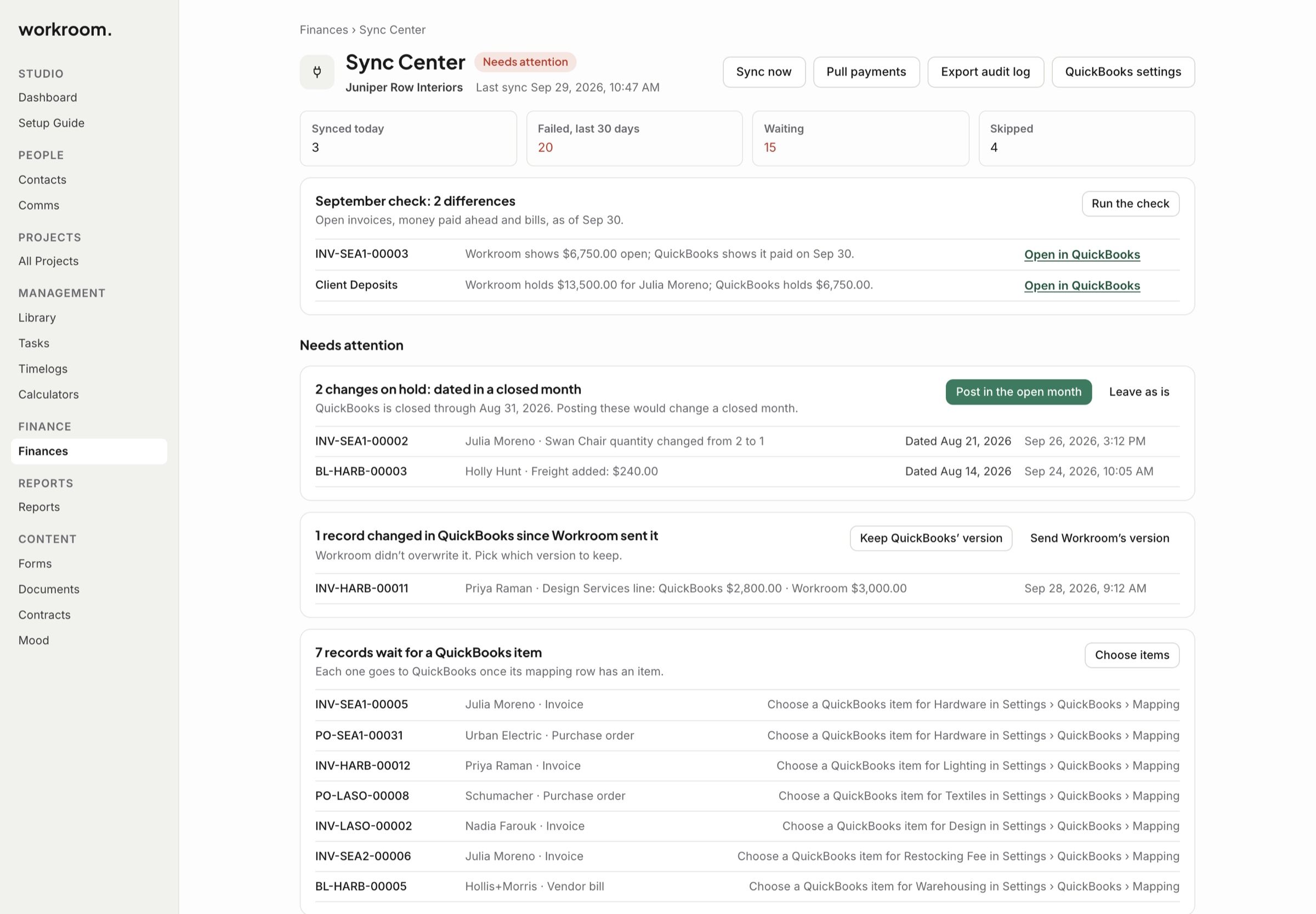
The Sync Center shows what went to QuickBooks, what’s waiting and what failed. Open it from Finances › Sync Center, or click Sync Center on your QuickBooks settings.
Watch it: QuickBooks basics for designers in Campus, chapter 8, “Closing the month” (starts at 4:35).
At the top
Synced today, Failed, last 30 days, Waiting and Skipped.
The monthly check compares open invoices, money paid ahead and bills with QuickBooks. Click Run the check any time.
Needs attention
Each card says what’s waiting and has the button to fix it.
Dated in a closed month: Post in the open month or Leave as is.
Changed in QuickBooks since Workroom sent it: Keep QuickBooks’ version or Send Workroom’s version.
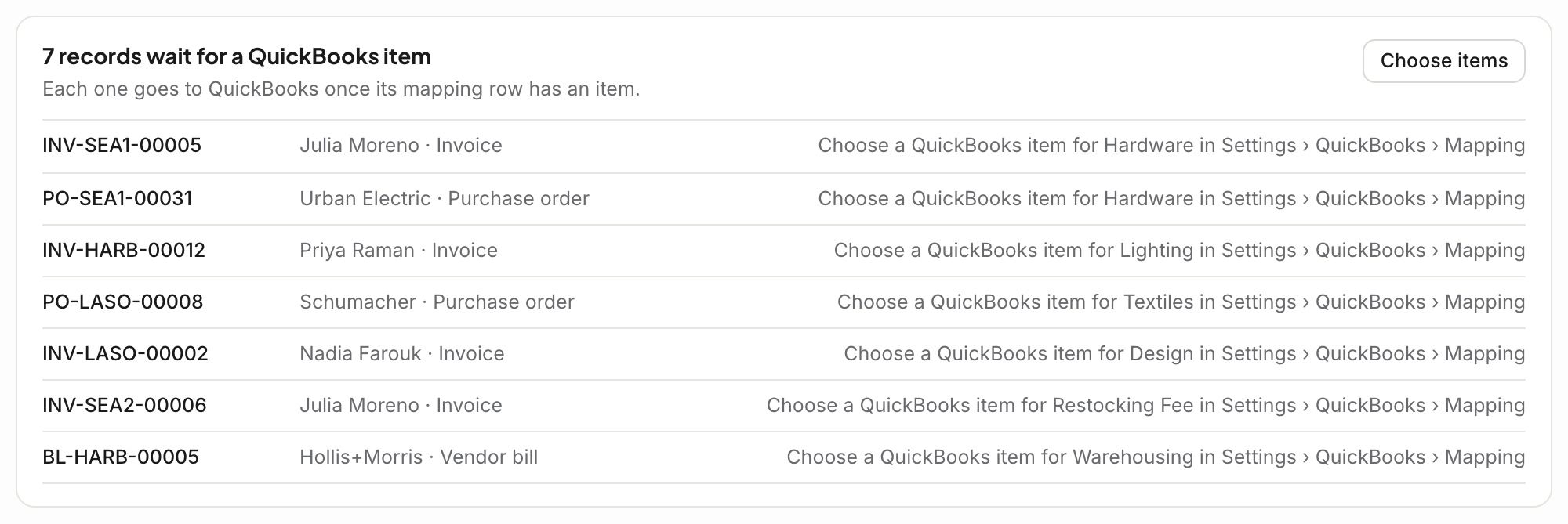
Records wait for a QuickBooks item: click Choose items.
Payments wait until you choose how retainers and deposits post: click Choose.
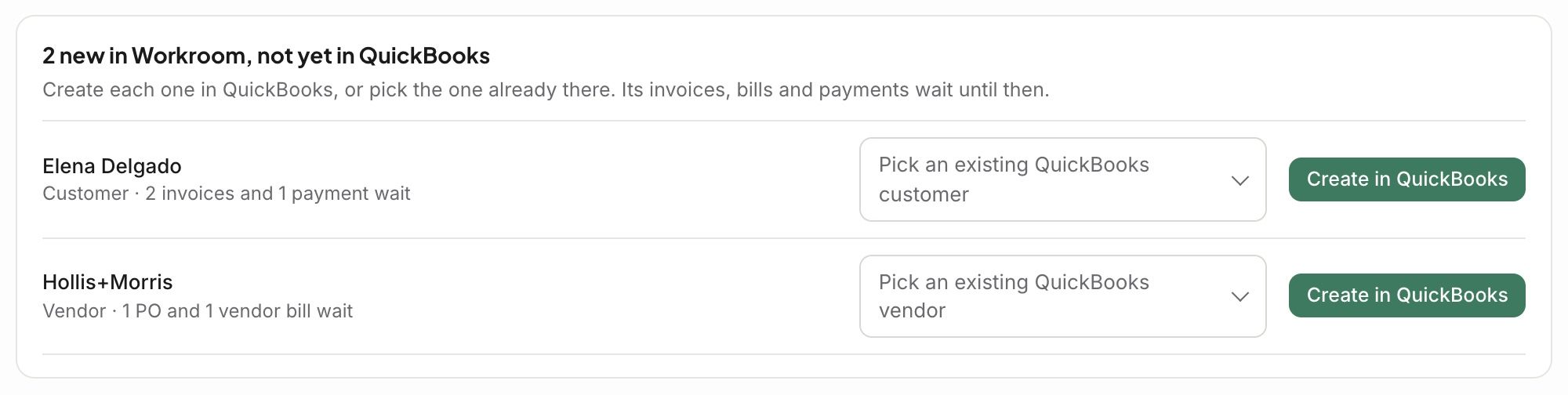
New in Workroom, not yet in QuickBooks: create each client or vendor there, or pick the one already there.
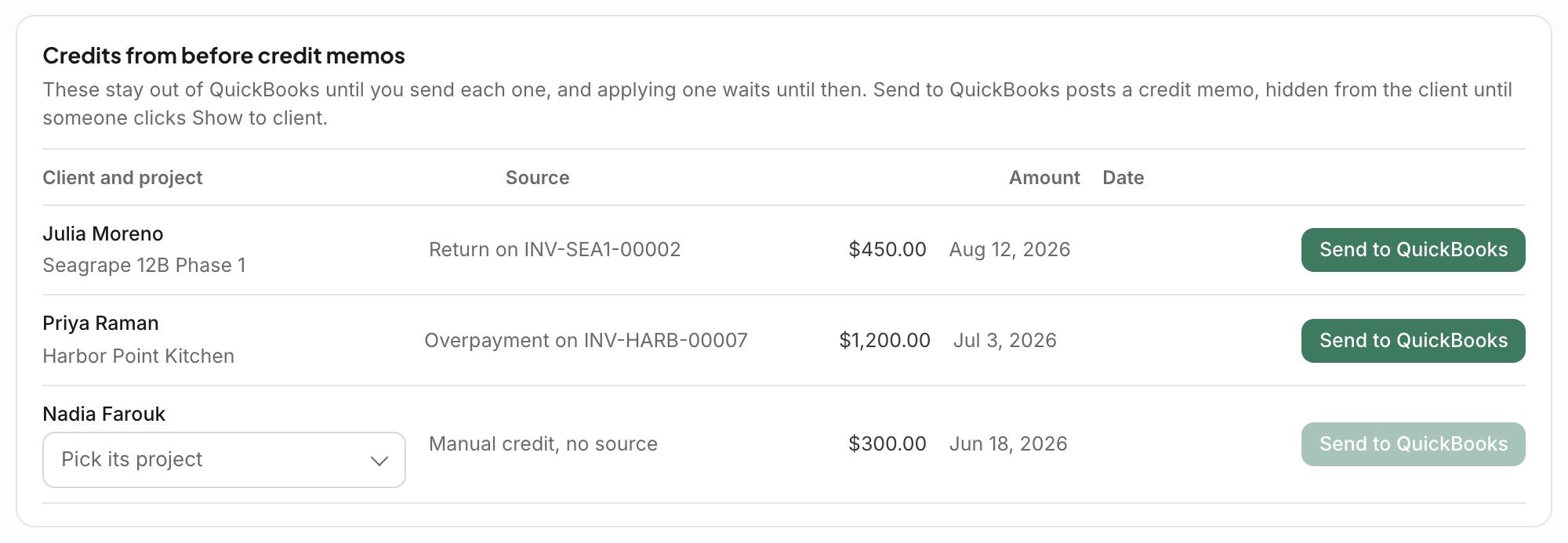
Credits from before credit memos: send each one when you’re ready.
Failed: QuickBooks timed out or turned too many away at once. Nothing is wrong with the records. Click Retry.
New clients and vendors
A new client, project or vendor waits until you click Create in QuickBooks or pick an existing one. Its invoices, bills and payments wait with it.
Credits from before credit memos
These stay out of QuickBooks until you click Send to QuickBooks. That posts a credit memo, hidden from your client until someone clicks Show to client. A credit with no project needs one picked first.
Sync log
Below the cards, the log lists every record sent or brought in, with All, Failed, To QuickBooks and From QuickBooks. Export audit log downloads it.
Related articles
Was this helpful?
Still need help? Ask the team