Special fields deep dive
Written By Timothy Murenzi
The six Special fields are built for design work. Add them from the bottom of the Form fields palette.
Measurements
Collect structured room dimensions from a client or contractor. The responder can add rooms, openings and windows as they go, and switch between imperial (feet + inches) and metric (meters + centimeters) — the answer is stored in the units they chose.
Punchlist
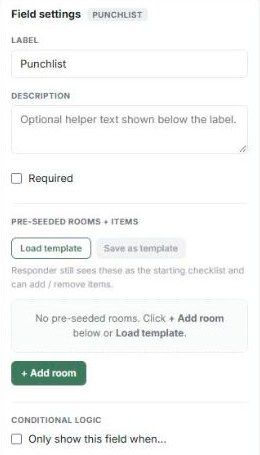
A per-room checklist for walkthroughs (construction blue-tape, FF&E receiving). In Field settings → Pre-seeded rooms + items:
+ Add room — add a room and its checklist items.
Save as template — save your rooms and items as a studio punchlist template.
Load template — fill the field from a template you saved.
The responder sees these as the starting checklist, ticks items off, adds notes per line, and can add or remove items. See Punchlist templates.
Swipe
"This or that" style discovery. Load image pairs from your catalog or upload your own; the responder taps their preference on each pair. Useful before a first design meeting.
Photo annotation
The responder uploads a room photo and drops labelled pins on it. You choose the pin labels — for example Hate, Keep, Has to go, What goes here?
Approval
A signature pad with typed-name confirmation and a timestamp — use it for scope or selection sign-off. You can edit the text shown above the signature.
Calendly
Paste your Calendly link in the field settings to embed a booking widget inside the form.
Was this helpful?
Still need help? Ask the team