Smart Search
How to use Smart Search on individual pages in Indema to filter and find records quickly.
Written By Julia M.
Most list pages in Workroom have their own Smart Search box. It filters the records on that page as you type, with no filters to open.
How to use it
Open a page such as Contacts, Vendors, Library (products), invoices, estimates or purchase orders.
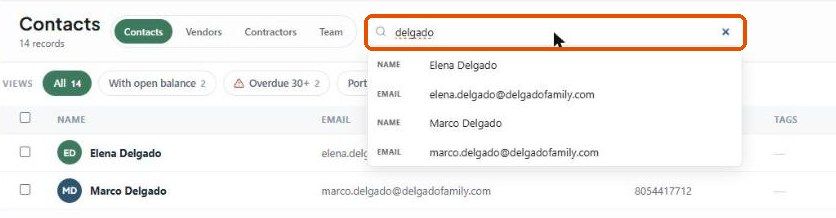
Click the search box at the top of the list. On Contacts it reads Search name, email, phone, company….
Start typing. The list filters live, and a dropdown shows which field matched (for example NAME or EMAIL). Click a suggestion to jump to it.
Click × to clear the search.
Combine terms
Smart Search understands multi-part searches. On the products page, for example, type a category and a vendor name to find items that match both.
What each page searches
Tip: the vendor company description is searchable. Put the vendor's category there (for example "Lighting") and you can find every lighting vendor by typing the word.
Smart Search or Studio Search?
Smart Search filters the page you're on.
Studio Search (top header, ⌘K / Ctrl + K) searches the whole studio. See Studio Search.
Pages also have quick Views beside the search. On Contacts these are All, With open balance, Overdue 30+, Portal active and Archived — they combine with your search.
Was this helpful?
Still need help? Ask the team