Managing Client Profiles in Projects
Learn how client profiles preserve operational intelligence and communication context inside projects.
Written By Julia M.
Overview
The Client Profile section of a project's Overview records how to work with this client: who they are, how they like to communicate, and what to watch out for.
Where to find it
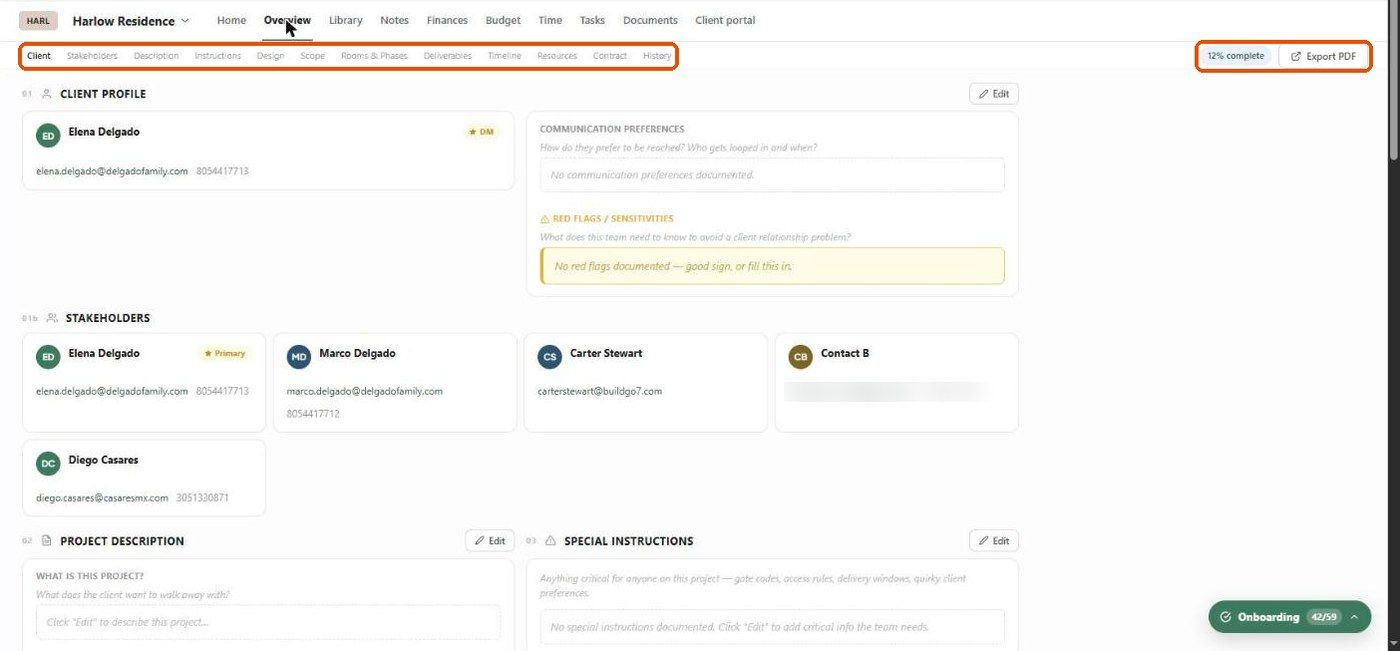
Open the project → Overview → Client (section 01), and Stakeholders (01b) just below it.
What's in it
Client — the billing client's name, email and phone, marked DM (decision-maker).
Communication preferences — how they like to be reached and who gets looped in when.
Red flags / sensitivities — what the team needs to know to avoid a relationship problem.
Stakeholders — everyone else on the project (partners, family, contractors), with the primary contact marked.
Edit it
Click Edit on the Client Profile section.
Fill in communication preferences and red flags.
Save.
Stakeholders come from the project's clients and contacts. Add people under the project's client settings or the Client portal tab.
Examples
Communication: "Text Elena for quick questions; email Marco for anything with a number in it."
Red flags: "Bad experience with a previous designer over delays — always give realistic lead times."
Best practices
Keep it professional and relevant to doing the work.
Update it as you learn more about the client.
Related articles
Understanding the Design Overview
Was this helpful?
Still need help? Ask the team