Attaching a response to a project
Written By Timothy Murenzi
A response is most useful when it's connected to the right project. You can link it to a project you already have, start a new project from it, or create an estimate.
Attach to an existing project
Open the response (Forms → Responses on the form's row, then click the response).
Click Attach to existing project.
Search for the project by name, code or client, then click Attach → next to it.
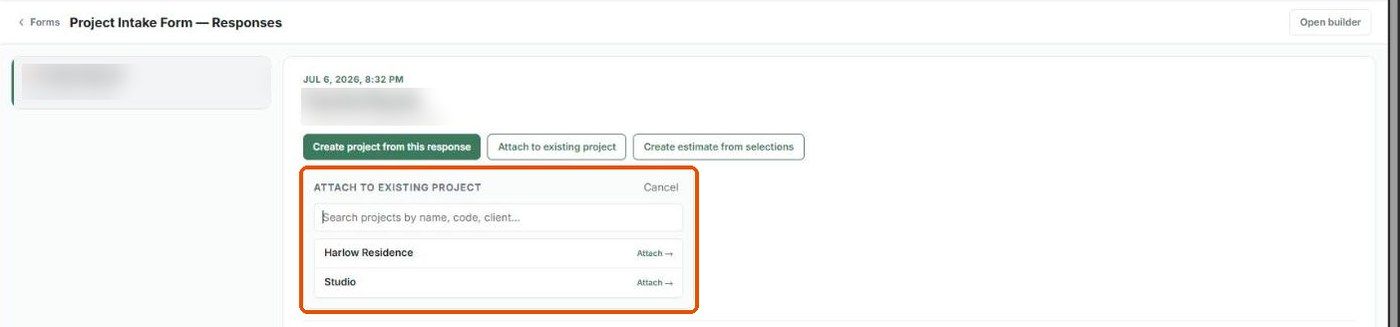
Click Cancel to close the panel without attaching. Once attached, the response appears on the project's overview under form responses.
Create a new project from a response
Open the response and click Create project from this response.
The new project form is pre-filled with the client's details from the response (name, contact information and project details).
Check the rest and create the project as usual.
Create an estimate
Click Create estimate from selections to start an estimate from the products the respondent picked (for example in a Swipe field).
These actions need the matching permissions — Attach response to a project, Create project from response and Create estimate from response (see Form permissions).
Was this helpful?
Still need help? Ask the team