Connecting Google or Outlook
Written By Vinod Kumar Alluri
Connect your Google or Microsoft 365/Outlook account and two things happen: the meetings you book in Workroom appear in your own calendar, and your calendar's events appear on the Workroom calendar. The calendar rides on the same connection as your email — there is no second sign-in and no second connection to manage.
The connection is per person. Each teammate connects their own account, and nobody else in the studio can see it.
Connect your calendar
Click Settings, then switch to the You tab.
Click Connected accounts.
Connect your Google or Outlook / Microsoft 365 account and approve access when prompted. When it's done you'll see Connected — [email protected].
Under What this connection does → Calendar, use Workroom writes its events to to choose which of your calendars Workroom adds meetings to.
Make sure the Syncing toggle beside it is on.
Under Show these calendars on the Workroom calendar, tick every calendar you want to see inside Workroom. The calendar Workroom writes to is always shown and marked Workroom writes here.
Click Sync now to run the first sync straight away (otherwise it runs on its own within a minute).
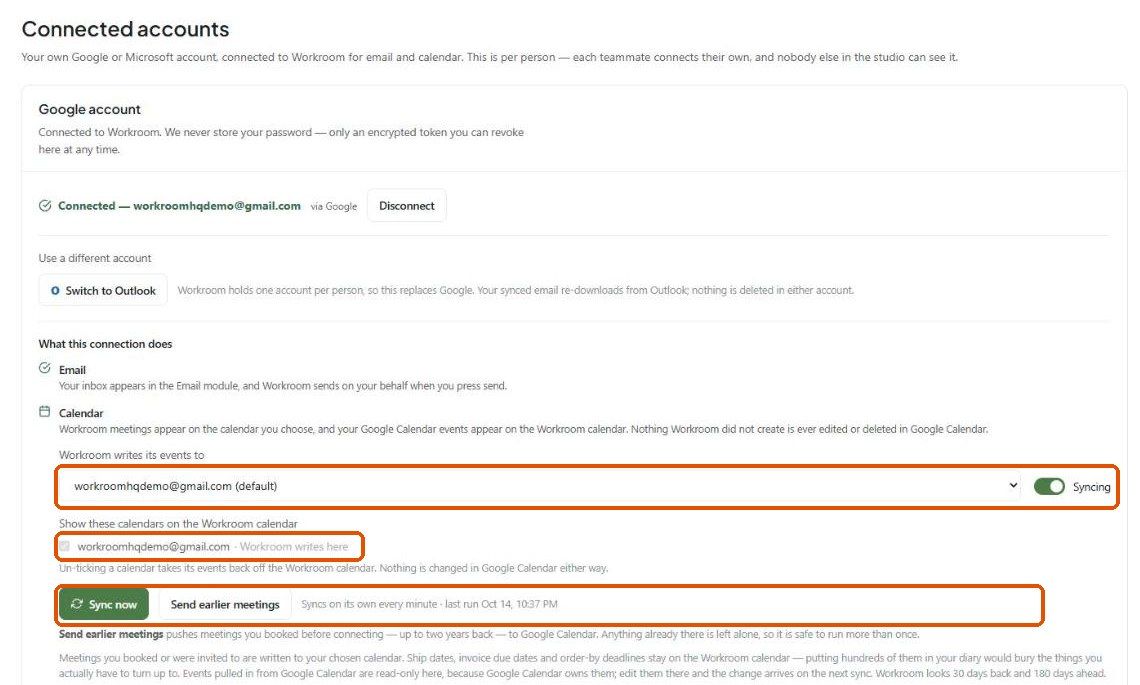
Only one account per person. Workroom holds one connected account per teammate. Switch to Outlook (or Switch to Google) replaces the current one; your synced email re-downloads from the new account, and nothing is deleted in either account.
"Reconnect to add the calendar"
If you connected your mailbox before calendar sync existed, your connection doesn't include calendar access, and the panel will say so. Click Disconnect, then connect the same account again — your email is unaffected — and the Calendar section will appear.
Google users may also see "Only your primary calendar is listed." Same cause, same fix: reconnect to choose from your full list of calendars.
What syncs, in each direction
Who owns an event
Workroom created it → Workroom's copy wins. Edits you make in Workroom are sent to your calendar.
It came from your calendar → your calendar's copy wins. It is read-only in Workroom and is never sent back. Edit it in Google or Outlook and the change arrives on the next sync.
Workroom never edits or deletes anything in Google or Outlook that it did not create. Your own diary stays yours.
Timing and range
Sync runs every minute on its own. The panel shows when it last ran (e.g. last run Oct 14, 10:37 PM).
Workroom looks 30 days back and 180 days ahead. A first connection does not import years of old events.
Sync now forces an immediate pass.
Send earlier meetings
Meetings you booked in Workroom before connecting your calendar sit outside the normal 30-day window, so they're never sent automatically.
Go to Settings → You → Connected accounts.
Click Send earlier meetings.
This pushes meetings from up to two years back to your calendar. Anything already there is left alone, so it's safe to run more than once. If there are more meetings than one pass can send, you'll be told — just run it again and it continues where it left off.
Your calendars on the Workroom calendar
Once connected, your calendars appear in the Calendar's left panel under Connected calendars, each with a checkbox and an event count.
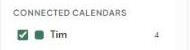
Untick a calendar to hide its events. It's only a filter — the connection is untouched and the events come back when you tick it again.
Rename it. Calendars usually default to your full email address or name. Click Rename beside it and give it a short label like "My calendar" or "Studio shared". This only changes the name in Workroom, not in Google or Outlook.
Disconnecting
Click Disconnect in Settings → You → Connected accounts. Workroom's access token is removed immediately, and every event it pulled in from your calendar is taken off the Workroom calendar — no frozen copy is left behind. Nothing is deleted in your Google or Microsoft account.
Was this helpful?
Still need help? Ask the team