The Kanban view
Written By Timothy Murenzi
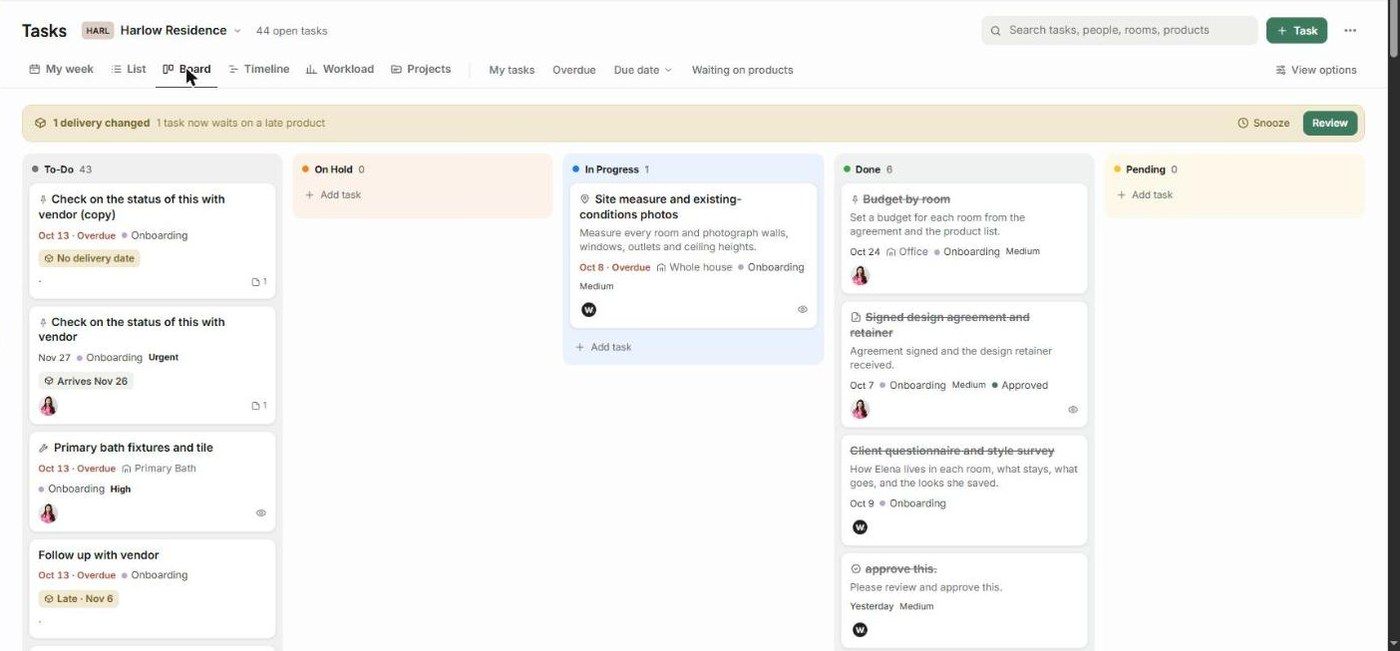
The Board view (previously Kanban) shows one column per status. Each card is a task.
Columns
The columns come from your task statuses — for example To-Do, On Hold, In Progress, Done and Pending — each with a count. You manage statuses in Settings → Studio → Library and statuses.
What's on a card
Task name, task type icon, and the first lines of the description
Due date (red when overdue), room, phase and priority
Product badges, such as Arrives Nov 26, Late · Nov 6 or No delivery date
Assignees, attachments count, and an eye icon when the client can see the task
Working on the board
Drag a card to another column to change its status.
Click + Add task in a column to add a task with that status.
Click a card to open the task panel.
Related articles
The Table view (List)
The Task panel (task details)
Was this helpful?
Still need help? Ask the team