Creating permission sets
Written By Timothy Murenzi
Permission sets control what each team member can see and do. Use them to hide modules that aren't relevant to someone's role, and to keep sensitive information (like costs and margins) with the right people.
Where to find them
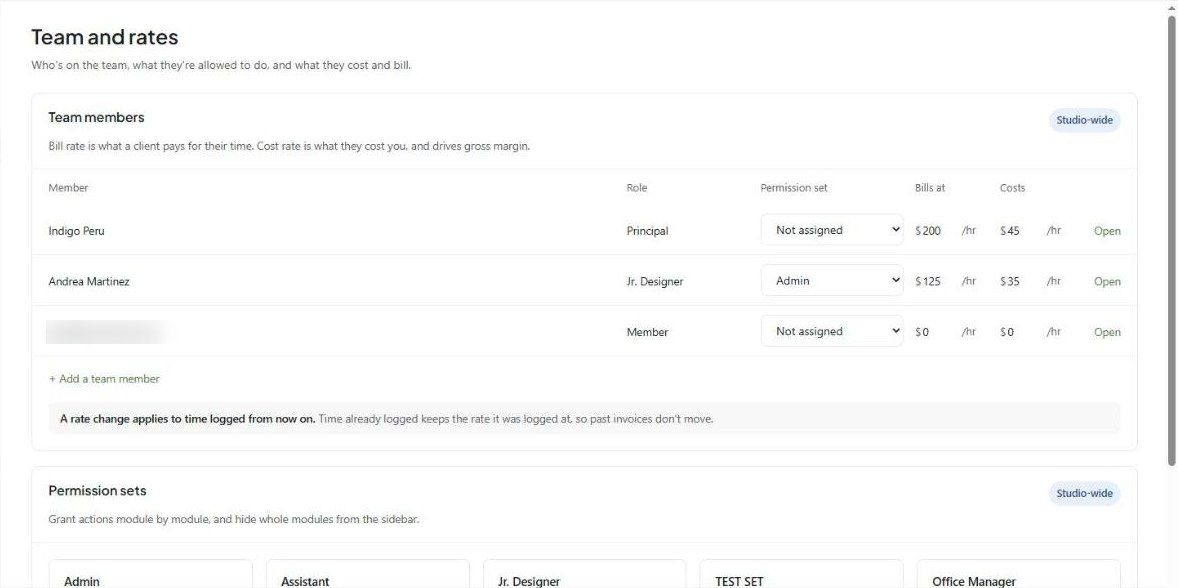
Settings → Studio → Team and rates → Permission sets. Each set is a card showing how many members use it (e.g. Admin · 1 member).
Create or edit a set
Click an existing set to edit it, or add a new one.
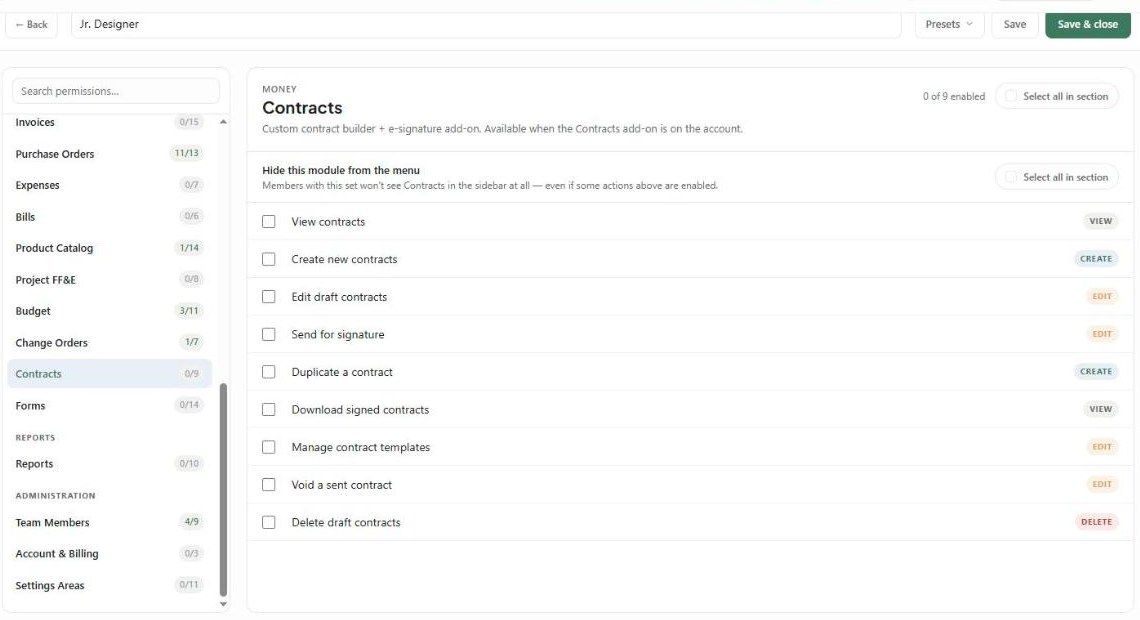
Type the set's name at the top (e.g. Jr. Designer).
Optionally start from Presets.
Work through the modules on the left, grouped by area (Money, Reports, Administration…). Each shows how many permissions are on (e.g. Purchase Orders 11/13). Use Search permissions… to find one.
Tick the actions this set may perform. Each is tagged VIEW, CREATE, EDIT or DELETE. Use Select all in section to tick them all.
Tick Hide this module from the menu to remove a module from the sidebar completely — even if some actions are on.
Click Save, or Save & close.
Assign a set
Existing members: in Settings → Studio → Team and rates, choose the Permission set in the member's row, then click Save changes.
New members: choose the Starting access level when you invite them. See Adding your team.
Tips
Build sets around roles (Principal, Designer, Bookkeeper, Assistant), not individual people.
Members marked Not assigned have no set — assign one so their access is deliberate.
Hide modules people don't use. A shorter sidebar is easier to work in.
Was this helpful?
Still need help? Ask the team