The Task panel (task details)
Written By Timothy Murenzi
The task panel holds everything about a single task. Click any task in List, Board or Timeline to open it on the right.
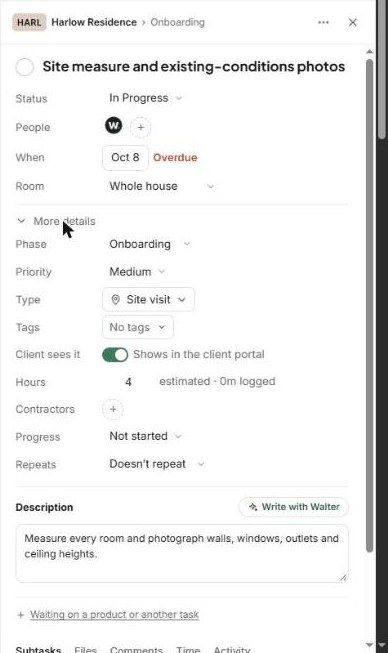
The top of the panel
Breadcrumb — project and phase (e.g. HARL Harlow Residence › Onboarding).
Title — click the circle to mark the task done.
Status, People (click + to assign), When (shows Overdue in red), and Room.
More details
Expand More details for:
Phase, Priority and Type (e.g. Site visit)
Tags
Client sees it — shows the task in the client portal
Hours — estimated, plus how much is logged
Contractors, Progress, and Repeats (for recurring tasks)
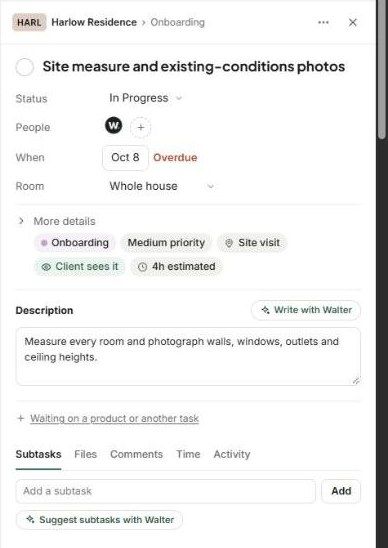
When collapsed, these show as chips (e.g. Onboarding · Medium priority · Site visit · Client sees it · 4h estimated).
Description and Walter
Write the Description yourself, or click Write with Walter.
Waiting on a product or another task
Click + Waiting on a product or another task to link the task to something it depends on. See Dependencies & Critical Path.
Tabs
Subtasks — add one and click Add, or Suggest subtasks with Walter.
Files, Comments, Time (time logged on this task) and Activity.
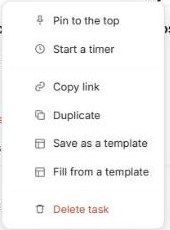
The ⋯ menu
Pin to the top
Start a timer
Copy link
Duplicate
Save as a template and Fill from a template
Delete task
Related articles
Creating Task Templates
Dependencies & Critical Path
Was this helpful?
Still need help? Ask the team