Generating Advanced PDF Spec Packages
Written By Timothy Murenzi
Overview
Build spec books, schedules, matrices and selection boards for clients, contractors or your studio from the Library's Reports.

Open Reports
Click Reports at the top of the Library for the current list, or
tick products and click Reports in the toolbar to build from just those.
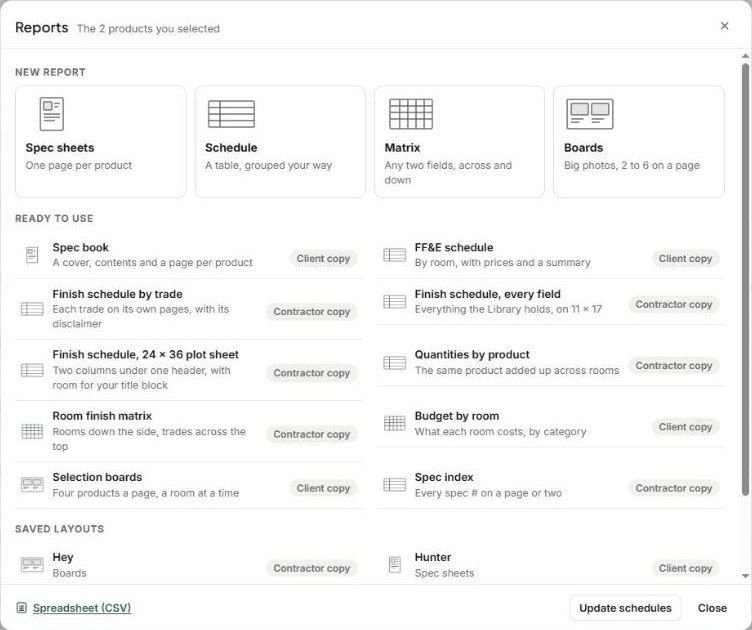
Start a New report — Spec sheets (one page per product), Schedule (a table, grouped your way), Matrix (any two fields across and down) or Boards (big photos, 2–6 a page) — or pick a Ready to use report: Spec book, FF&E schedule, Finish schedule by trade, Finish schedule (every field, 11 × 17), Finish schedule 24 × 36 plot sheet, Quantities by product, Room finish matrix, Budget by room, Selection boards, Spec index. Each is marked Client copy or Contractor copy. Spreadsheet (CSV) exports the raw data.
The report editor
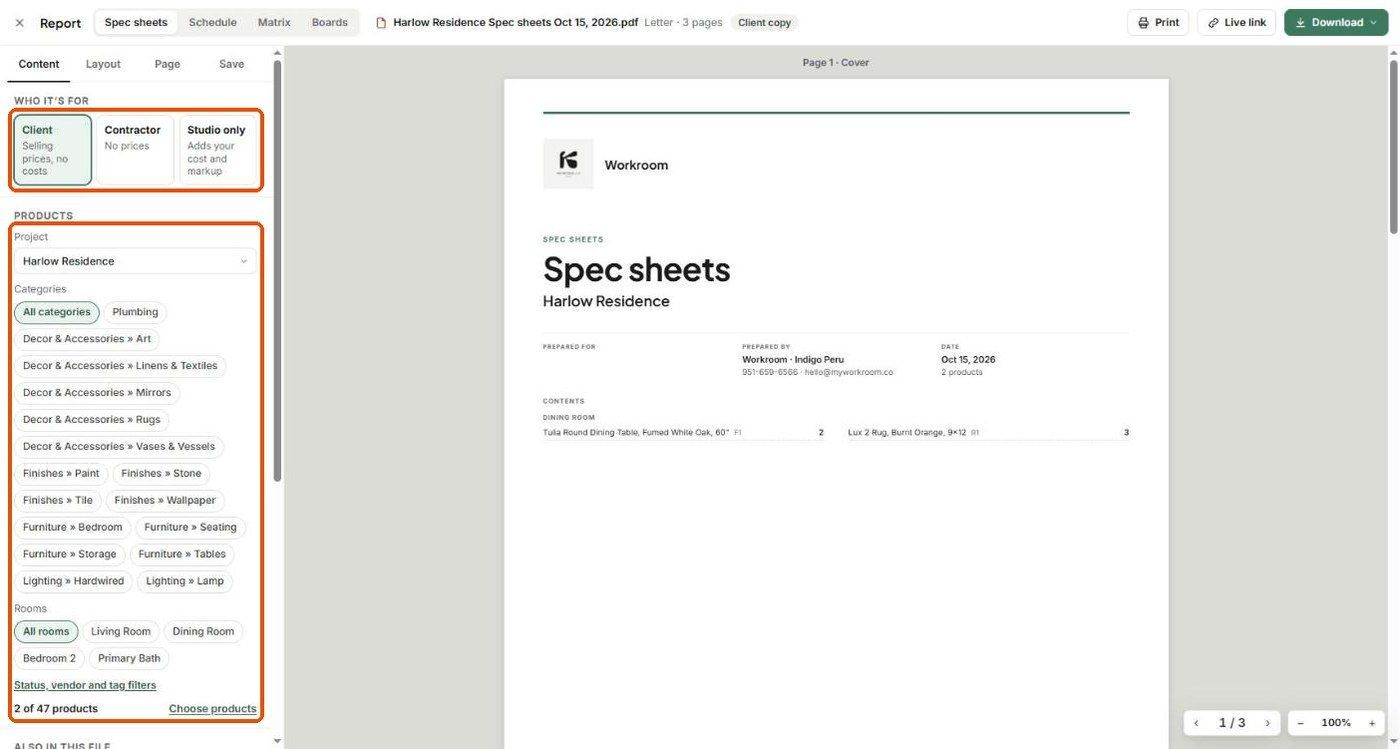
The preview on the right updates as you change settings. Switch type with the tabs at the top (Spec sheets, Schedule, Matrix, Boards).
Content
Who it's for: Client (selling prices, no costs), Contractor (no prices) or Studio only (adds your cost and markup).
Products: project, categories, rooms, Status, vendor and tag filters, and Choose products.
Also in this file: add a mood board or a PDF.
Layout
For spec sheets: product name (Client-facing, Manufacturer's or Both), image layout, which blocks show on each sheet (Images, Product info, Specs, Description, Important note, Pricing, Sub-items, Procurement, Tracking, Attachments), order and trade disclaimers. For schedules: Group by and then by, start each room on a new page, combine the same product across rooms, columns, and sub-items as rows.
Page
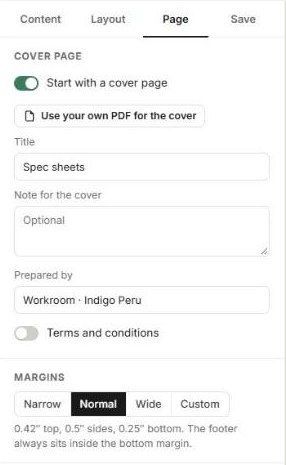
Cover page (or your own PDF as the cover), title, note for the cover, prepared by, Terms and conditions, and margins.
Save
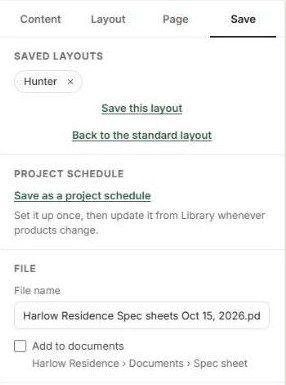
Save this layout to reuse it, Save as a project schedule to keep it updatable, set the File name, and tick Add to documents to file it under the project's Documents.
Output
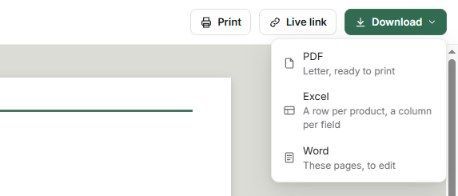
Print, Live link, or Download as PDF, Excel (a row per product) or Word.
Tips
Save one layout per audience (client presentation, contractor schedule, internal costing).
Check Who it's for before downloading — Studio only shows your cost and markup.
Related articles
PDF Schedule
Spec Packages
Individual Spec Sheets
Was this helpful?
Still need help? Ask the team