Managing Project Notes
Learn how to create structured operational notes inside project workspaces.
Written By Julia M.
Overview
Project Notes hold meeting summaries, site visit notes and design documentation inside the project, with comments and attachments alongside.
Create a note
Open the project and click the Notes tab.
Click + New Note (or Create Note if there aren't any yet).
Click Untitled Note and type a title.
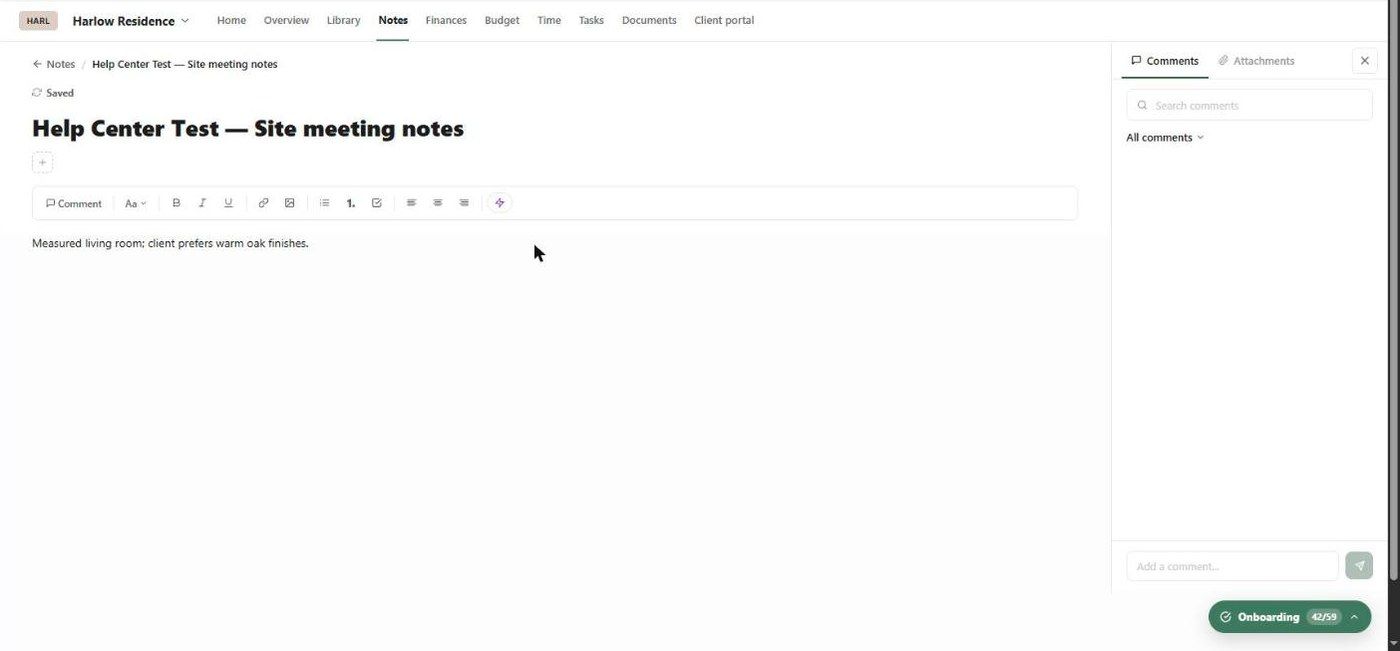
Start writing. Notes save automatically — the header shows Last saved: Just now or Saved.
Formatting
The toolbar has:
Comment (comment on selected text)
Text style (Aa), bold, italic, underline
Link and image
Bulleted list, numbered list and checklist
Alignment
A Walter (lightning) button for AI help
Use + under the title to add a block.
Comments and attachments
The right-hand panel has two tabs:
Comments — search, filter (All comments), and add comments.
Attachments — files for this note.
Click × to hide the panel. Click ← Notes to go back to the list.
Best practices
Use clear titles, e.g. "Site meeting — Oct 14".
Record decisions and approvals as they happen.
Move lasting decisions into the Overview (Design Direction, Scope) so the whole team can find them.
Related articles
Understanding the Design Overview
Was this helpful?
Still need help? Ask the team