Getting Started with Contracts
Written By Timothy Murenzi
Contracts lets you write, send and collect signatures on client agreements inside Workroom. You don't need a separate e-signature tool. Build a contract from sections, start from one of your saved templates, or upload a finished PDF. Then place signature and other fields, add your signers and send. Signed contracts, retainer payments and new clients or projects all land back in Workroom.
Where to find it
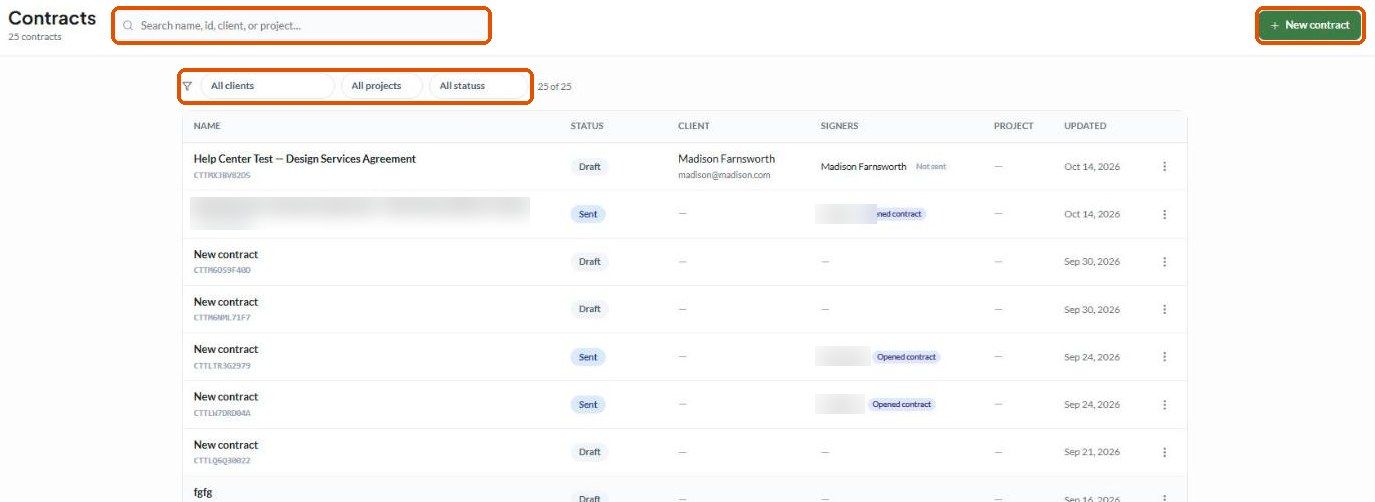
Click Contracts under CONTENT in the left sidebar, between Documents and Mood. The page lists every contract in the studio, with a count under the title (for example 25 contracts).
Don't see Contracts? Contracts is an add-on. Open your avatar menu (top right) → Apps to see the add-ons you can enable. If it isn't listed there, contact Workroom support. If the add-on is on but one teammate can't see it, it's a permission issue — see Permissions below.
The Contracts list
Search — find a contract by name, ID (for example CTTMXJBV82D5), client or project.
Filters — All clients, All projects and All statuses. The counter beside them shows how many contracts match (e.g. 25 of 25).
Columns — Name and ID, Status, Client (with email), Signers (each with their own progress), Project and Updated.
⋮ menu on each row — the actions available depend on the contract's status. See Sending a Contract for Signature.
Contract statuses
The Signers column shows each person's own state as well: Not sent, Sent, Opened contract or Signed.
Permissions
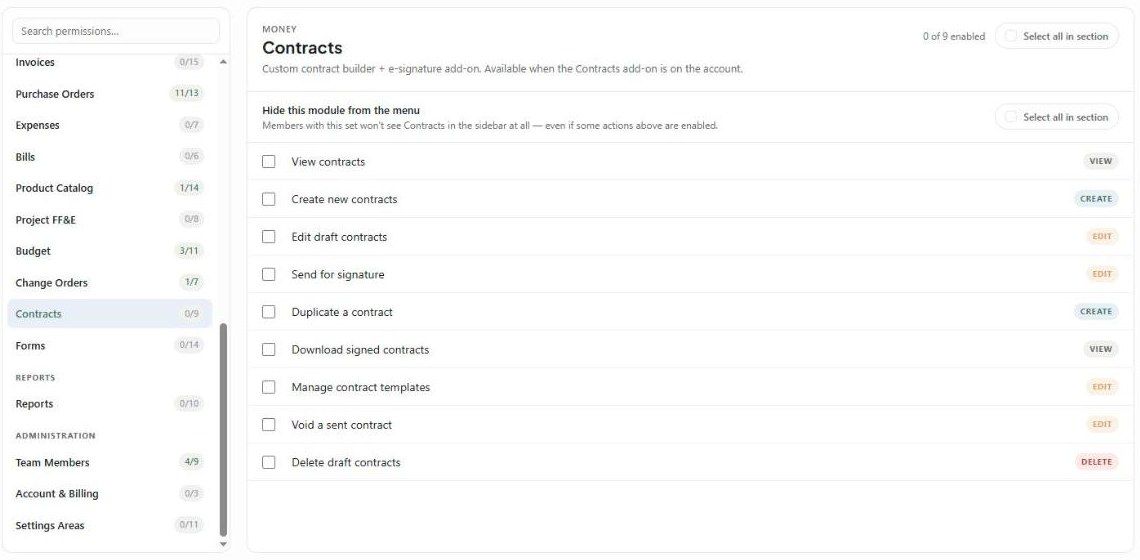
Account owners always have access. For team members, go to Settings → Studio → Team and rates → Permission sets. Open a set and choose Money → Contracts. There are nine actions:
View contracts
Create new contracts
Edit draft contracts
Send for signature
Duplicate a contract
Download signed contracts
Manage contract templates
Void a sent contract
Delete draft contracts
Hide this module from the menu removes Contracts from that set's sidebar completely, even if some actions are ticked. Click Save or Save & close when you're done.
Where to go next
Creating Your First Contract
The Contract Editor
Sending a Contract for Signature
Retainer Payments and Settings & Automation
Was this helpful?
Still need help? Ask the team