What the Calendar actually is
Written By Vinod Kumar Alluri
Most calendars are a place you put dates. Workroom's is a place dates arrive.
Almost nothing on this screen was typed into it. A delivery appears because a product in the Library has an install or delivery date. An order-by date appears because that product has a vendor lead time and an install date, and the calendar did the subtraction. An invoice appears because it has a due date. A task appears because it has a due date in Work in Progress. The calendar is a window onto records that already own their dates — which is why moving a chip here changes the record, not a copy of it.
The one exception is meetings: they're the only thing the calendar creates and owns (see Creating and running meetings).
Rule of thumb: if something looks wrong on the calendar, the fix is almost always in the record (the product, invoice, task or project), not on the calendar.
Opening the Calendar
In the left sidebar, under Studio, click Calendar (it carries a Beta tag).
The page opens on the All lens in Week view, starting on today's week.
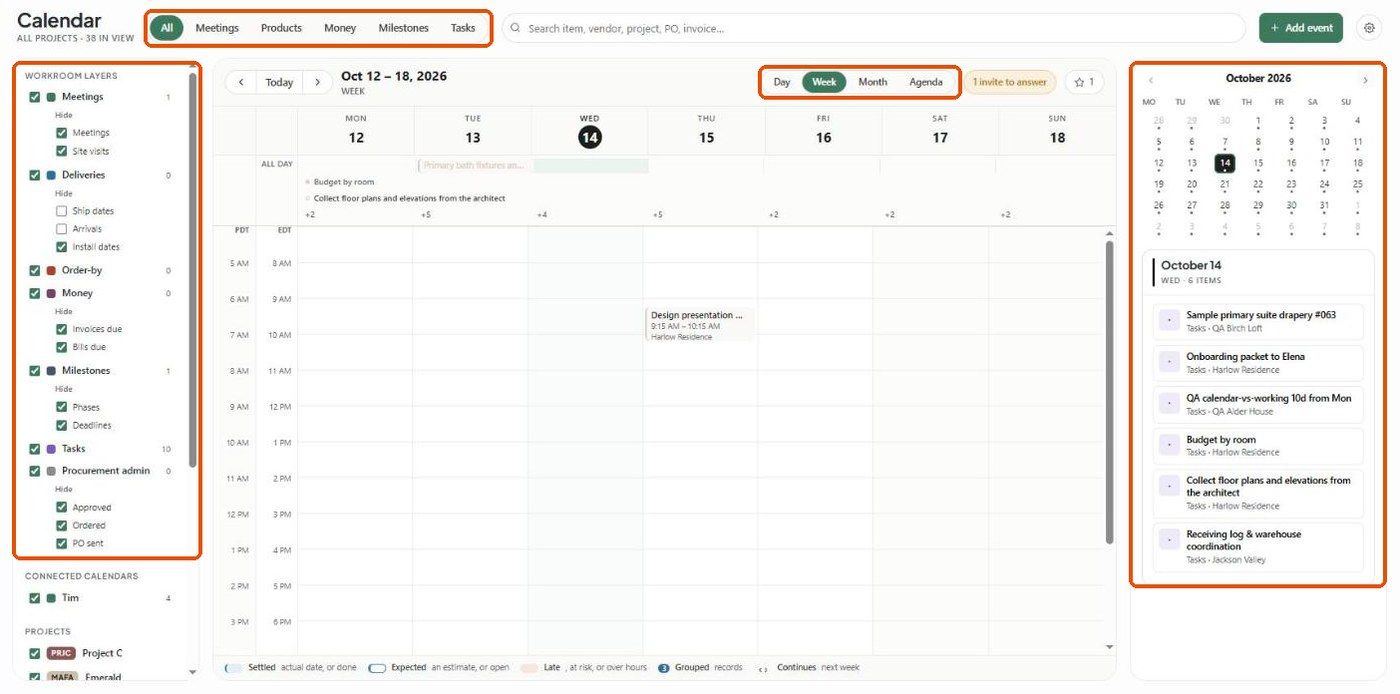
The screen has four areas:
Lens bar (top) — All, Meetings, Products, Money, Milestones, Tasks. Next to it, a search box that finds an item, vendor, project, PO or invoice, then + Add event and the ⚙ view settings button.
Filter panel (left) — the seven Workroom layers, your connected Google/Outlook calendars, and a project list.
The grid (centre) — with Today, the ‹ › arrows, and the Day / Week / Month / Agenda switcher. When you have unanswered meeting invitations, an orange "1 invite to answer" button appears here too; click it to jump straight to the meeting.
Day panel (right) — a mini month you can click to jump to any date, and a list of everything on the selected day.
The seven layers
Every chip belongs to exactly one layer. Each layer has its own colour and a checkbox in the left panel, with a count of how many items it has in the current range.
To narrow a layer, click What is in it under its name and tick or untick the sub-filters. Click Hide to collapse the list again. For example, Deliveries shows only Install dates until you also tick Ship dates and Arrivals.
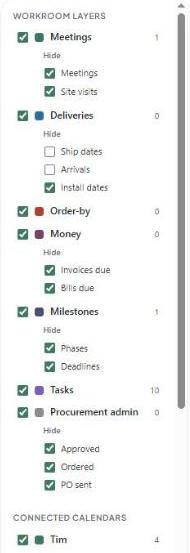
Colours follow your "Color by" setting. The layer colours above apply when ⚙ → Color by → Type is selected. If it's set to Project, chips take their project's colour instead, so the calendar reads by job rather than by layer.
Missing a whole layer? Layers are hidden by permission, not preference. Deliveries, Order-by and Procurement admin need procurement access; Money needs finance access. If a teammate says a layer is missing, check their permission set (Settings → Studio → Team and rates) before checking the calendar.
Filtering by project and calendar
Below the layers, the filter panel lists:
Connected calendars — each Google/Outlook calendar you've chosen to show, with its own checkbox and count. Click Rename beside a calendar to give it a friendly name.
Projects — every project, ticked by default. Untick projects to hide them, or click Only beside one to show that project alone.
The subtitle under the page title updates as you filter (for example ALL PROJECTS · 38 IN VIEW), so you always know how much you're looking at.
The six lenses
Lenses are the fast way in. Each one ticks a set of layers and switches to the view that suits them:
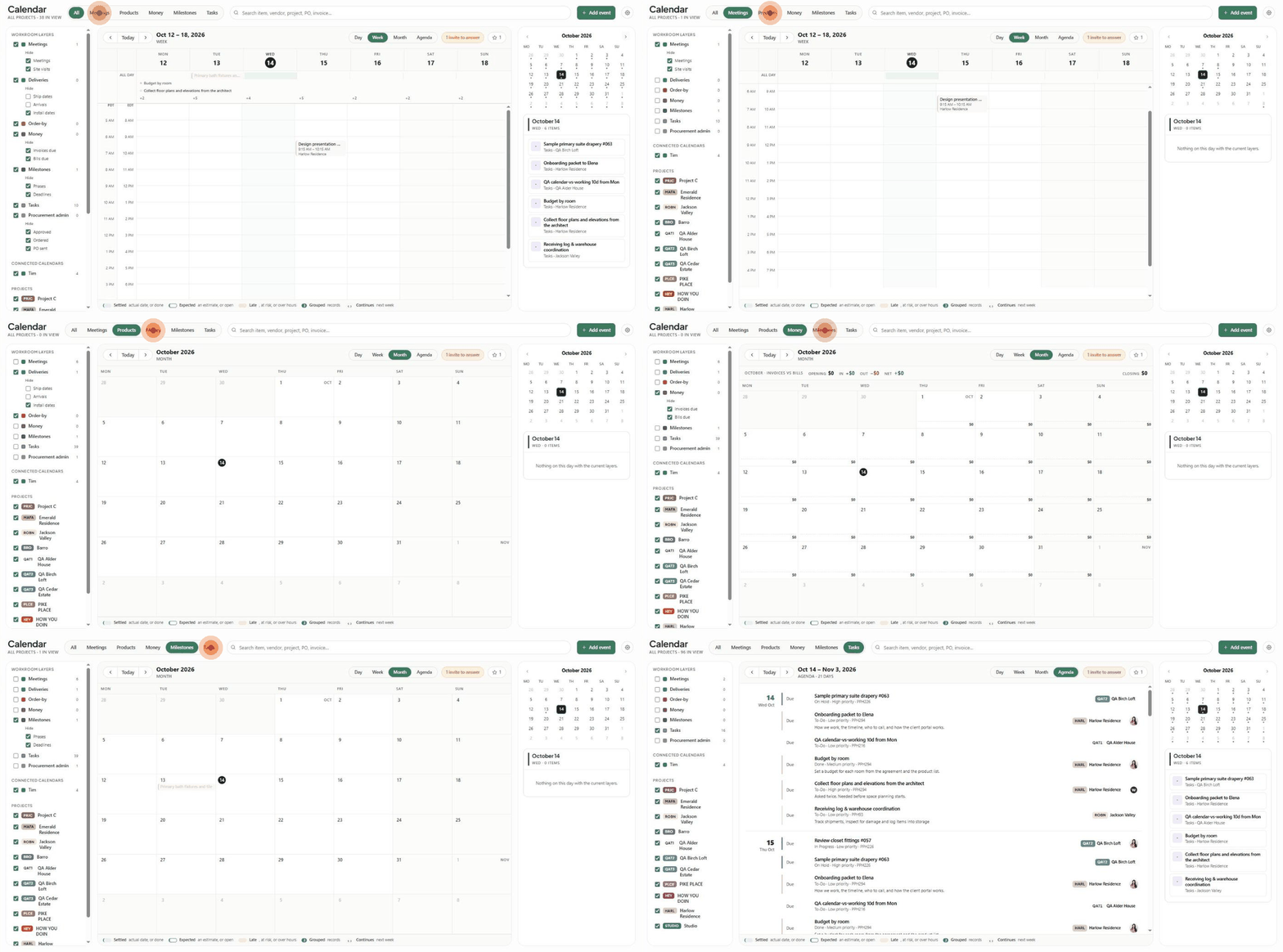
Picking a lens replaces your layer checkboxes. You can then tick extra layers back on without losing the lens's view — the lens is a starting point, not a cage.
The cash strip
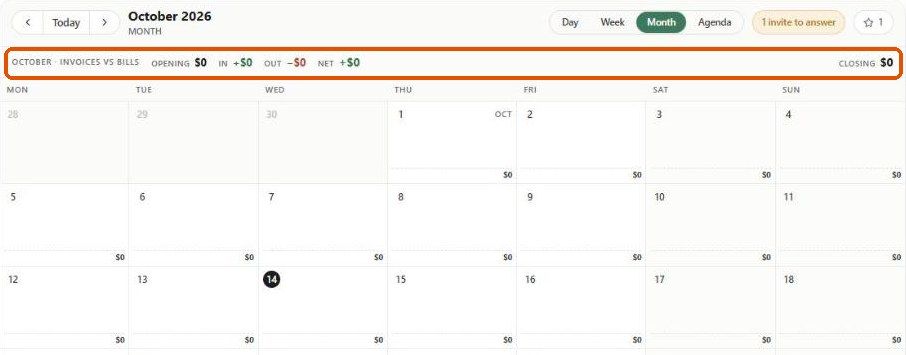
The Money lens in Month view adds a strip across the top of the grid: Invoices vs Bills for the month, with Opening balance, money In, money Out, Net, and Closing balance. Each day cell also shows that day's net at the bottom. It only appears in Money + Month.
The four views
Day — one column, hour by hour. Best for an install day or a day of back-to-back client calls.
Week — the default, and the one most studios live in. All-day items and tasks sit in a strip above the hours; "+5" style counts show how many more are hidden.
Month — the planning view, and the only one where the cash strip appears. Days with lots of tasks show "+6 tasks" rather than filling up.
Agenda — a rolling 21-day list, grouped by day. Best for tasks and for anyone who thinks in "what's next" rather than "what's Thursday".
The ‹ › arrows move by the unit you're in: a day, a week, a month, or 21 days. Today jumps back to the current date.
Reading the chips
The legend along the bottom of the grid explains how a chip is drawn:

Settled (filled) — an actual date, or something that's done.
Expected (outlined) — an estimate, or something still open.
Late (tinted red) — late, at risk, or over hours.
Grouped (number badge) — several records combined into one chip.
Continues (‹ ›) — the item runs into the next week.
View settings (⚙)
The gear button at the top right of the Calendar holds your display preferences:
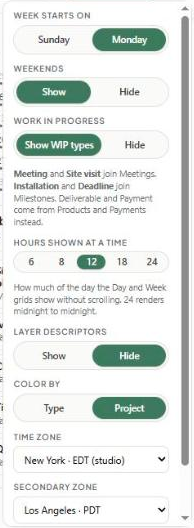
Week starts on — Sunday or Monday.
Weekends — Show or Hide.
Work in progress — Show WIP types folds WIP items into the matching layers: Meeting and Site visit join Meetings; Installation and Deadline join Milestones. Deliverable and Payment come from Products and Payments instead.
Hours shown at a time — 6, 8, 12, 18 or 24. How much of the day the Day and Week grids show without scrolling; 24 shows midnight to midnight.
Layer descriptors — Show or Hide short explanations under each layer.
Color by — Type (layer colours) or Project (project colours).
Time zone — the zone the grid is drawn in. Times are stored in studio time.
Secondary zone — adds a second time gutter to Day and Week, handy when a client or site is in another time zone.
Was this helpful?
Still need help? Ask the team