Creating Your First Contract
Written By Timothy Murenzi
Every contract starts from the New contract button at the top right of the Contracts page. You have three ways to begin.
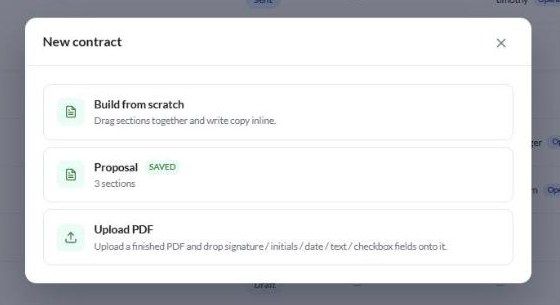
Workroom doesn't come with built-in Simple, NDA or MSA templates. The list only shows templates your studio has saved. To get a first draft without a template, use Draft with AI (Walter) once the contract is open — see Saved Templates & Walter.
Step by step
Go to Contracts and click + New contract.
Choose Build from scratch, a saved template, or Upload PDF (then pick the file).
In Contract details, enter a Contract name (for example 2026 Design Services Agreement).
Optionally pick a Client. Leave it on — no client (send to a prospect) — if the person isn't in Workroom yet.
Optionally pick a Project. Linking one fills in merge fields like the project name.
Click Create contract. The editor opens and the contract is saved as a Draft.
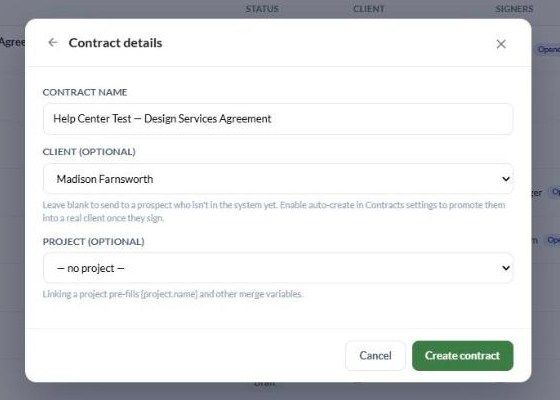
Use the ← arrow at the top left of the dialog to go back and pick a different starting point.
Sending to a prospect
If you leave Client empty, you can still add the prospect as a signer by name and email. Turn on Auto-create the client (and, if you like, Auto-create the project) in Settings → Studio → Contracts. When the contract is fully signed, Workroom then creates the contact and project for you. See Settings & Automation.
What you'll see next
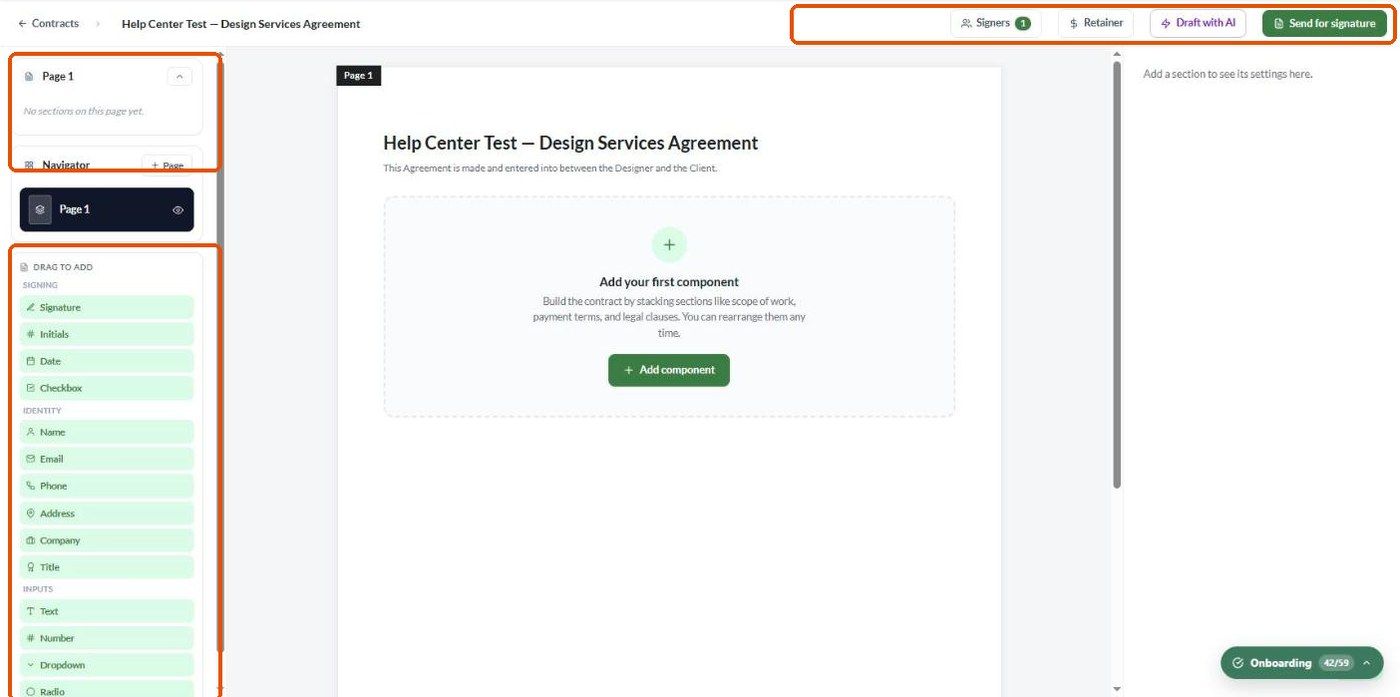
A new contract built from scratch opens with an empty page and an Add your first component prompt. Continue with The Contract Editor.
Troubleshooting
My template isn't in the list. Only templates saved as a whole contract appear here. Section templates are added from inside the editor. Check Settings → Studio → Contracts → Contract templates.
Upload PDF fails. Make sure the file is a regular PDF without a password. Scanned PDFs sometimes need re-saving (for example "Save as optimized PDF") first.
The client I want isn't in the dropdown. Add them under Contacts first, or send to them as a prospect.
Was this helpful?
Still need help? Ask the team