The Client Portal
Written By Timothy Murenzi
The client portal is your client's own branded view of their project. They can message you, pay invoices, approve estimates and products, and see their budget and schedule — with your costs and internal notes hidden. This article covers what they see and how you control it.
Turn the portal on for a project
Open the project and click the Client portal tab. You can also reach it from a Comms room: ⋯ → Client portal →.
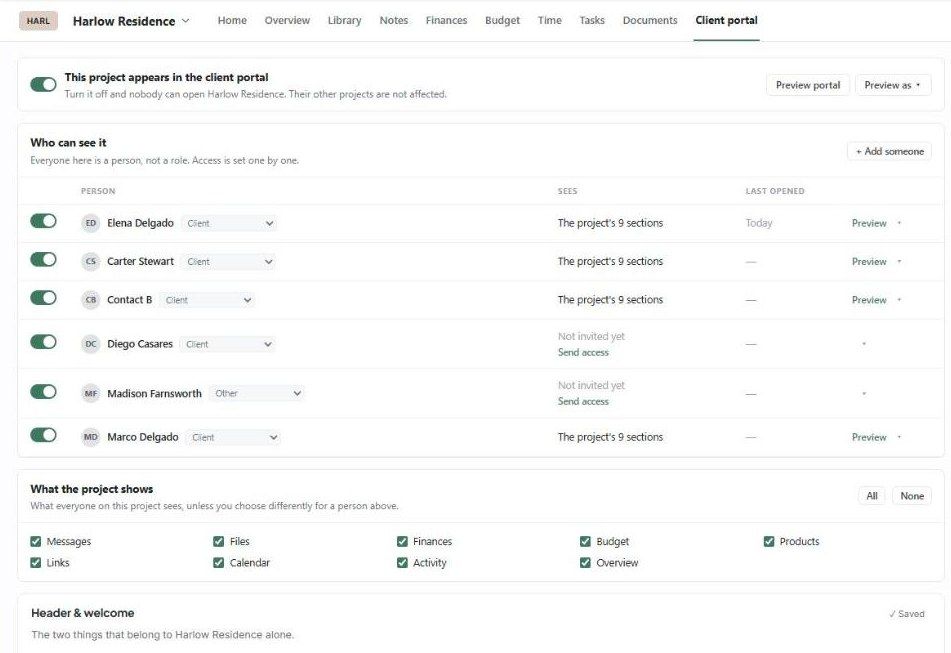
This project appears in the client portal — the master switch. Turn it off and nobody can open the project. The client's other projects aren't affected.
Preview portal and Preview as ▾ — open the portal as a new client, or as a specific person. Previews are read-only: Nothing you click here is saved.
Who can see it
Access is set person by person:
The toggle turns that person's access on or off.
The role dropdown: Client, Partner, Family, Stakeholder, Architect, General Contractor, Electrician, Plumber, Interior Consultant, Structural Engineer, Landscape or Other.
Sees shows how much they can see (e.g. The project's 9 sections). If they haven't been invited, you'll see Not invited yet and a Send access link.
Last opened, a per-person Preview, and a ▾ menu for per-person choices.
Click + Add someone to add a person.
What the project shows
Tick the sections everyone on the project sees: Messages, Files, Finances, Budget, Products, Links, Calendar, Activity and Overview. Use All or None to set them all at once. You can override this for one person in the list above. A hidden section is removed from the menu and can't be opened by its address.
The rest of the Client portal tab
Header & welcome — a banner (Plain, or an Image such as the project cover, at least 2400×900) and a welcome message signed with your firm name.
Investment overview — show Exact amounts or Percentage only, and choose which sections appear: Budget and what is committed, What it went to, Furnishings by room, Furnishings by category, Design fee, Extra costs, Retainers and Change orders waiting. Margin, vendor cost and vendor payables are never shown.
Products — how the schedule is organised (Room, Category or Status) and which fields reach the client:
Description
Pricing
Specifications
Identifiers & sourcing — vendor, product URL, spec #, model #, product #. All are off by default.
Procurement dates
Tracking
Name, image, quantity and approval state always show. Cost, markup and margin never do.
Each block saves on its own (✓ Saved).
What your client sees
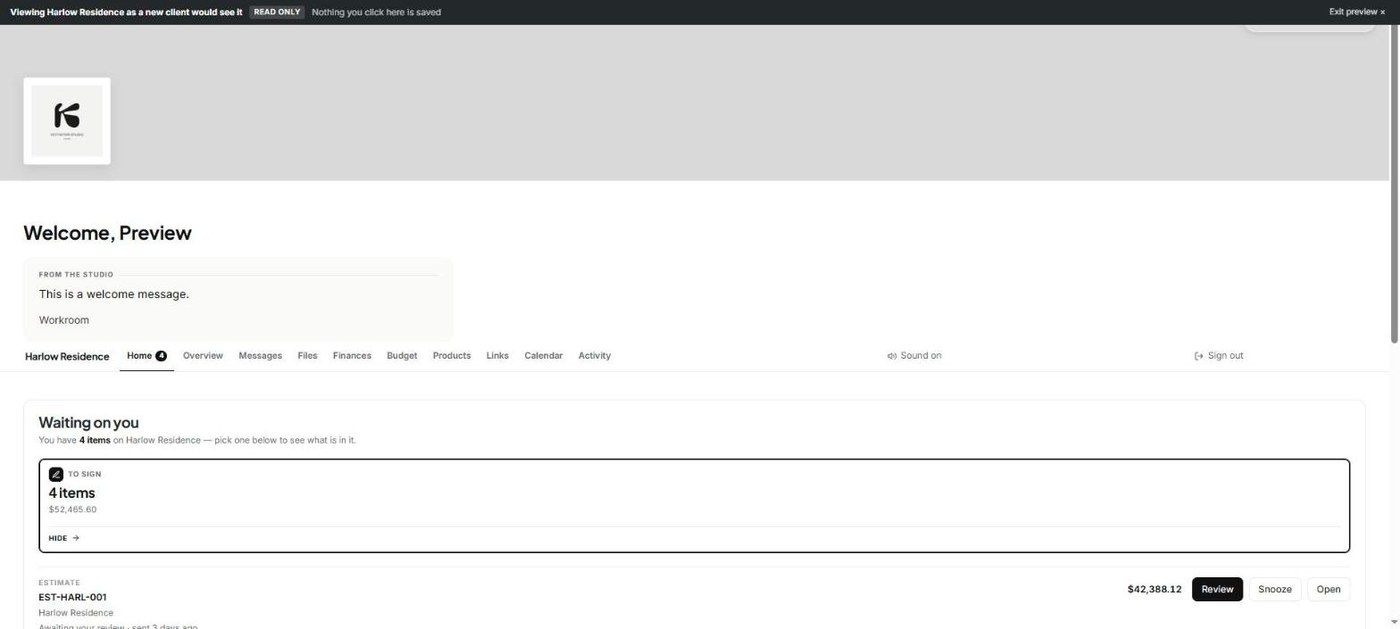
Across the top: the project name and the pages Home, Overview, Messages, Files, Finances, Budget, Products, Links, Calendar and Activity, plus Sound on and Sign out. A client with more than one property can switch between them.
Home
Waiting on you — cards for what needs their action, such as To sign · 4 items · $52,465.60. Each item has Review, Snooze and Open.
The Work — tiles for the rooms they can open (selection schedules and conversations).
Messages
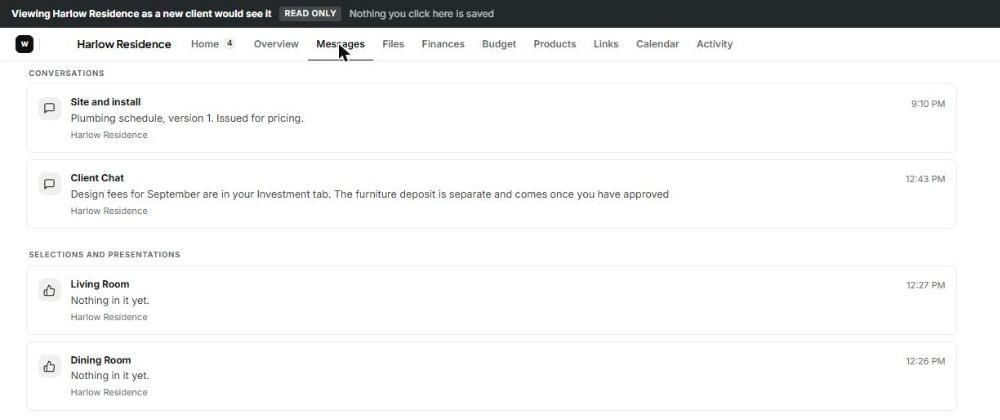
Their conversations, plus a separate group for selections and presentations, each with the latest message.
Products
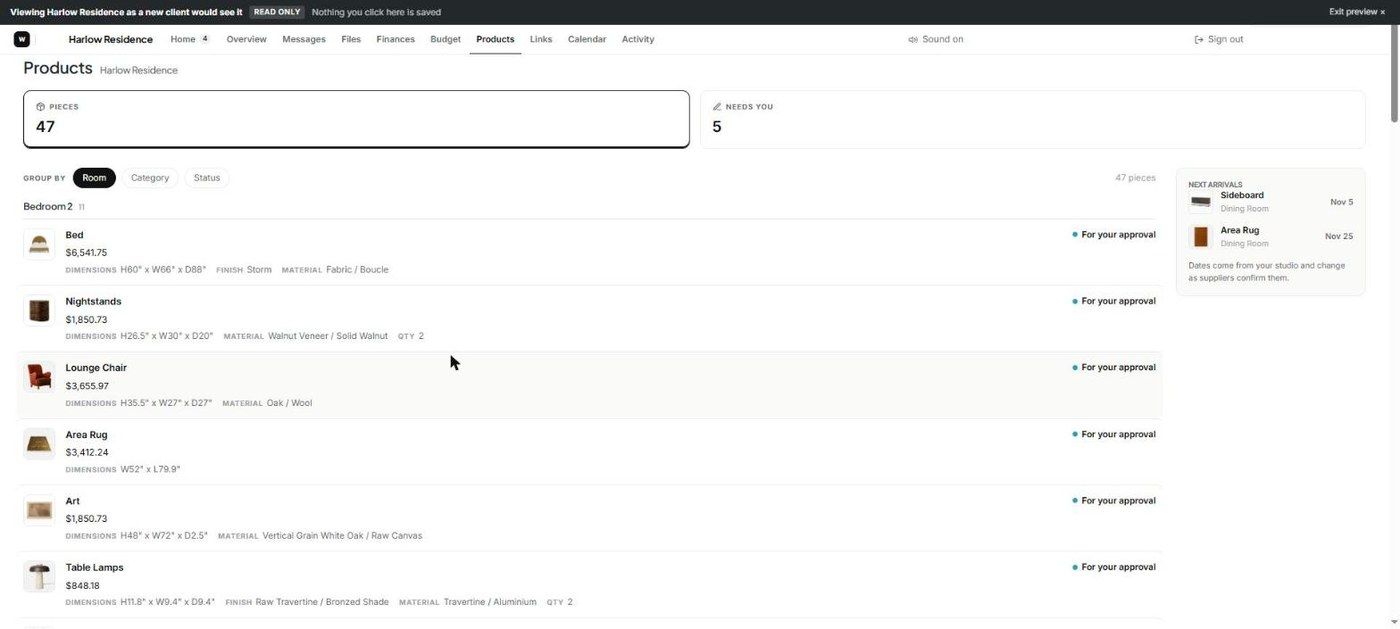
Their schedule, using client-friendly names and your client status words (e.g. "For your approval"). Vendors and spec numbers are hidden. The Next arrivals panel shows upcoming deliveries.
Budget
Committed, Invoiced, Paid and Outstanding. If no total has been agreed, nothing is shown as a percentage.

What a client can do
Pay an invoice.
Approve or reject a product, with a note.
Review and approve an estimate or change order.
Request changes — their note is posted into your shared room so you can reply.
Snooze an item until later.
Message you, and sign out.
Studio-wide portal settings
Go to Settings → Studio → Client experience:
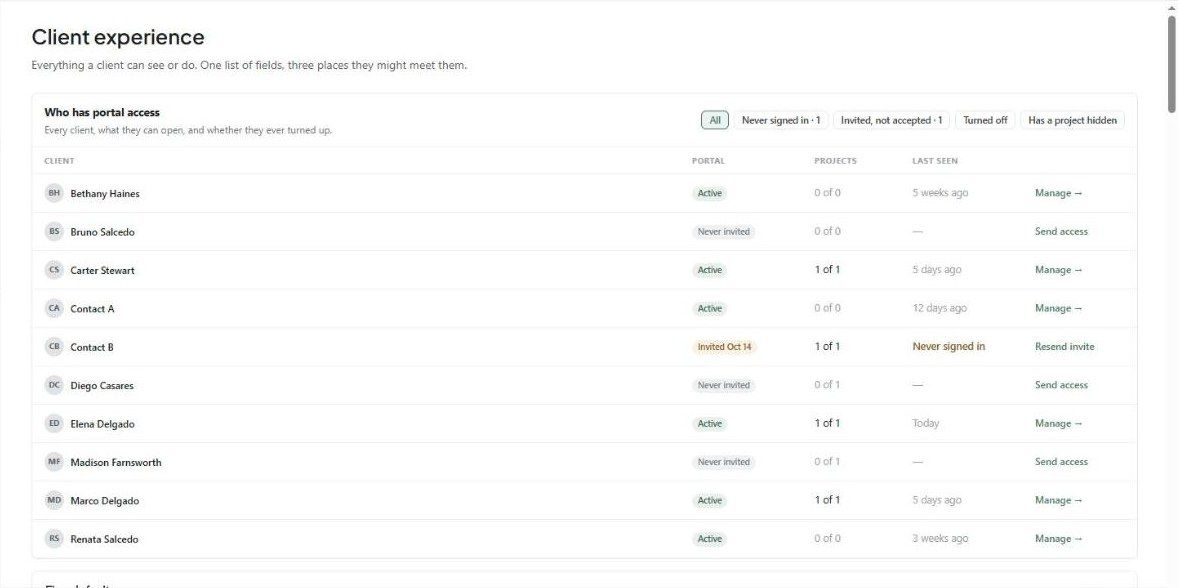
Who has portal access — every client's portal state (Active, Invited, Never invited), projects, and when they were last seen. Use Manage →, Send access or Resend invite. Filter by Never signed in, Invited, not accepted, Turned off or Has a project hidden.
Firm defaults — heading and body fonts, accent, page background and text colours, and Product statuses (what clients are told for each status, and whether it's shown).
Maintenance mode, What clients see on documents, What clients can do, Weekly client update, and Email clients who have not read their messages.
Was this helpful?
Still need help? Ask the team