The Gantt (Timeline) view
Written By Timothy Murenzi
The Timeline view (previously Gantt) lays your phases and tasks out on a calendar, with deliveries alongside.
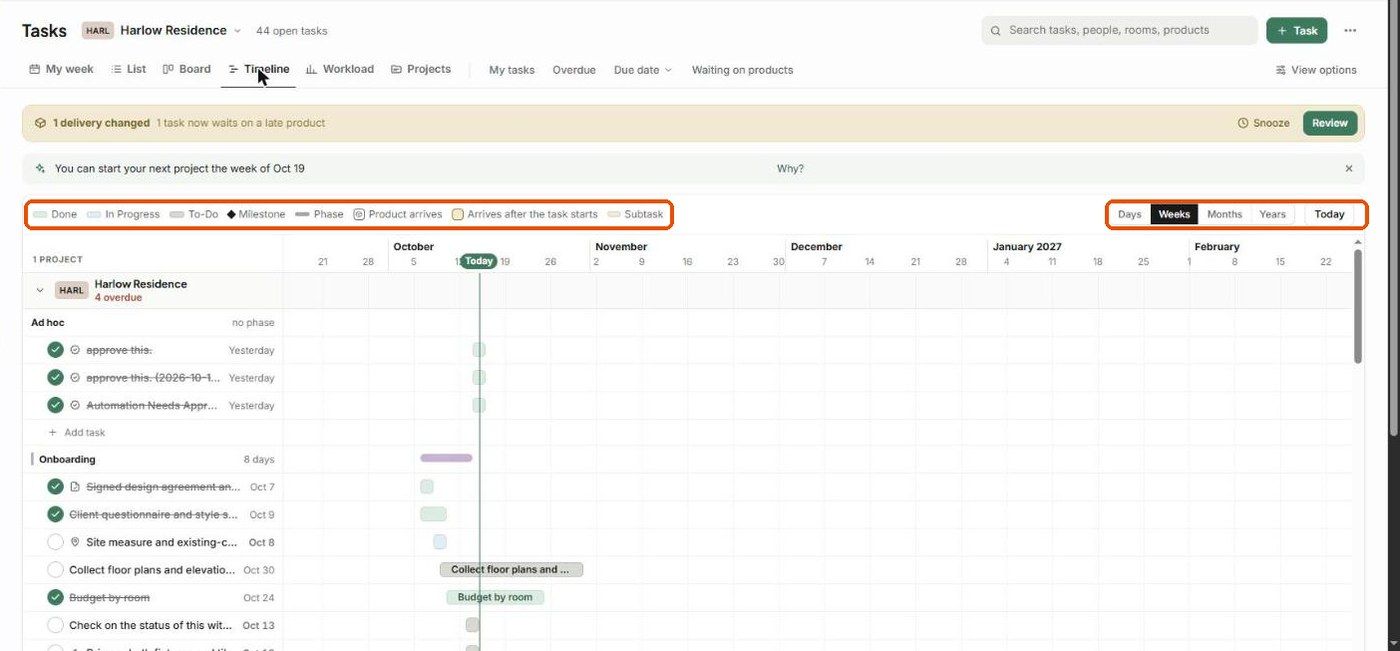
Reading the timeline
Each project is a group. Phases show as bars, with their tasks underneath.
The legend explains the bar types: Done, In Progress, To-Do, Milestone (diamond), Phase, Product arrives, Arrives after the task starts (a warning) and Subtask.
A Today marker shows the current date.
Scale and navigation
Switch the scale between Days, Weeks, Months and Years.
Click Today to jump back.
Under View options: Collapse all projects, Show subtasks, Show done tasks, saved views, and — once you've saved one — the original plan (see Baselines).
Scheduling
Drag a task bar to move it, or drag its ends to change its length. Changes save automatically.
When dates move, use ⋯ → Tell people about date changes to let the team know.
When can you start the next project?
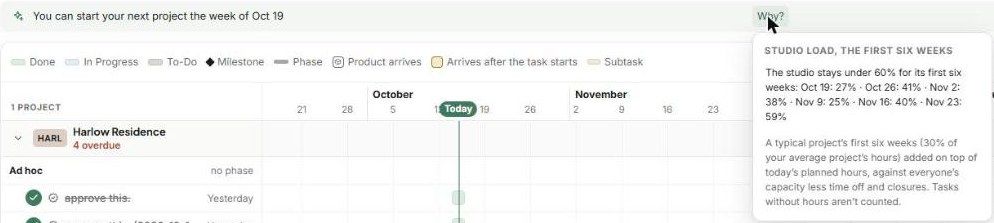
A tip above the timeline suggests when your studio can take on another project (e.g. You can start your next project the week of Oct 19). Click Why? to see the studio's load for the next six weeks and how it was worked out: a typical project's first six weeks, added to today's planned hours, against everyone's capacity minus time off.
Related articles
Dependencies & Critical Path
Baselines
Sharing a public timeline link
Was this helpful?
Still need help? Ask the team