Baselines
Written By Timothy Murenzi
A baseline — called the original plan in Workroom — is a snapshot of every phase's and task's dates. Save one when the client agrees the schedule, then compare it with reality as the project moves.
Save the original plan
Open Tasks and pick the project.
Click ⋯ (top right) → Save today's plan as the original.
Read the confirmation, then click Save as the original.
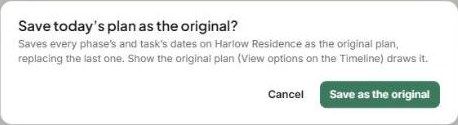
Saving replaces the last original plan. Only save again when you deliberately want a new baseline — for example after a change order the client has signed.
Compare against it
On the Timeline, open View options and turn on Show the original plan. The saved dates are drawn alongside today's bars, so slippage is easy to spot.
Tips
Save the original right after the design agreement is signed.
When dates move, use ⋯ → Tell people about date changes to let the team know.
Phases and colours
Phases group related tasks (Design, Procurement, Installation…) and each has a colour that's used across List, Board and Timeline. Default phases come from Settings → Studio → Projects and phases. See How to: Default Project Phases.
Related articles
The Gantt (Timeline) view
Was this helpful?
Still need help? Ask the team