Getting started with Work In Progress
Written By Timothy Murenzi
Tasks (formerly Work In Progress) is where you plan and track the work on every project — phases, tasks, subtasks, dates, people and hours. The same tasks power six views, so a change made in one shows up in all of them.
Where to find it
Tasks under MANAGEMENT in the left sidebar. Use the project picker beside the title (e.g. HARL Harlow Residence ▾) to focus on one project, or look across all of them.
From a project, use Open in Timeline on the Projects view.
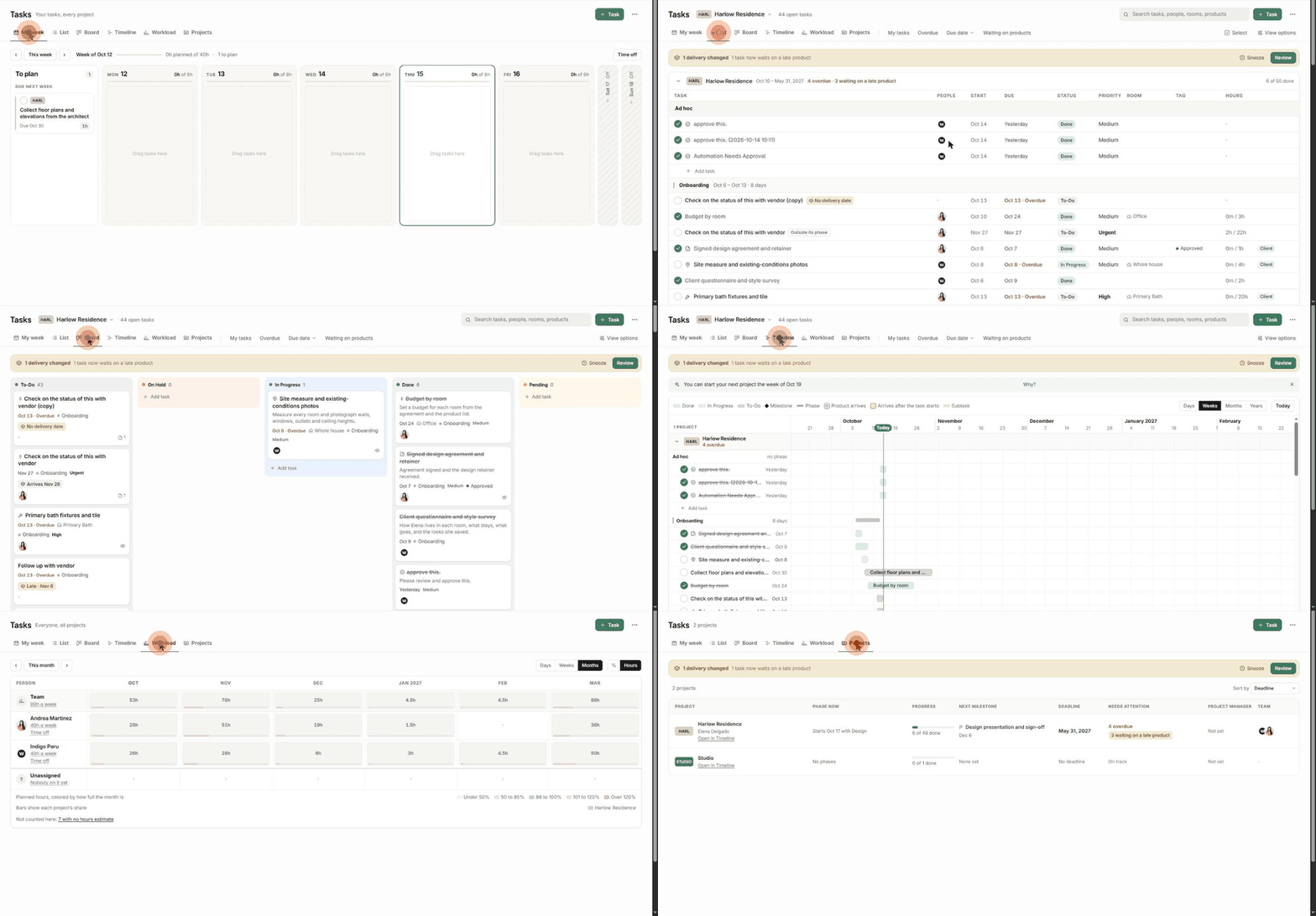
The six views
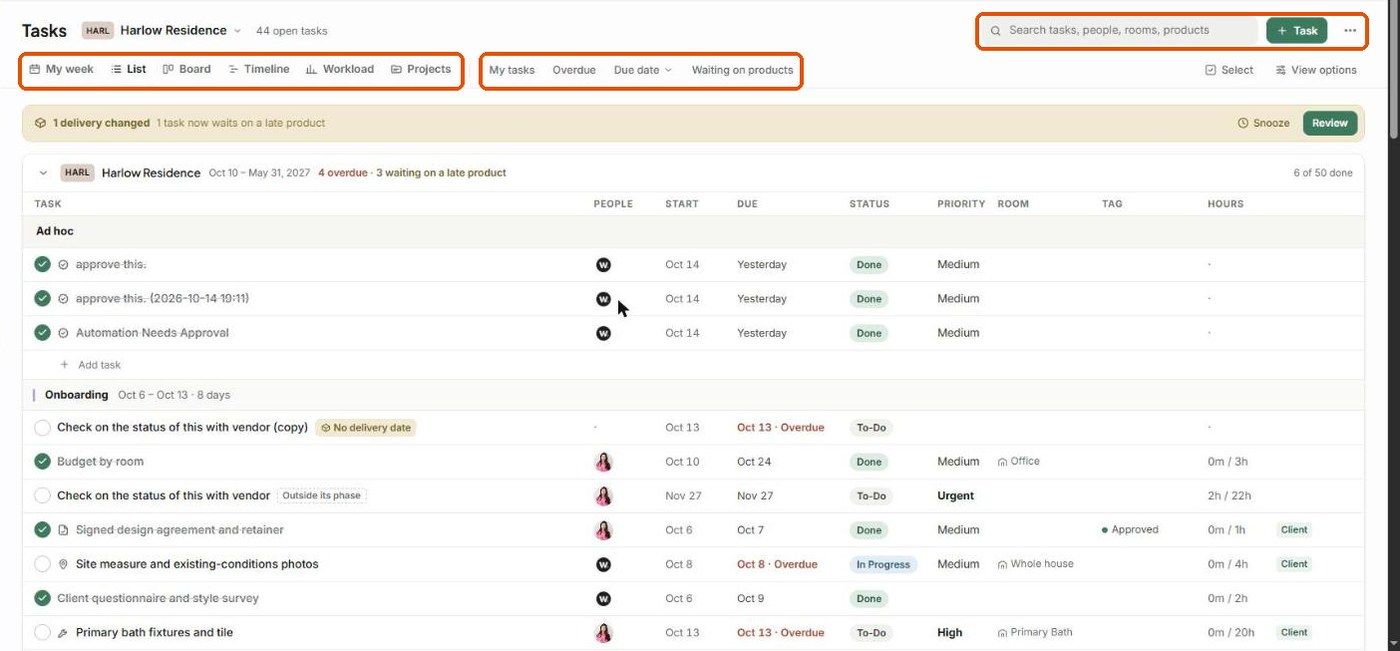
The header
Search tasks, people, rooms, products
+ Task — add a task.
⋯ — add a project to Tasks, add tasks from a template, import tasks, tell people about date changes, export a PDF, public links, save today's plan as the original, and Trash.
Quick filters: My tasks, Overdue, Due date and Waiting on products.
Select for bulk edits, and View options for grouping, sorting, columns and saved views.
Alerts that keep the plan honest
Delivery changed — when a product's delivery date moves and a task depends on it, a banner appears. Click Review to see what moved, then Move it to the new date, Do it without product, or Got it. You can also Snooze the banner.
Task badges such as Overdue, Outside its phase, No delivery date and Late · Nov 6 flag problems inline.

What happens next?
Start with The Table view (List) to add tasks.
Use Creating Task Templates so new projects arrive pre-planned.
Related articles
The Task panel (task details)
The Gantt (Timeline) view
The Utilization view (capacity planning)
Was this helpful?
Still need help? Ask the team