The Contract Editor
Written By Timothy Murenzi
The editor is where you build the contract's body, place the fields people fill in, and set up who signs. It has a left rail, the page canvas in the middle and a settings rail on the right. Changes save automatically.
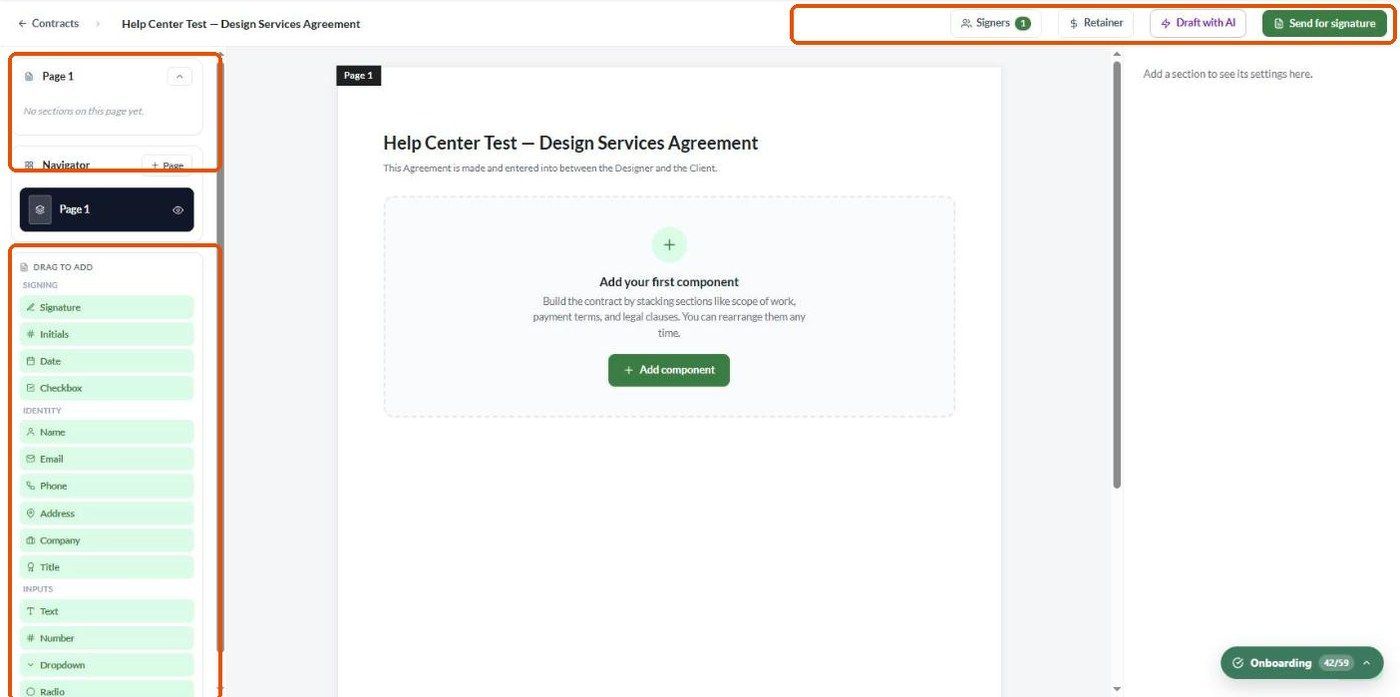
The header
← Contracts — back to the list. The contract name appears beside it.
Signers — add signers and choose the signing order. The badge shows how many signers there are.
Retainer — collect a payment with the contract. See Retainer Payments.
Save as template — save the whole contract for reuse.
Draft with AI — have Walter write the whole contract from a short prompt.
Send for signature
The left rail
Page sections (for example Page 1) — every section on the current page. Click one to select it. Use its ⋯ menu for section actions.
Navigator — every page in the contract. Click + Page to add one. The eye icon hides a page and the bin deletes it. Long sections flow onto new pages automatically.
DRAG TO ADD — the field palette (see below).
Adding sections (components)
Click + Add component on an empty page, or the + between two sections, then choose a type.
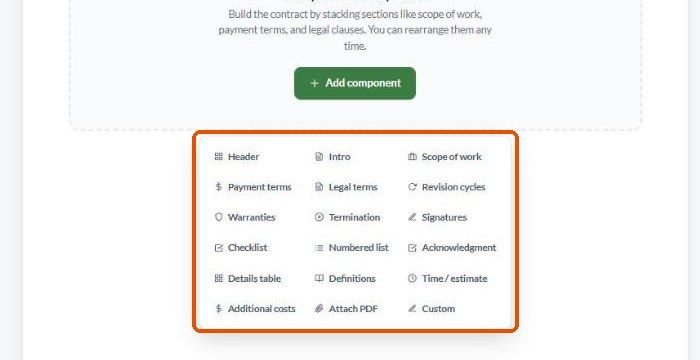
Edit a section's text directly on the page. To remove a section, use the bin icon in its top-right corner.
Section settings (right rail)
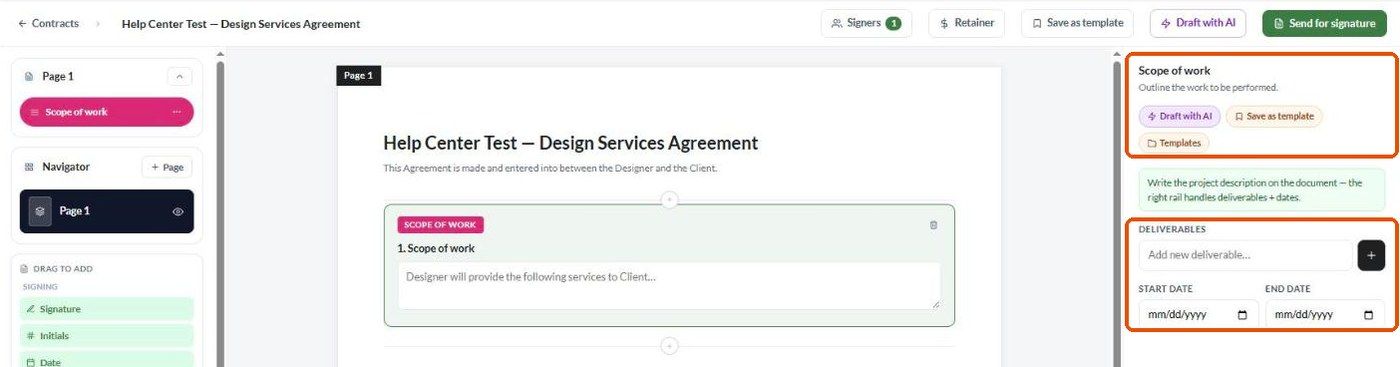
When a section is selected, the right rail shows its name and description, plus these actions:
Draft with AI — Walter writes this section.
Improve — Walter rewrites what's already there.
Save as template — save just this section.
Templates — insert one of your saved section templates.
Some sections have extra fields. For example, Scope of work has a Deliverables list (type one and click +) and Start date / End date boxes.
Placing fields
Fields are what signers fill in. Drag one from DRAG TO ADD and drop it on the page where it belongs.
Signing: Signature, Initials, Date, Checkbox
Identity: Name, Email, Phone, Address, Company, Title
Inputs: Text, Number, Dropdown, Radio
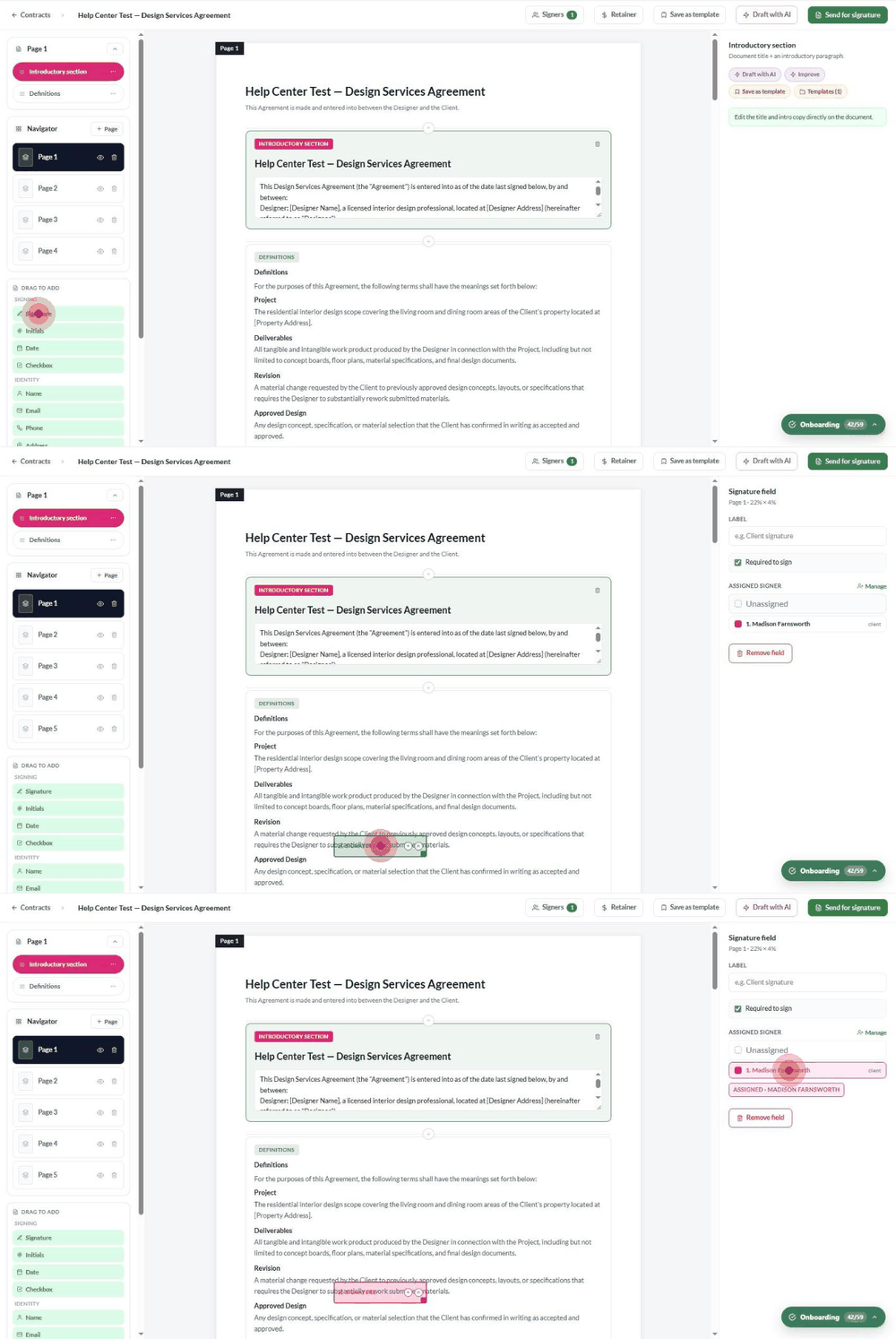
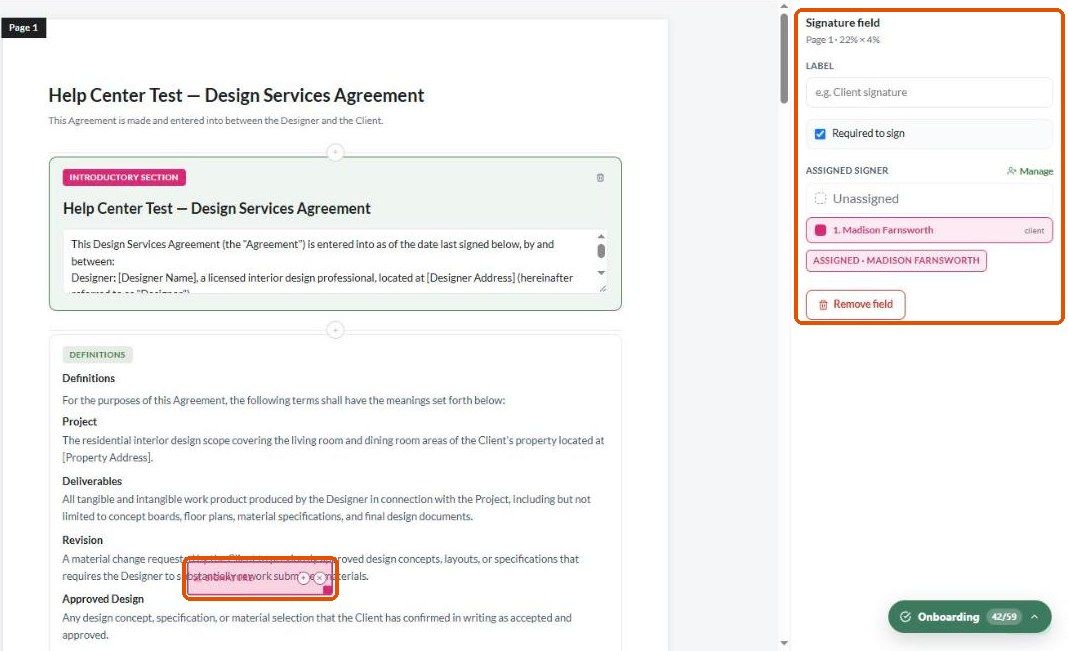
Click a placed field to set it up in the right rail:
Label — for example "Client signature".
Required to sign — on by default.
Assigned signer — pick who fills it in. The field takes on that signer's colour. Use Manage to edit the signer list.
Remove field
The rail also shows where the field sits (for example Page 1 · 22% × 4%). Drag the field to move it.
Add signers first. A field can only be assigned to someone already listed under Signers. Every signer needs at least one signature field before you send.
Uploaded PDFs
If the contract started from Upload PDF, the left rail explains that the PDF is the document body. You can't add sections — drag fields onto each page instead.
After sending
Once a contract leaves Draft, the editor opens read-only, with a yellow banner: This contract has left the draft state (sent). Edits are disabled — open in view-only mode.

Troubleshooting
A field won't drop. Drop it on the page itself, not on the grey area around it.
I can't assign a field. Add the signer under Signers first.
A section split across two pages. Pages flow automatically. Shorten the section or add a page break by moving sections onto a new page in the Navigator.
I can't edit anything. The contract has been sent. See Sending a Contract for Signature for what you can still change.
Was this helpful?
Still need help? Ask the team