Dates that move on their own
Written By Vinod Kumar Alluri
Some dates on the Calendar are never typed by anyone — Workroom works them out and moves them for you when the inputs change. The most important of these are the red order-by dates: the last day you can order a product and still have it on site, checked and ready for install day. This is the part of the calendar most studios underuse.
How an order-by date is calculated
Order-by date = install date − vendor lead time − receiving buffer
Install date — set on the product.
Vendor lead time — read from the product. Workroom understands "10 weeks", "8–10 wks" or "60 days"; a range always plans against its far end, so "8–10 wks" counts as 10 weeks.
Receiving buffer — the time between goods leaving the vendor and being ready to install: transit, receiving, inspection, damage claims and delivery to site. You set this once for the studio, and optionally per project.
Example: a sofa installs on Monday 1 March 2027, the vendor quotes "8–10 wks", and your receiving buffer is 4 weeks. Workroom plans on 10 + 4 = 14 weeks, so the red order-by chip lands on Monday 23 November 2026.
Set the studio receiving buffer
Go to Settings → Studio tab → Calendar.
Under Receiving buffer, enter the Studio default in weeks (new studios start at 4 weeks).
Click Save changes at the bottom of the page.
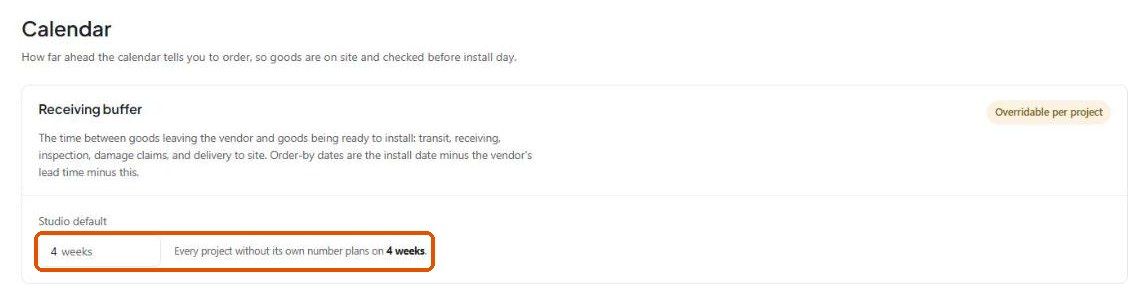
Every order-by chip on the calendar is computed from this number, so changing it moves them all at once.
Give a project its own buffer
A distant site, a building with a booked service elevator, or a warehouse that holds goods before release — those projects receive differently. Give them their own number:
On the same page, scroll to Projects with their own buffer.
Click All projects to list every project (click Only overrides to go back to just the ones you've changed), or use Find a project to search.
Type a number of weeks in the project's Its own buffer box. The Orders this far ahead column shows the result.
Click Save changes.
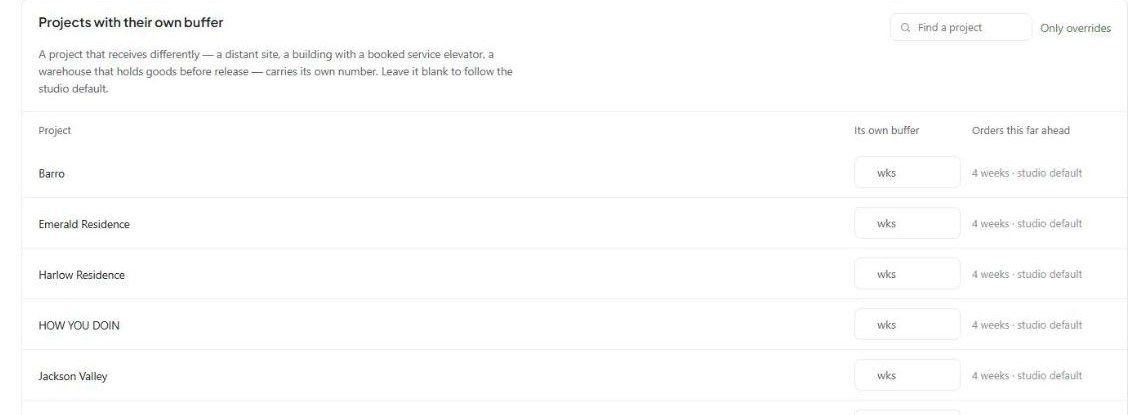
Leave a project's box blank and it follows the studio default (shown as 4 weeks · studio default).
Before you change a buffer

It moves dates people have already planned around. An order-by date is calculated, not stored, so a new buffer applies to every unordered item at once — including ones somebody has already worked backwards from.
Past deadlines never move. If an order-by date has already passed, a new buffer won't drag it forward. A missed deadline that quietly becomes a met one is worse than a missed deadline you can see.
Other dates that update themselves
Deliveries follow the product's ship, arrival and install dates. Change them on the product (or its PO) and the calendar follows.
Shipment tracking — if a product has tracking set up, carrier updates write the procurement dates for you, so the delivery chip moves on the calendar without anyone touching it.
Money chips follow invoice and bill due dates; Tasks follow WIP due dates; Milestones follow project phases and deadlines.
Order-by date looks wrong? Check, in order: the product's install date, the product's vendor lead time, and the receiving buffer (studio default or that project's override). Those three are the only inputs.
Was this helpful?
Still need help? Ask the team