The Table view
Written By Timothy Murenzi
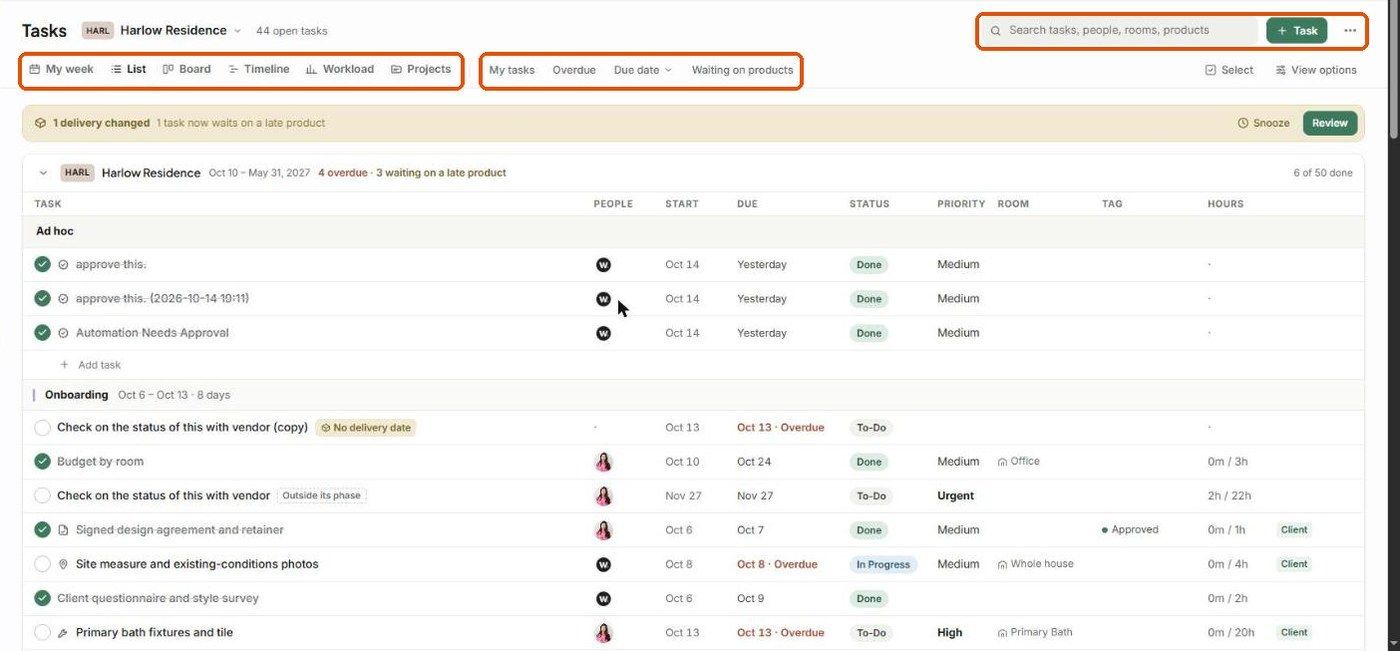
The List view (previously called Table) is a spreadsheet-style list of tasks, grouped by phase, that you can edit without opening anything.
How it's laid out
Each project has a header showing its dates, risks (e.g. 4 overdue · 3 waiting on a late product) and progress (6 of 50 done).
Tasks are grouped by phase (e.g. Onboarding, Design, Procurement), each with its date range. Tasks without a phase sit under Ad hoc.
Columns: Task, People, Start, Due, Status, Priority, Room, Tag and Hours (logged / estimated). A Client badge marks tasks the client can see.
Editing
Click the circle beside a task to mark it done.
Click a task to open the task panel on the right. See The Task panel.
Click + Add task at the bottom of a phase to add a task there.
Subtasks show under their parent with a count (e.g. 0/4).
Bulk edits
Click Select, tick several tasks, then use the bulk bar to change them together.
View options
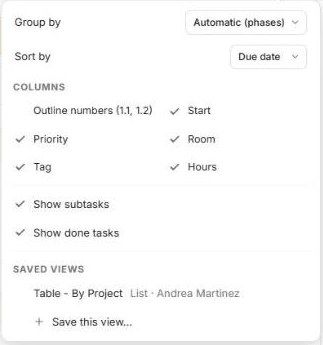
Click View options:
Group by — e.g. Automatic (phases).
Sort by — e.g. Due date.
Columns — outline numbers (1.1, 1.2), Start, Priority, Room, Tag, Hours.
Show subtasks and Show done tasks.
Saved views — see Saved Views & default view.
Filters
My tasks, Overdue, Due date and Waiting on products narrow the list. The search box finds tasks by name, person, room or product.
Related articles
The Task panel (task details)
The Kanban view
Was this helpful?
Still need help? Ask the team